Dolphin Anty for Multi-Accounting: Features, Automation, and Proxy Integration
How to use Dolphin Anty for multi-accounting: browser profiles, Cookie Robot, scenarios, Synchronizer, API automation, and three ways to connect SotaProxy proxies. Promo code SOTA20 gives 20% off.
If you use proxies not only to bypass regional restrictions, but also for multi-accounting, web scraping, and other tasks that involve simulating multiple users, a regular browser will not be enough. You will need an antidetect browser in addition to proxies.
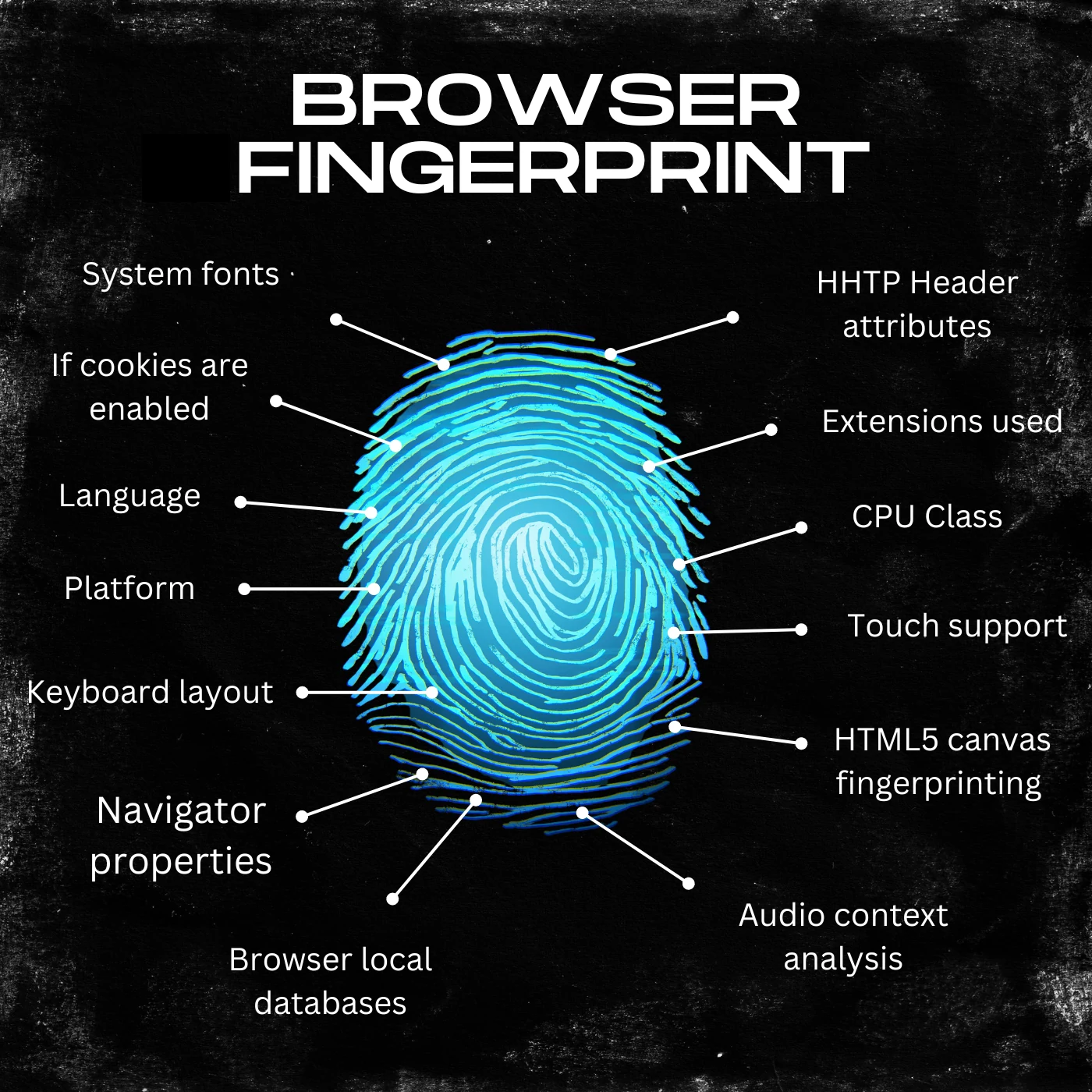
An antidetect browser performs two main tasks. First, it allows you to create multiple isolated browser profiles, each representing a separate user. Second, it modifies digital fingerprint parameters that websites can use to identify your device and browser.
Let’s take Dolphin Anty as an example to explore what an antidetect browser is, what features it offers, and how to use it.
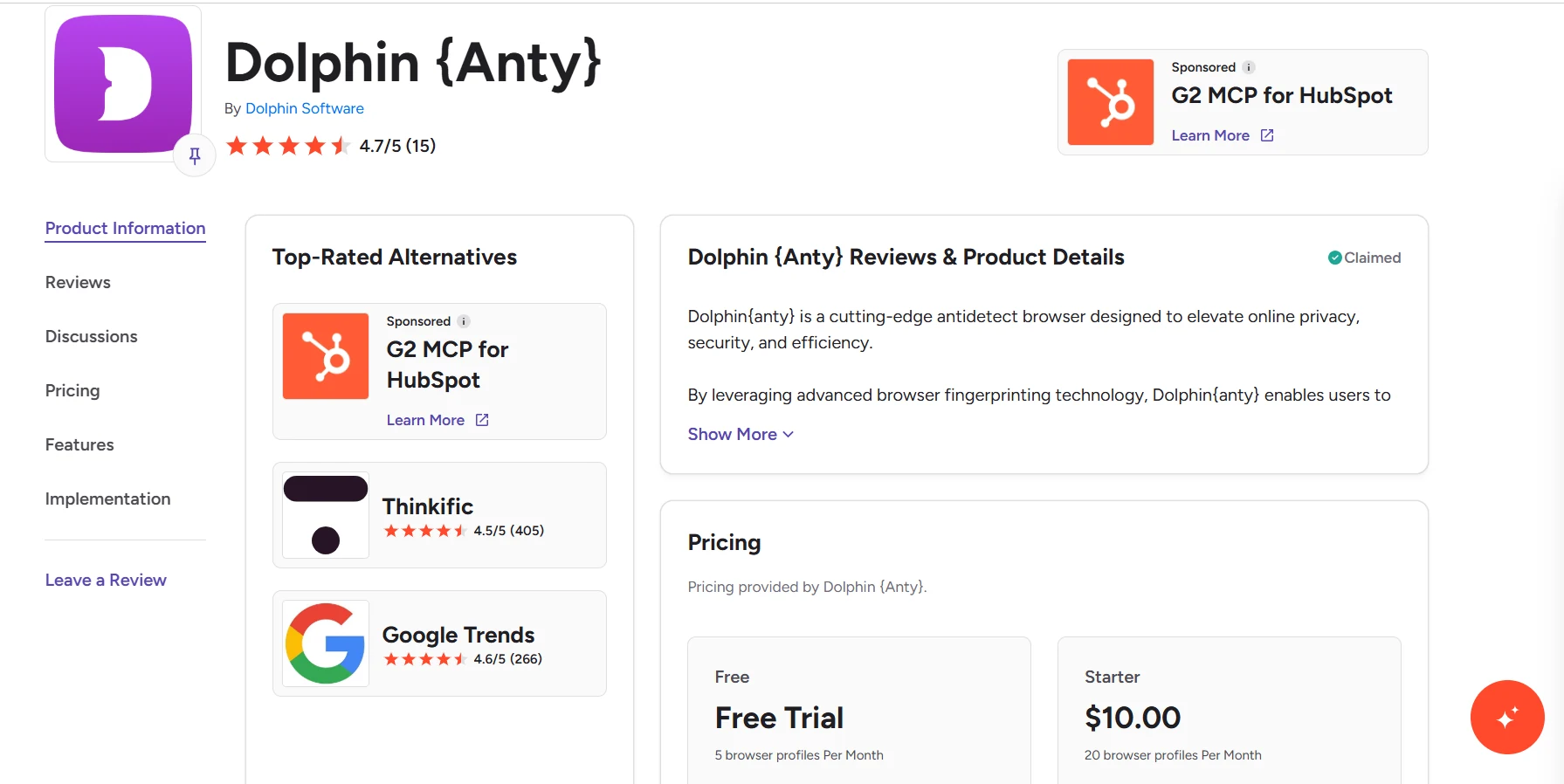
It is one of the popular antidetect browsers that regularly receives positive user reviews and high ratings. So, let’s take a closer look.
What is Dolphin Anty?
Dolphin Anty is an antidetect browser that modifies digital fingerprint parameters, including Canvas, User-Agent, graphics card data, and other characteristics that websites can use to identify a user.
Important! An antidetect browser does NOT hide your browser and device parameters. Instead, it presents websites with a different set of values. A separate environment with its own fingerprint parameters, IP address, and cookies is called a browser profile (also simply a profile).
The ability to create multiple isolated browser profiles makes Dolphin Anty suitable for multi-accounting in affiliate marketing, SMM, large-scale ad campaigns, reputation management, and other similar tasks. An antidetect browser can even be useful for betting arbitrage when you need to work with multiple accounts.
At the same time, Dolphin Anty is not just a tool for managing multiple accounts. Working with a large number of profiles requires automation and ways to speed up routine processes, and Dolphin Anty offers a solid set of features for this as well.
Browser profiles: what are they and how do they work?
Browser profiles are at the core of Dolphin Anty. Each profile appears to websites as a separate digital identity, with its own set of fingerprint parameters, its own IP address provided through a proxy, as well as separate cookies, browsing history, and cache.
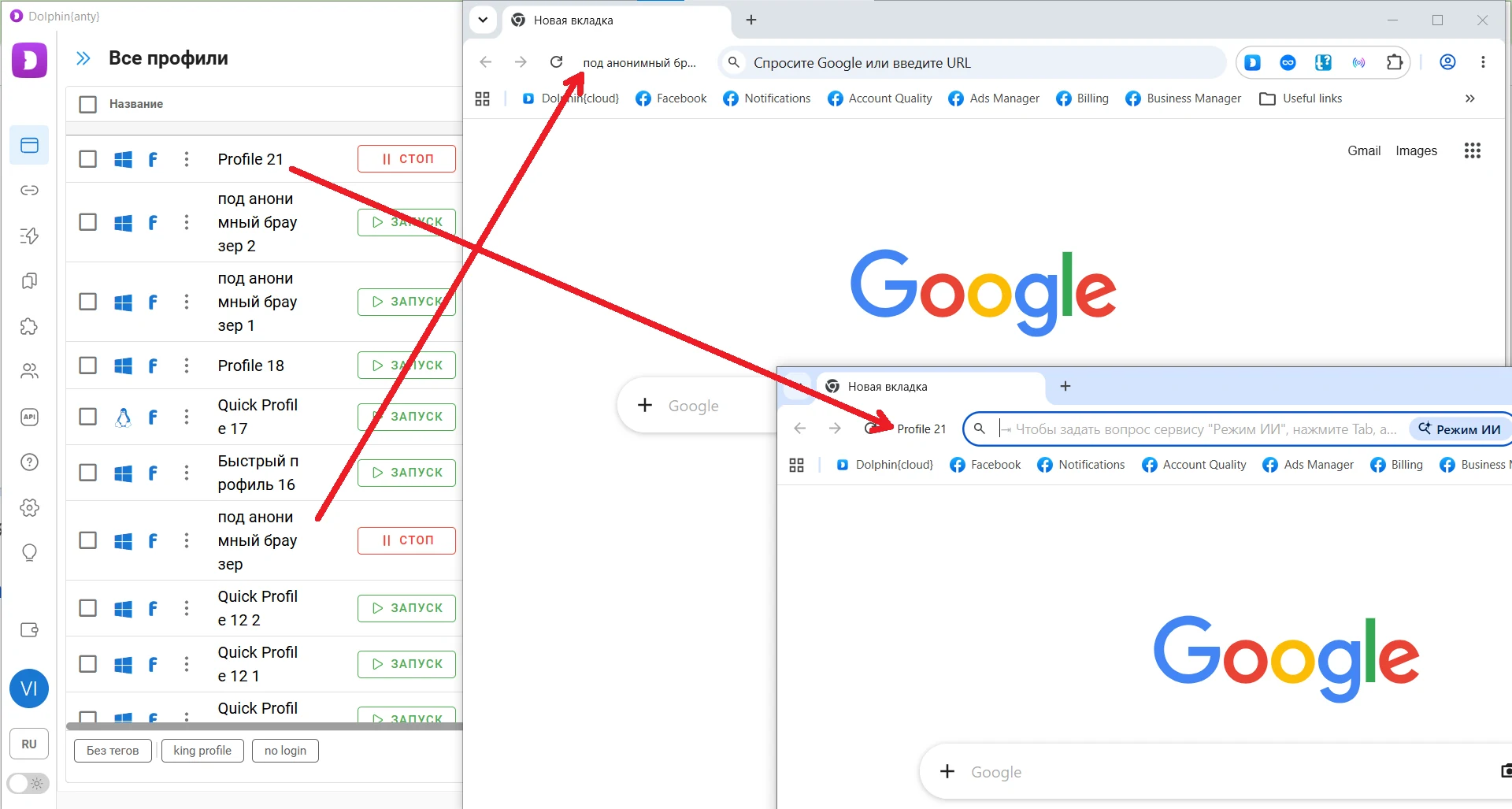
This is what two active browser profiles look like in Dolphin Anty.
Creating a browser profile in Dolphin Anty is too simple. Just click Create Profile above the profile list, enter a name, add a proxy, and import cookies if necessary. Dolphin Anty will automatically configure the remaining parameters.
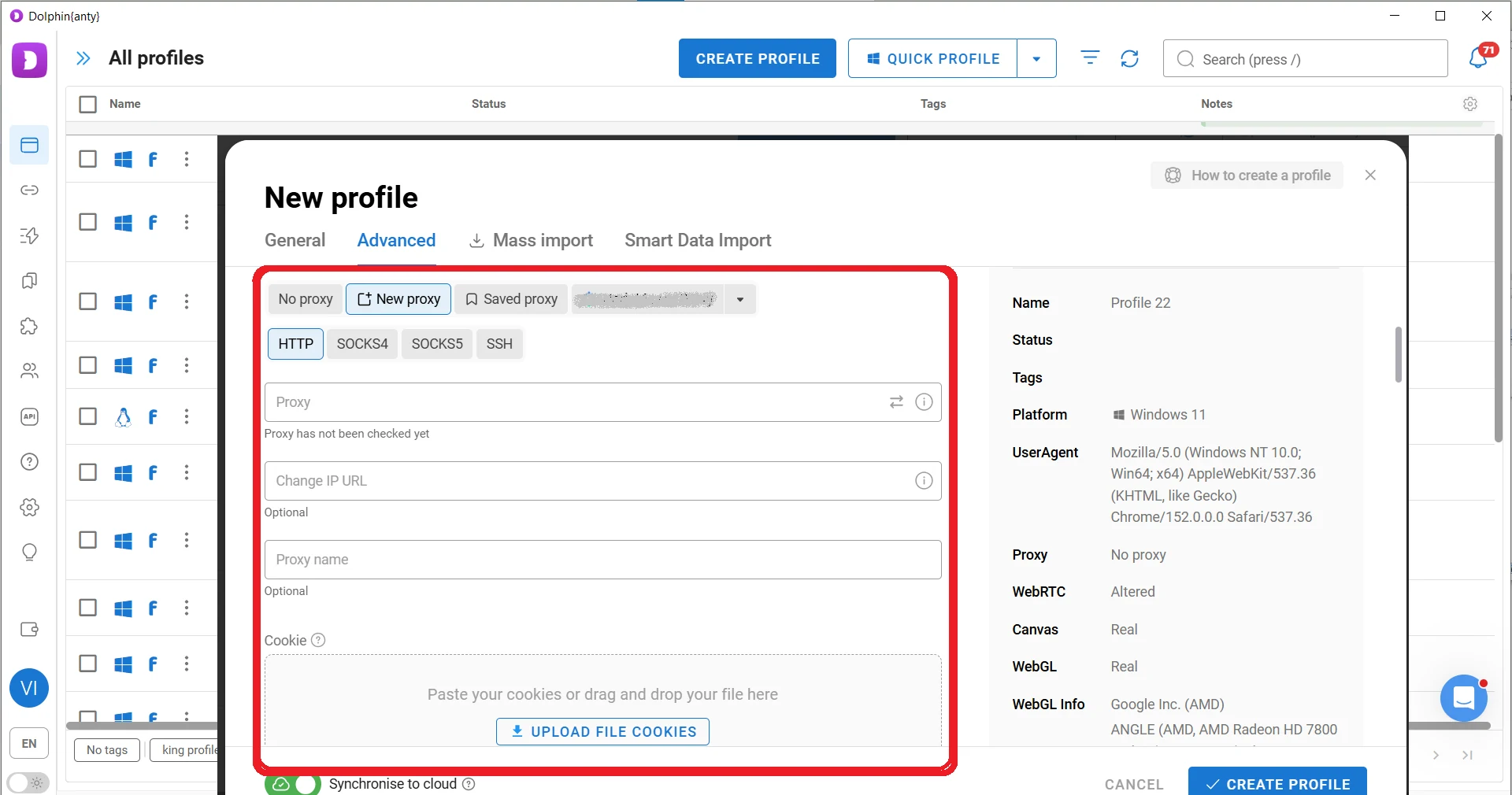
Dolphin Anty does not build a profile fingerprint from random parameters. Instead, it uses digital fingerprints of real users and selects one that best matches your operating system and proxy.
If you understand browser fingerprinting and know how different fingerprint parameters should work together, you can configure them manually. If you do not have this knowledge, it is better to keep the automatic settings and avoid changing fingerprint parameters yourself.
Important: each browser profile operates independently from the others. Profiles have separate cookies, digital fingerprint parameters, proxies, and cache. Thanks to this isolation, websites see them as different users that are not connected to each other.
Therefore, if an account in one browser profile gets blocked, it will not cause accounts in other profiles to be blocked or restricted, since their browser data and network parameters do not overlap.
Managing browser profiles
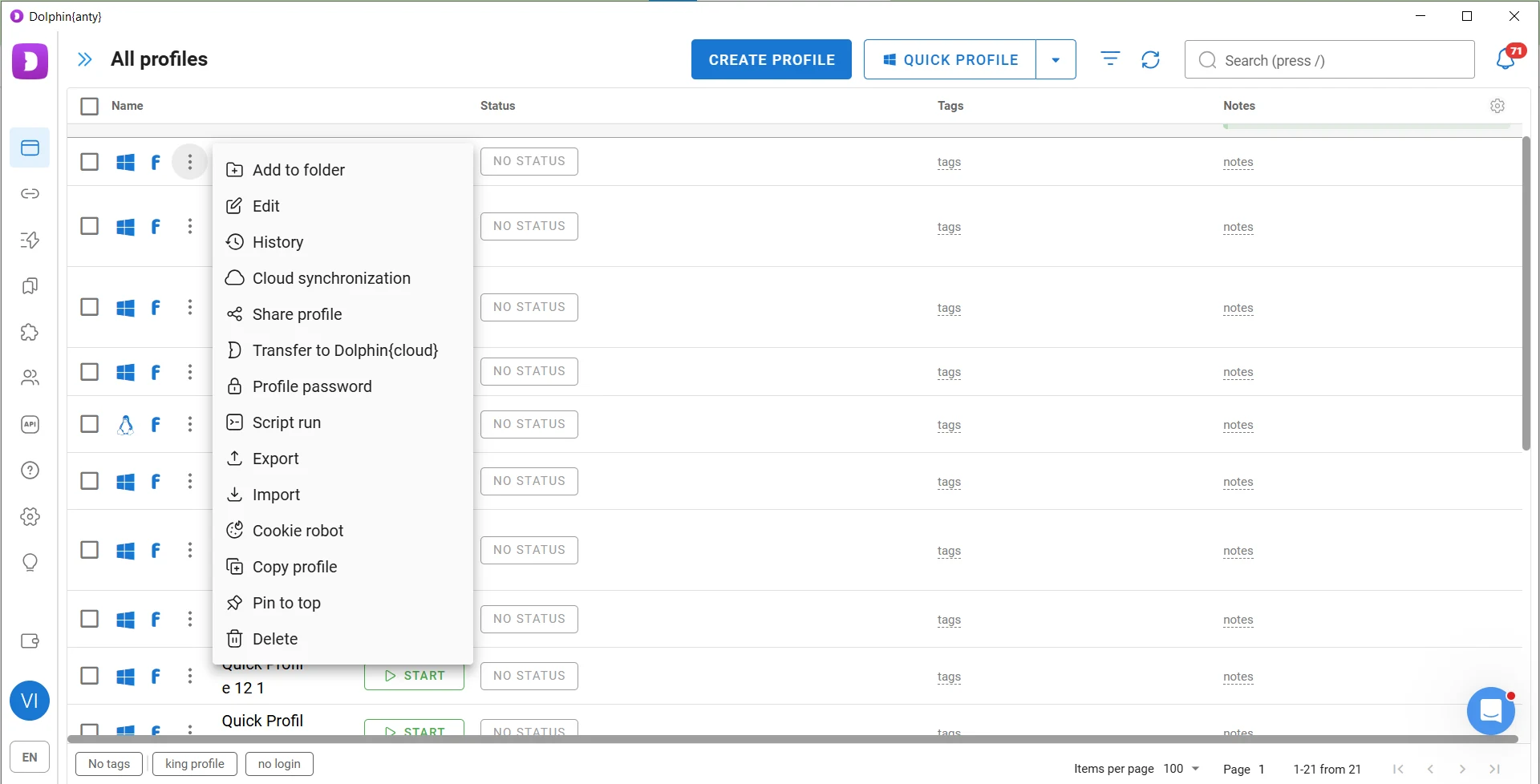
Once created, browser profiles can be managed individually or in bulk. When working with a single profile, you can:
Edit it: change its name, proxy, OS, and fingerprint parameters;
View activity history;
Transfer it to another user: simply enter the email address associated with their Dolphin Anty account;
Set a password: if you use a team account but do not want other team members to access your profile, you can protect it with a password;
Run scenarios (scripts): sequences of automated actions;
Export and import data: save browser profile data to your computer or import data from your computer into a profile;
Run Cookie Robot: collect cookies by visiting a predefined list of URLs;
Copy it: the antidetect browser will create copies of the profile with different fingerprints;
Delete (move it to Trash).
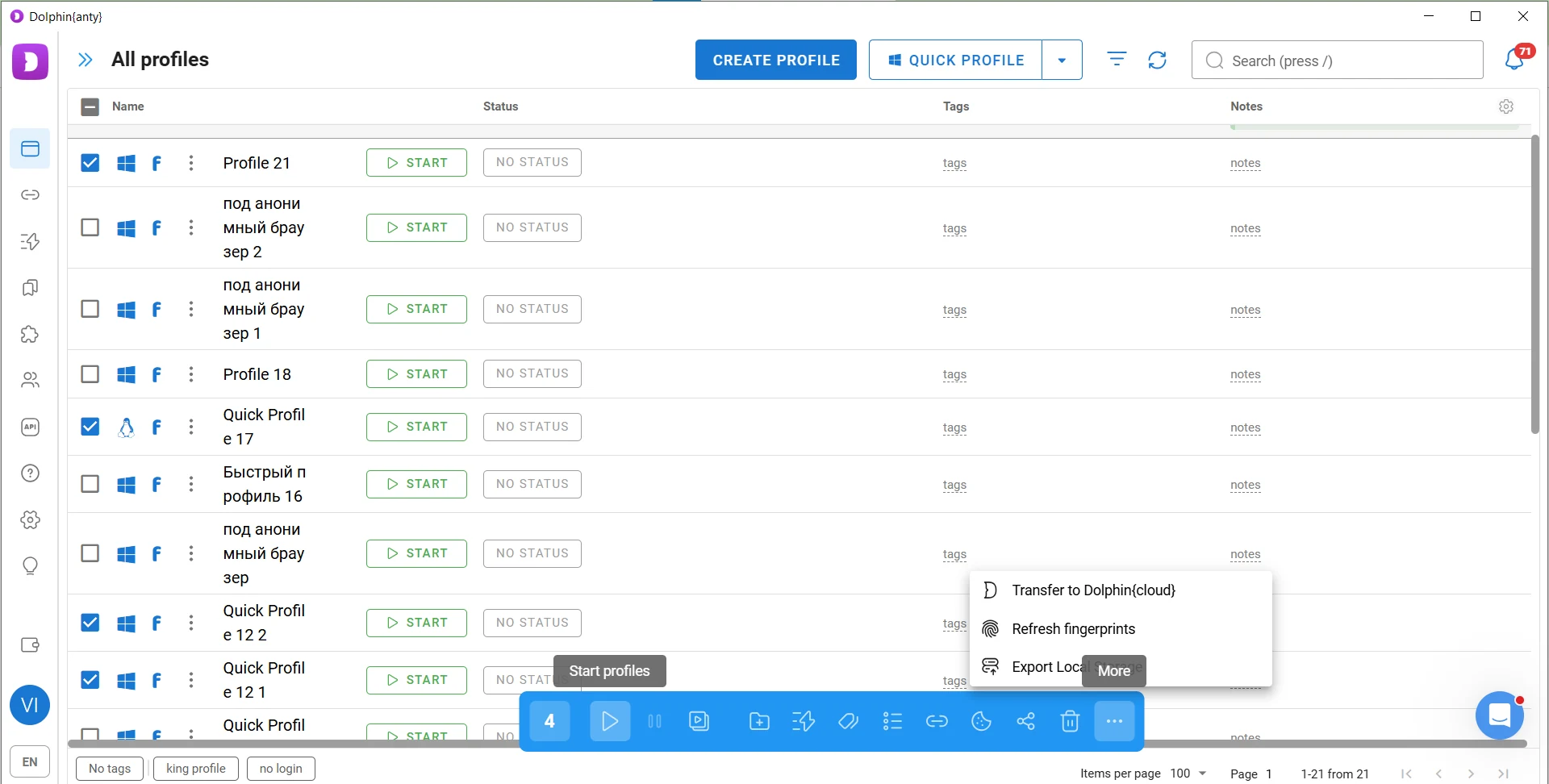
When working in bulk, many of the same actions are available for multiple selected profiles at once. To access bulk actions, select the browser profiles using the checkboxes, then use the panel that appears at the bottom of the screen.
Let’s take a look at two important features for fast, large-scale work: Cookie Robot and profile copying. We’ll come back to the other useful tools a little later.
Cookie Robot
Cookie Robot automatically collects cookies in a browser profile by visiting a predefined list of websites. A new profile with no cookies or browsing history may look unusual, since an average user typically has plenty of cookies stored in their browser.
Cookie Robot helps build this browsing history before registering an account or performing other tasks. Simply create a list of popular websites, such as Booking, YouTube, ChatGPT, and others → add them to Cookie Robot → start collecting cookies.
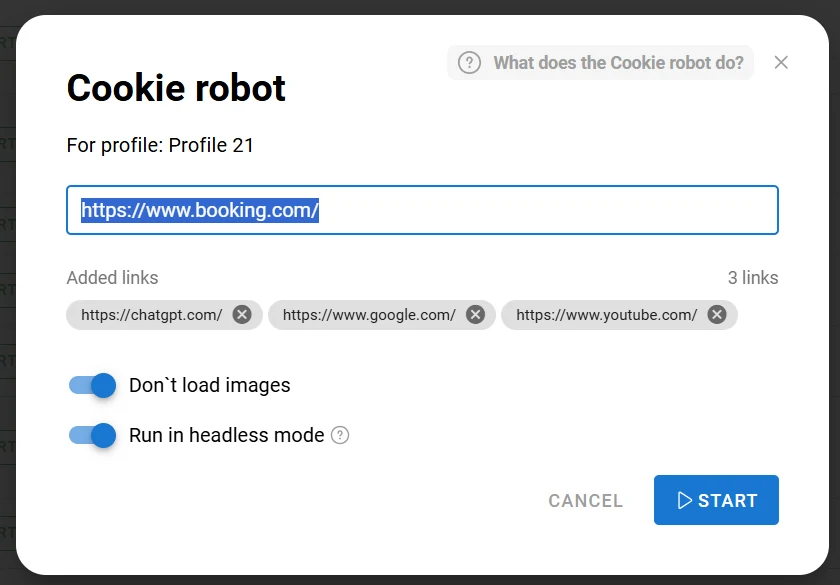
Congratulations! You now have a browser profile with browsing history and collected cookies. Such a profile is less likely to raise suspicion with anti-fraud systems.
Copying profiles
This feature allows you to quickly create multiple profiles with similar settings but different digital fingerprints. To do this, create a source profile, select Copy Profile, specify the number of copies you need, and start the copying process.
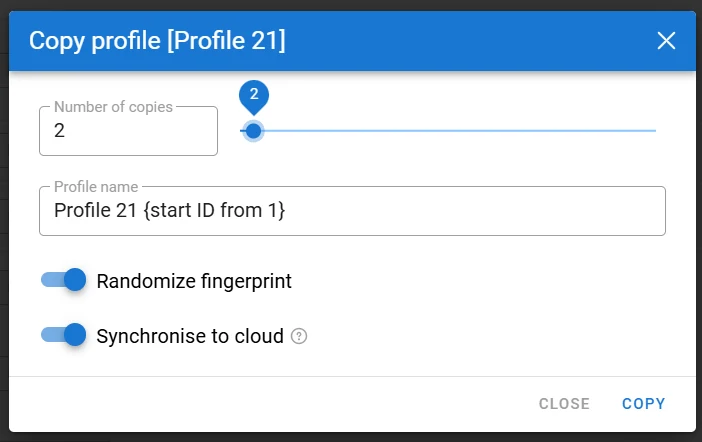
Keep the Randomize Fingerprint option enabled so that each copy gets its own digital fingerprint. You can then assign different proxies to the profiles and use them independently.
How to connect SotaProxy to Dolphin Anty?
An antidetect browser alone is not enough for complete anonymity because Dolphin Anty, like other antidetect browsers, does not change your IP address. This is where proxies come in. First, you need to purchase them through your SotaProxy account.
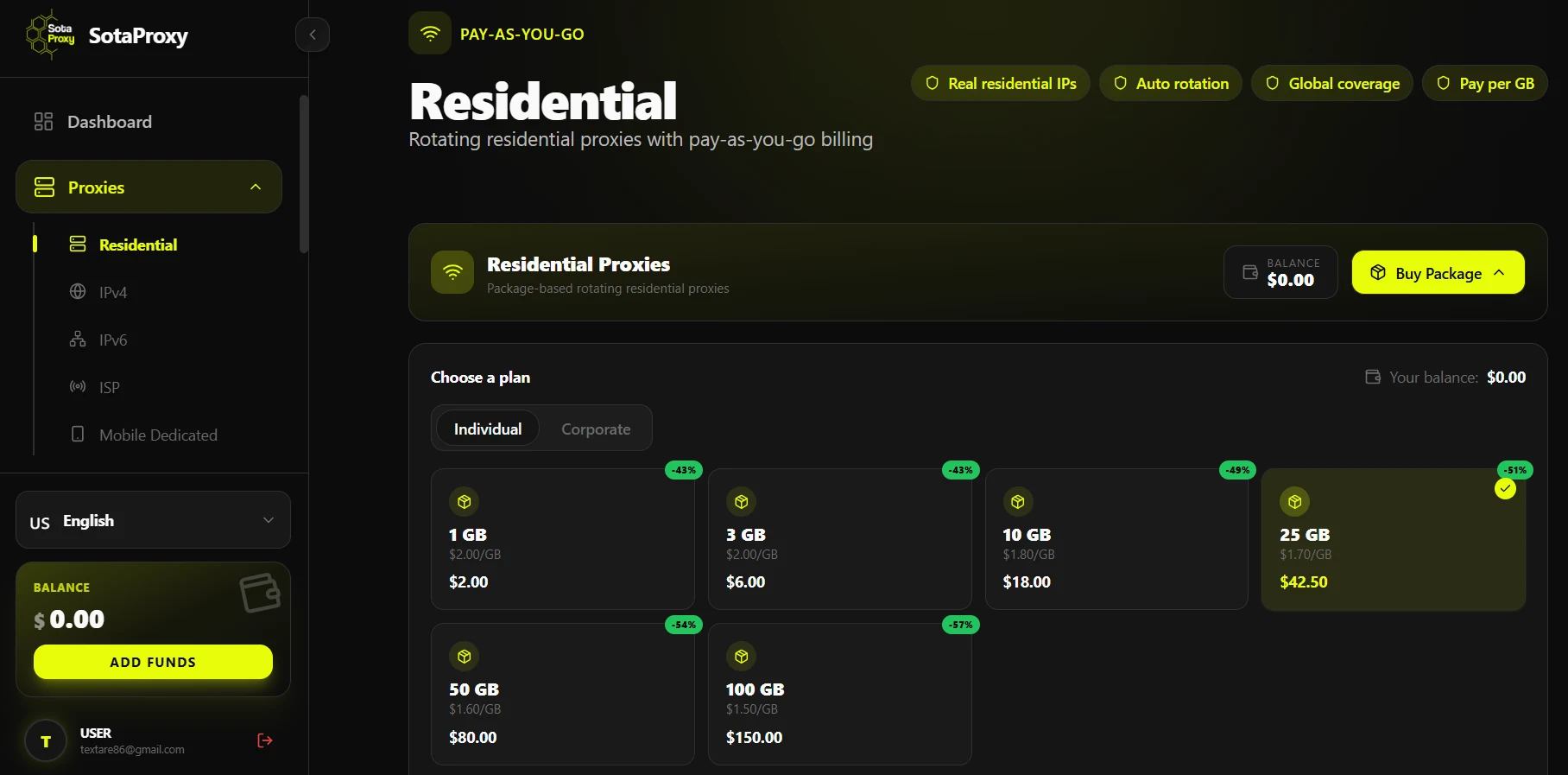
For multi-accounting, choose residential or mobile proxies. For web scraping, you can use IPv4 proxies.
After purchasing proxy traffic, you can generate connection credentials and add them to Dolphin Anty. There are three ways to do this.
Adding a proxy when creating a profile
The first method is to add a proxy directly when creating a browser profile. Copy the proxy credentials from your SotaProxy account, then select New Proxy in the Dolphin Anty profile settings and paste them into the corresponding field. The antidetect browser supports various proxy formats, so SotaProxy credentials do not require any additional formatting.
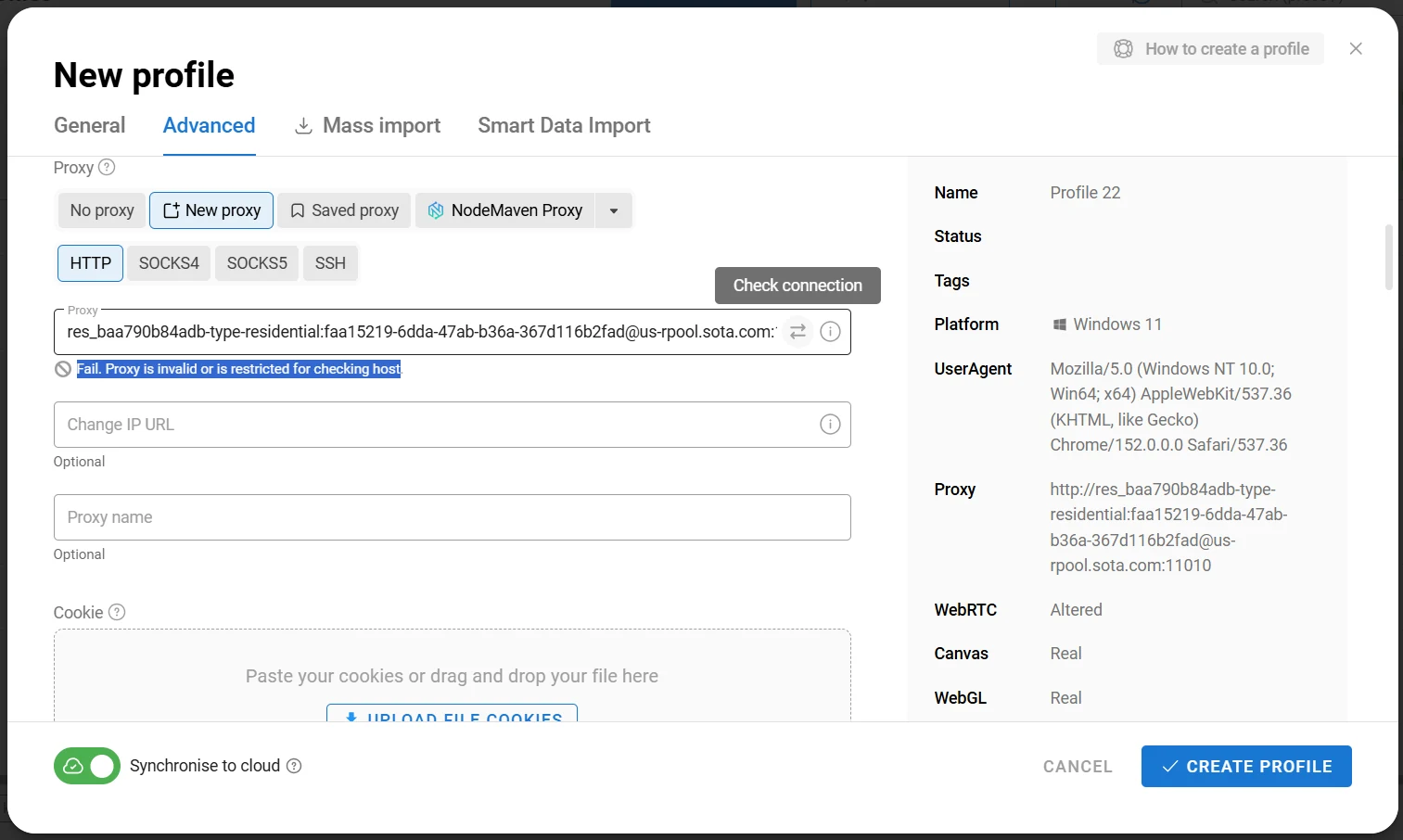
Next, click the Check Connection arrows to test the proxy connection. If you get the same result as in the image above, reconfigure the proxy port in your SotaProxy account and paste the updated credentials into the browser profile settings.
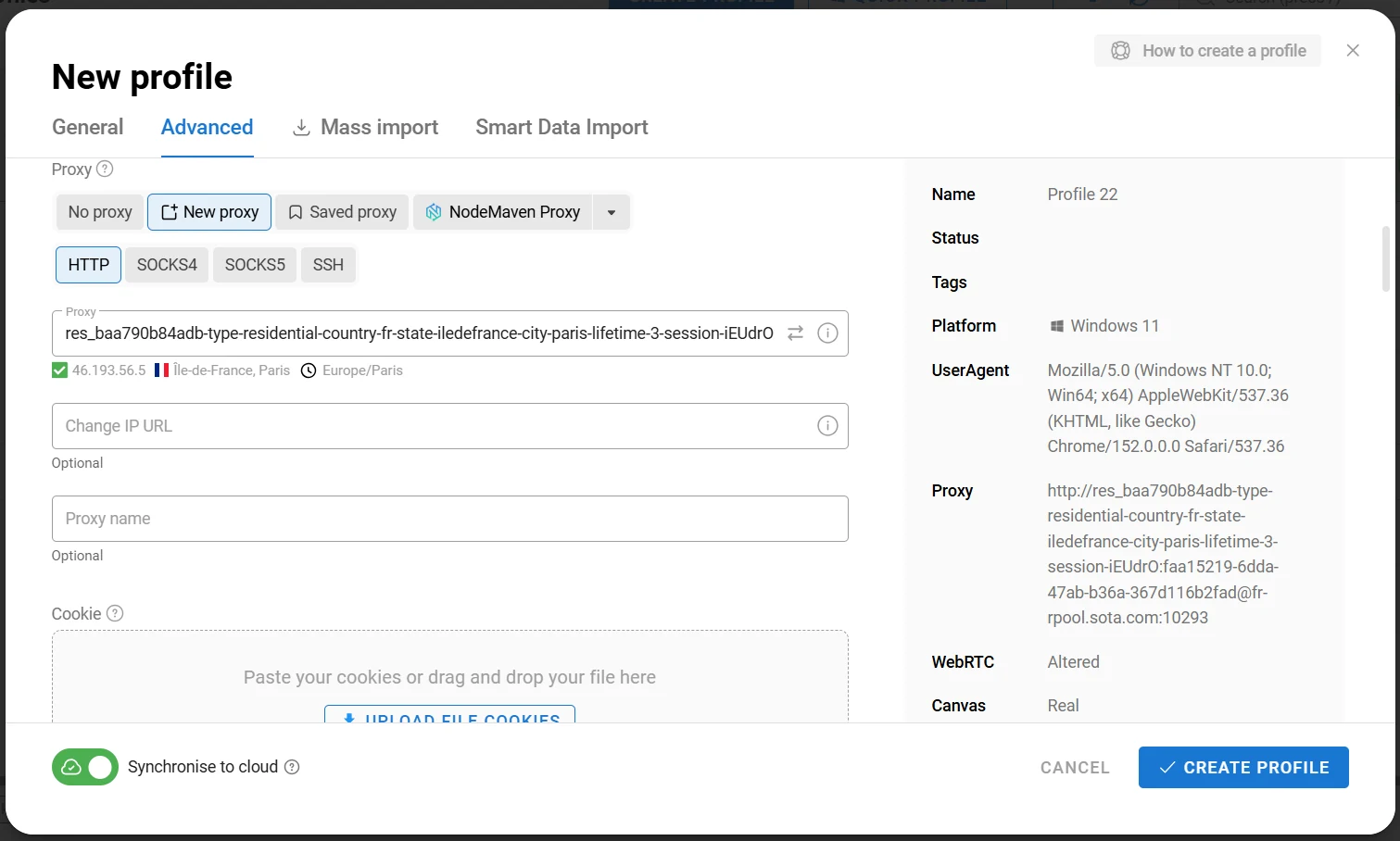
Now the proxy port is configured correctly, which means the browser profile is ready to use.
Bulk adding proxies to existing profiles
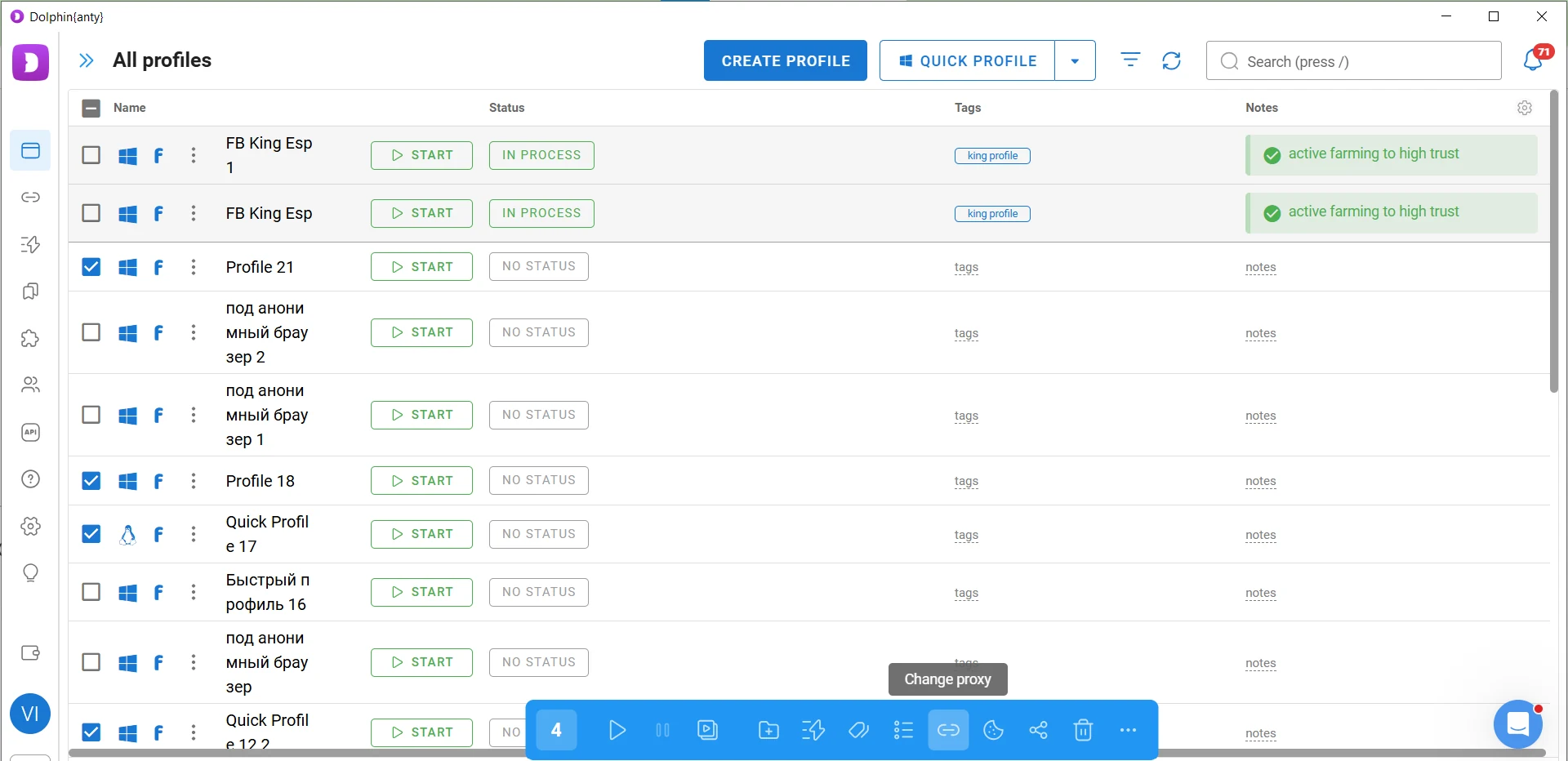
The second method is convenient if you have already created multiple browser profiles, for example using the profile copying feature. Select the profiles you need and click Change Proxy on the bottom panel.
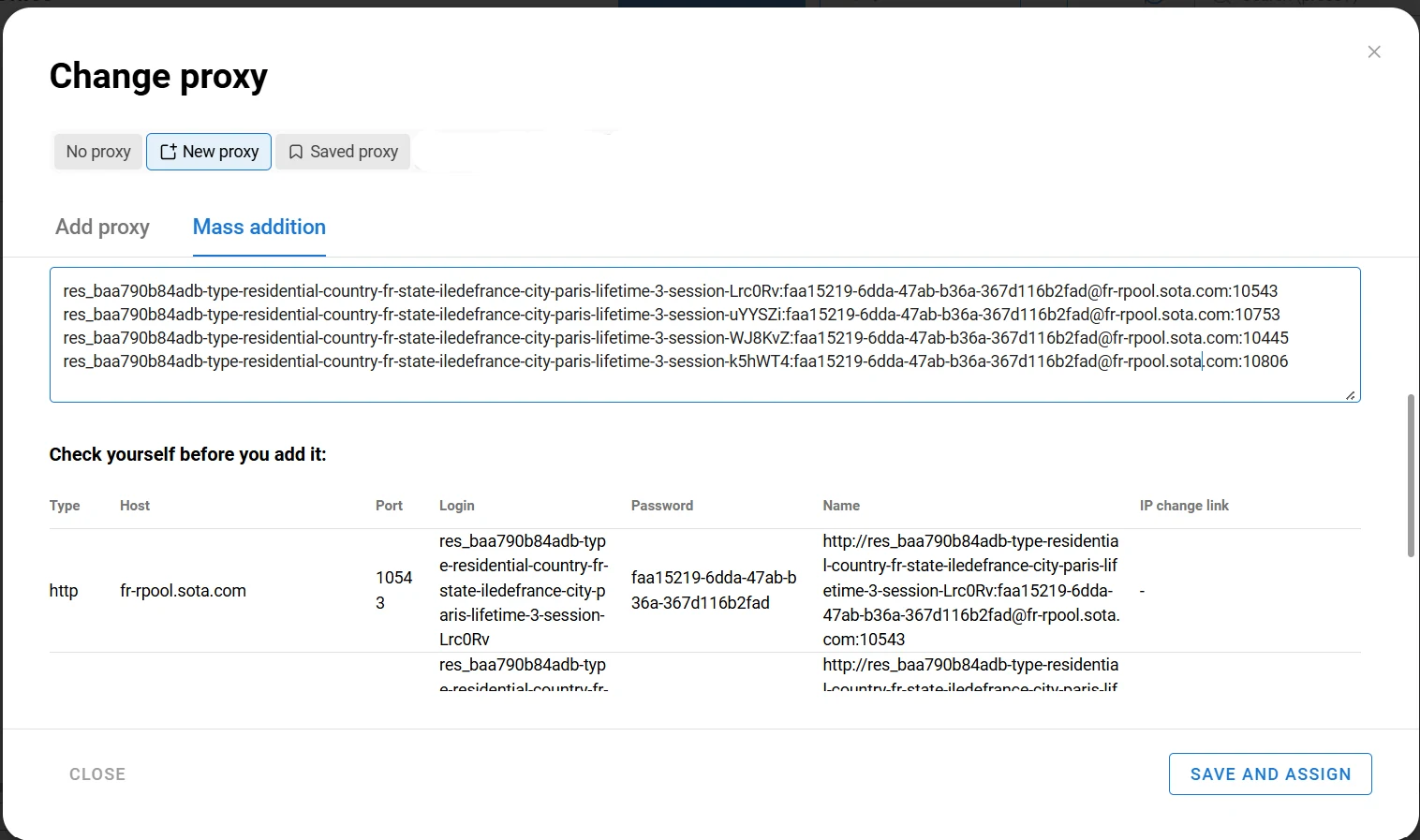
Then go to New Proxy → Mass Addition and paste your list of proxies.
After that, click Save and Assign and select Sequentially to distribute the proxies using the one proxy per profile principle.
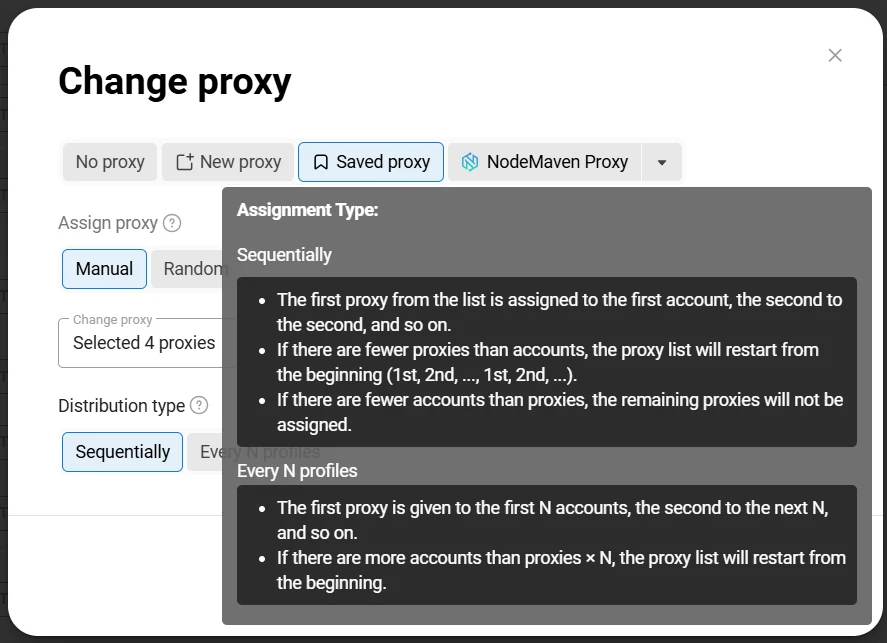
This allows you to quickly assign different SotaProxy proxies to a large number of profiles.
Adding proxies to the Proxies section
The third method is to add proxies to Dolphin Anty in bulk in advance and save them for future use.
To do this, go to the Proxies section, click Create Proxy, select Mass Addition, and paste your list of proxies.
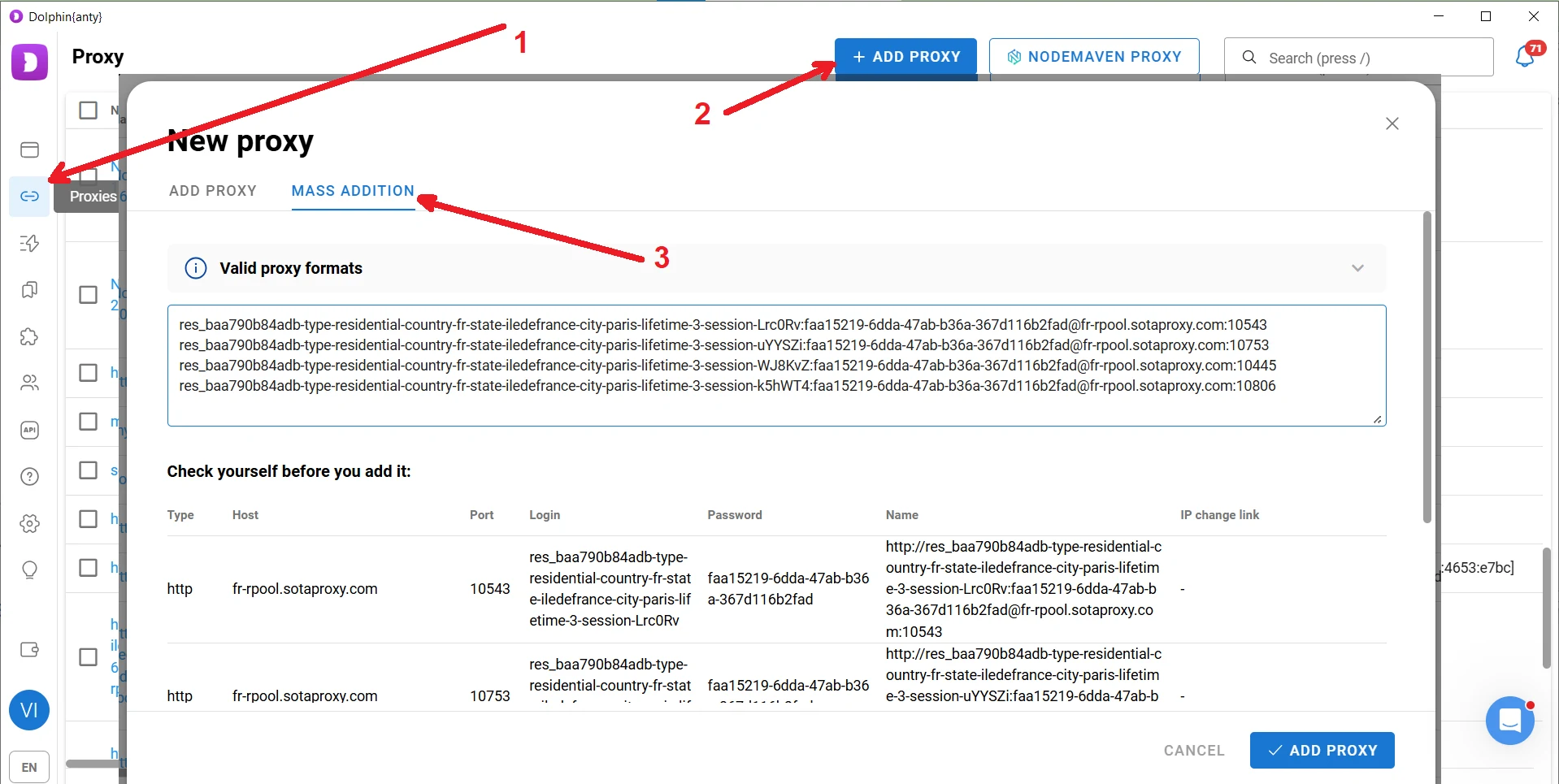
Make sure Dolphin Anty has correctly recognized the added proxy data, then save it.
Once the proxies have been added, select them using the checkboxes and click Check Proxy on the bottom panel. If the check is successful, the proxy status will be highlighted in green and marked as Active.
The proxies are now stored in the Proxies section, so you can select them from the saved list when creating new browser profiles. Saved proxies can also be assigned to existing profiles in bulk, including on a one profile, one proxy basis.
Organizing your workspace
Once you have created a large number of profiles with proxies, you need to organize them properly in your workspace. It is easy to get lost among dozens or even hundreds of profiles. Dolphin Anty provides tags, statuses, notes, and search filters to help keep everything organized.
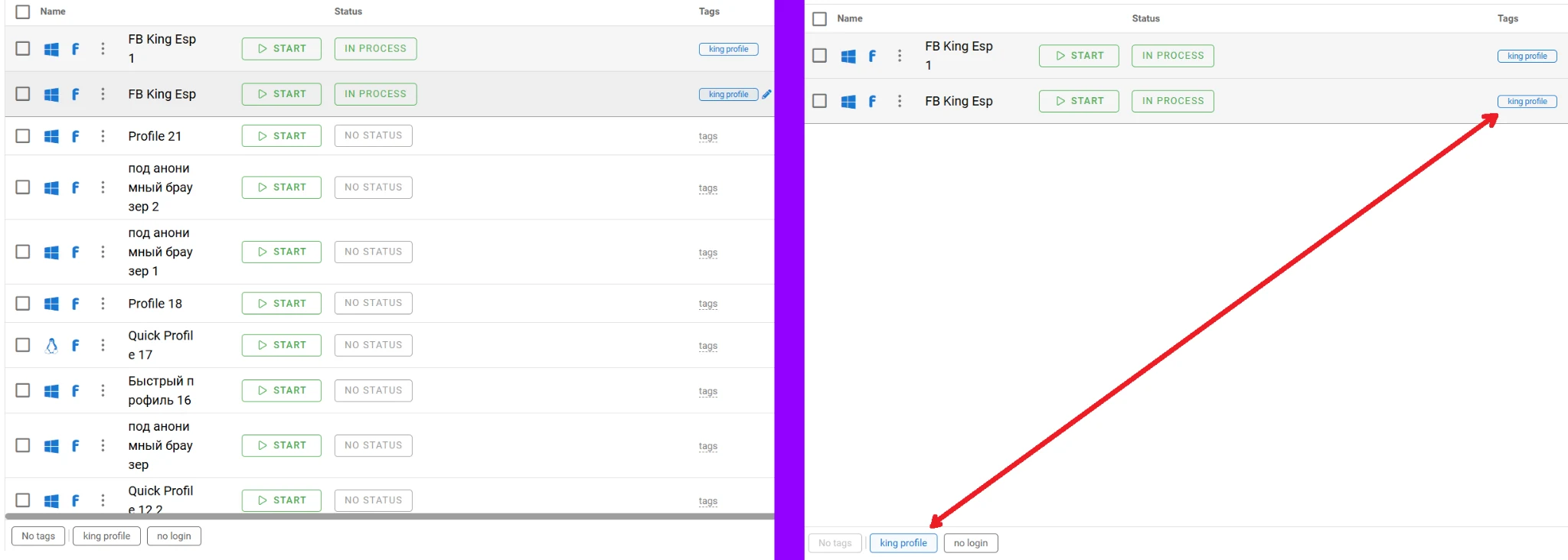
Tags allow you to quickly indicate which category a profile belongs to and then use them for filtering. For example, if you click a specific tag, only profiles assigned to that tag will remain in the list, while all others will be temporarily hidden.
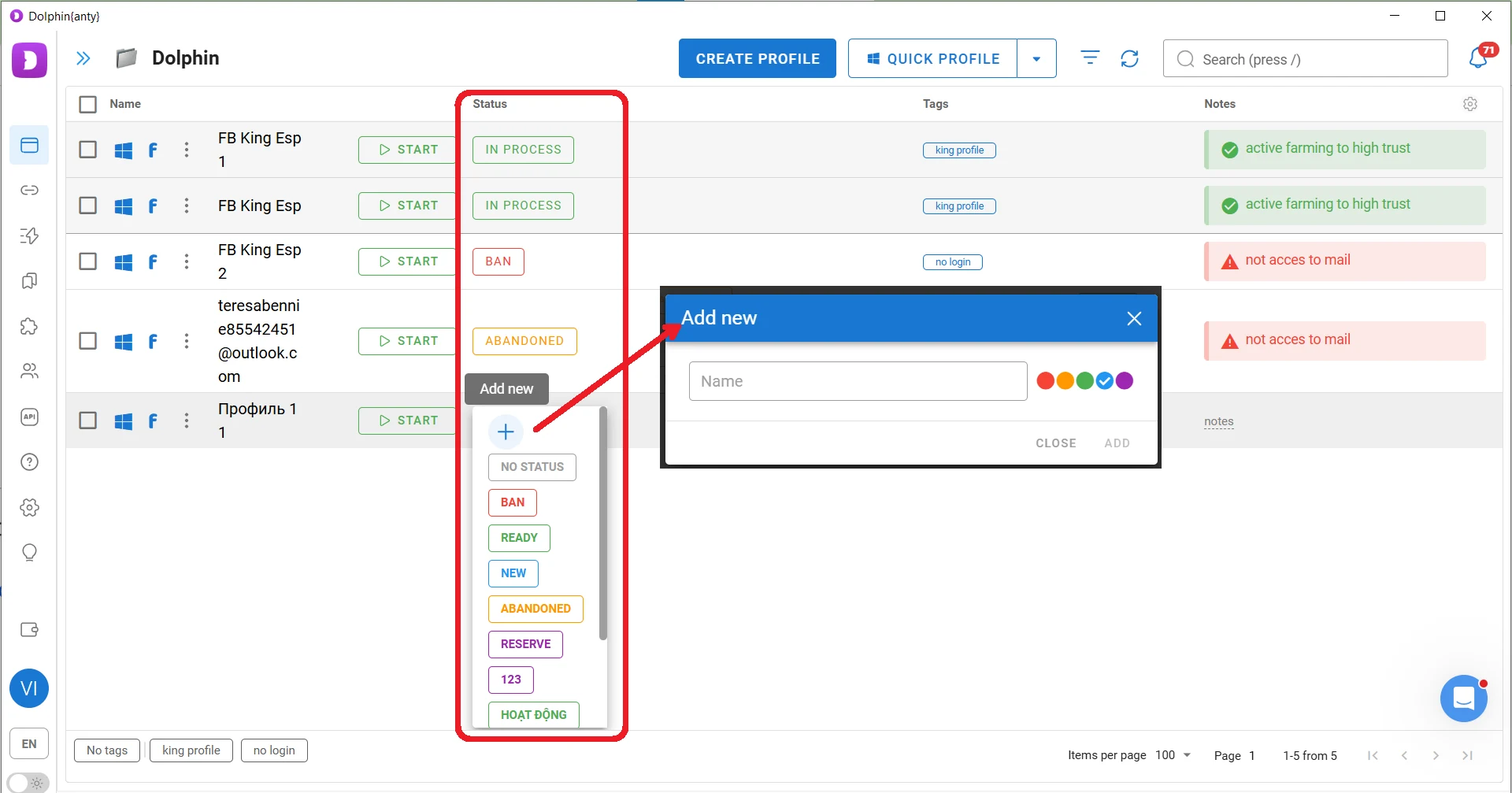
Statuses help you quickly identify the current state of a profile and the account associated with it, for example, whether it is ready to use or requires additional action.
To assign a status to a profile, you can select one of the predefined options or create your own. In the latter case, simply enter a status name and choose a color for it.
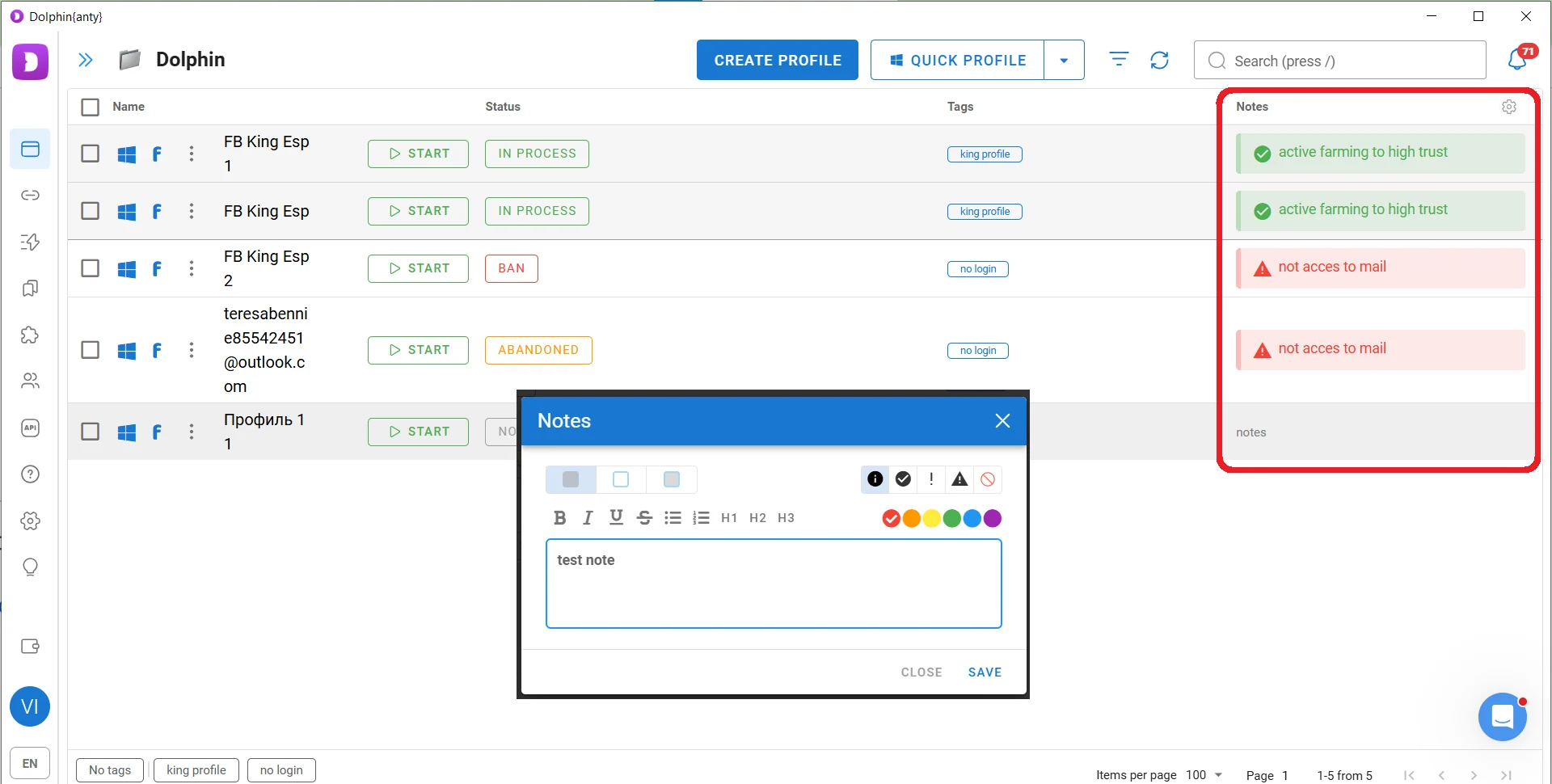
Notes allow you to store more detailed information about a specific profile and any actions that need to be taken. They are created in a similar way to statuses, but offer more options for adding and editing the note text, icon, and color.
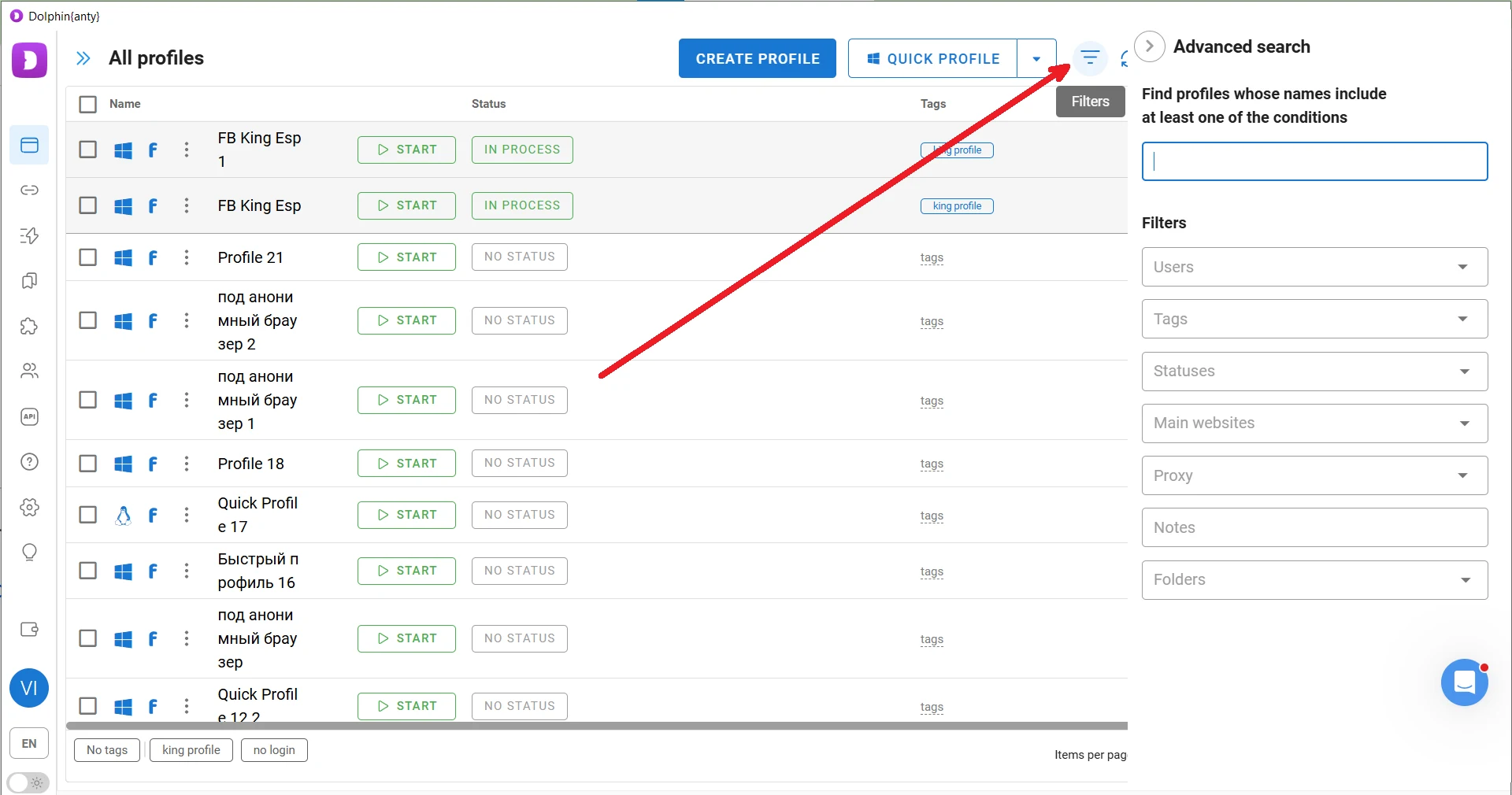
Filtering profiles and columns
Dolphin Anty has search filters that allow you to filter profiles by tags, statuses, proxies, and other parameters. This is especially useful when working at scale: you can temporarily hide everything you do not need from your workspace and keep only the profiles you are currently working with.
You can also add or remove columns and change their order. This can be done through the Customize Columns section.
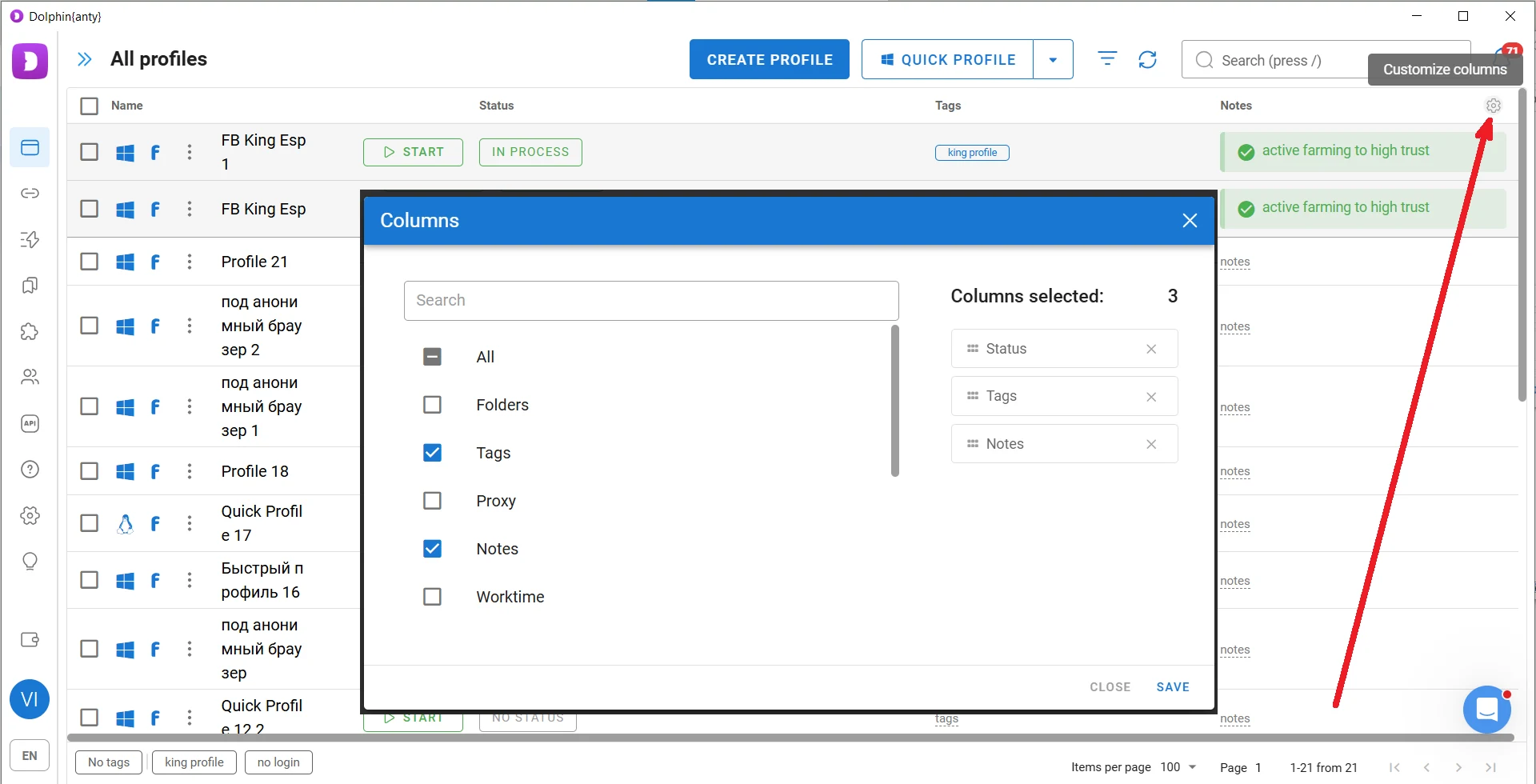
Click the gear icon to open a window where you can manage the columns. If you want to make columns wider or narrower so they fit better in the workspace, hover over the border between columns above the profile list and drag it.
Automating routine tasks: scenarios, Synchronizer, and API access
Dolphin Anty is designed not only for managing accounts at scale, but also for automating routine processes. For this purpose, it offers scenarios, Synchronizer, and API-based management.
Scenarios (scripts)
Scenarios are sequences of simple actions that Dolphin Anty performs automatically when you run a script. You can combine these actions into step-by-step workflows to automate routine tasks such as account farming, scrolling social media feeds, visiting pages, and other repetitive actions.
To create a scenario, go to the corresponding section and select the Create tab. The left panel contains simple actions such as opening a page, clicking an element, entering text, scrolling a page or feed, and many others.
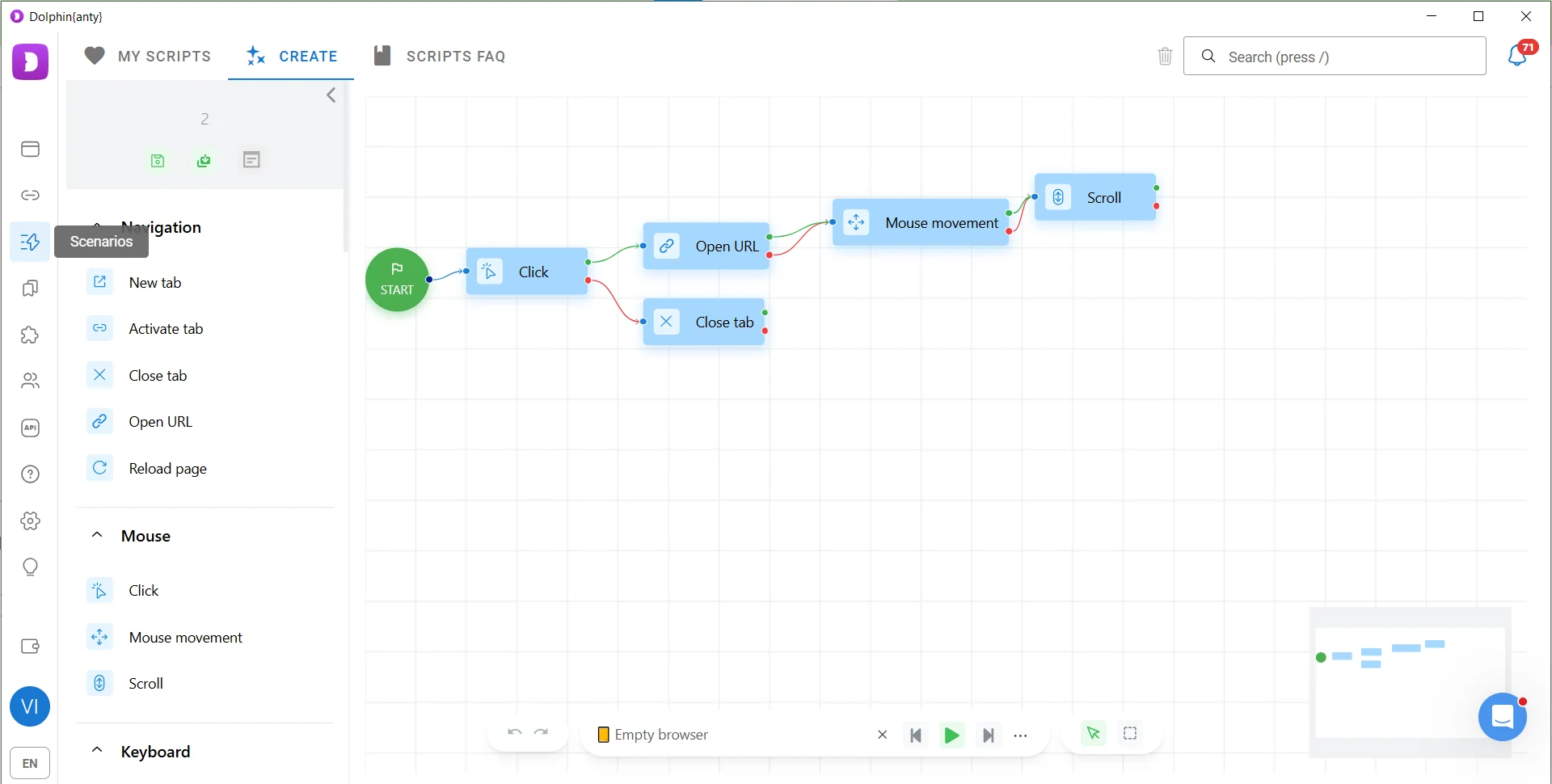
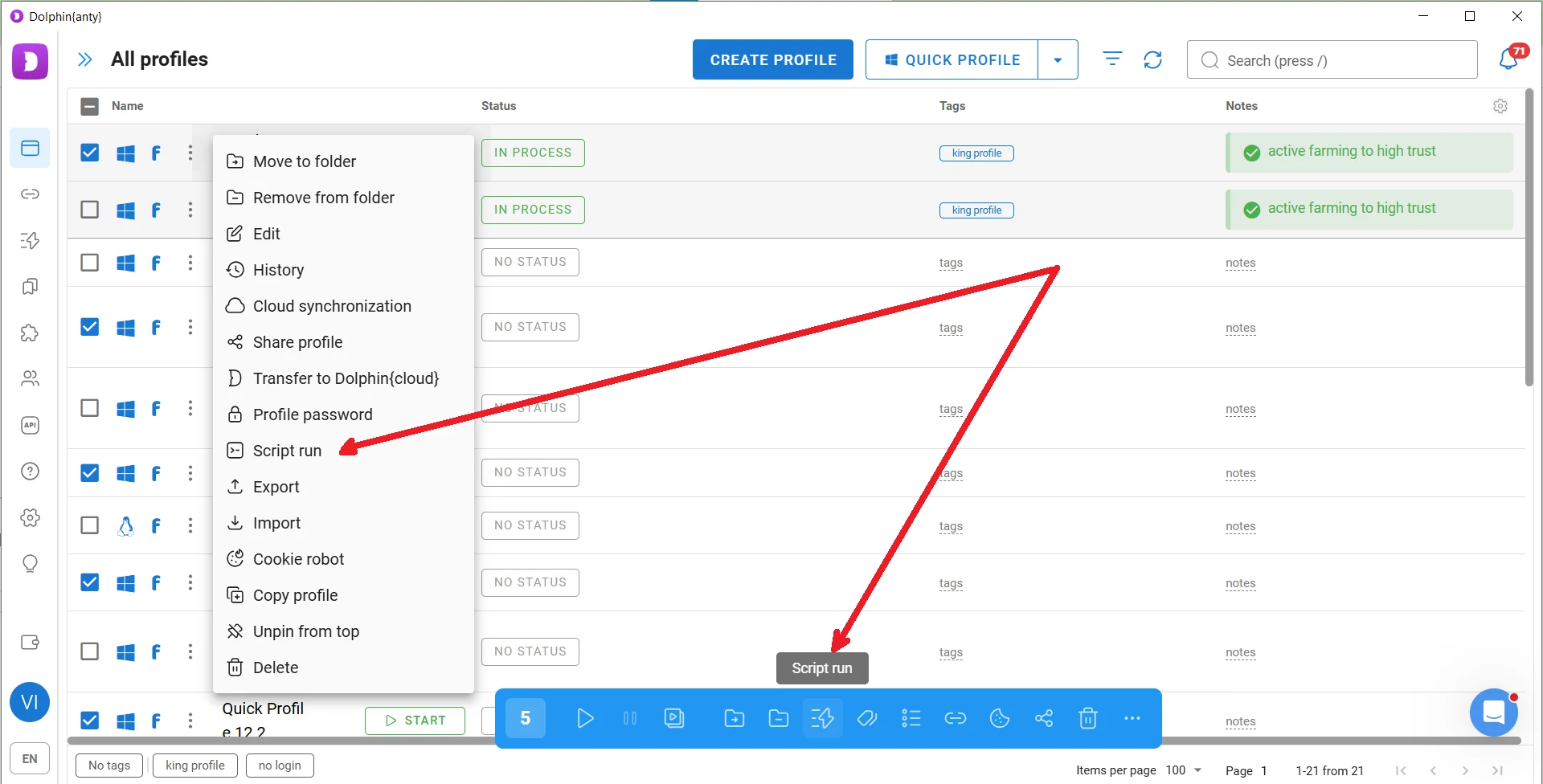
To run a scenario in a single browser profile, hover over the three-dot menu and click Script Run. To run it in multiple browser profiles, select them from the list and click the same button on the bottom panel.
Synchronizer
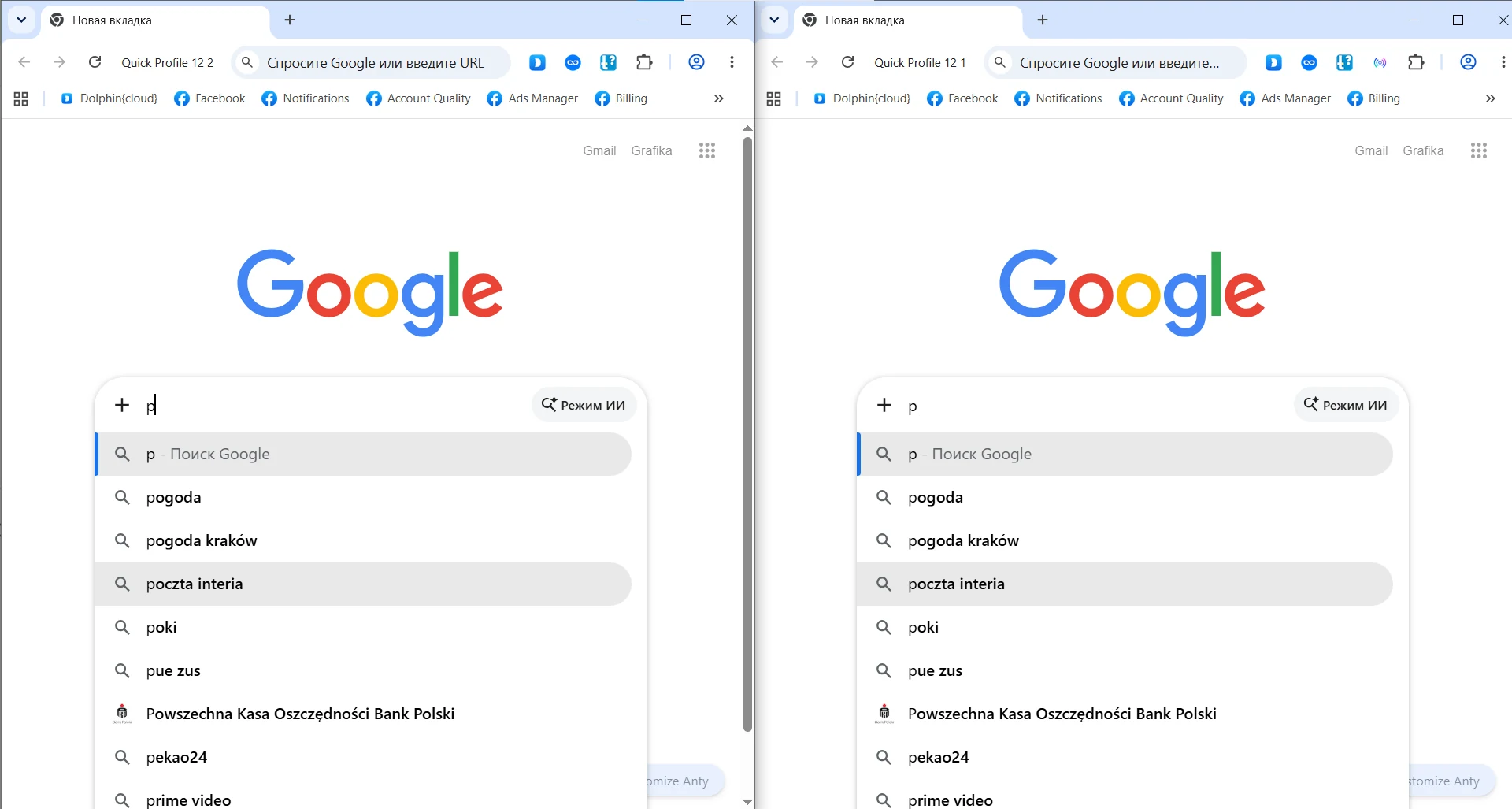
Some operations are difficult to automate and are more convenient to perform manually. These include interacting in comments, launching ad campaigns, and similar tasks. However, these actions can still be duplicated and scaled using Dolphin Anty’s Synchronizer.
To launch the Synchronizer, select the profiles you need and click Synchronizer. Then choose the master profile where you will perform the actions manually.
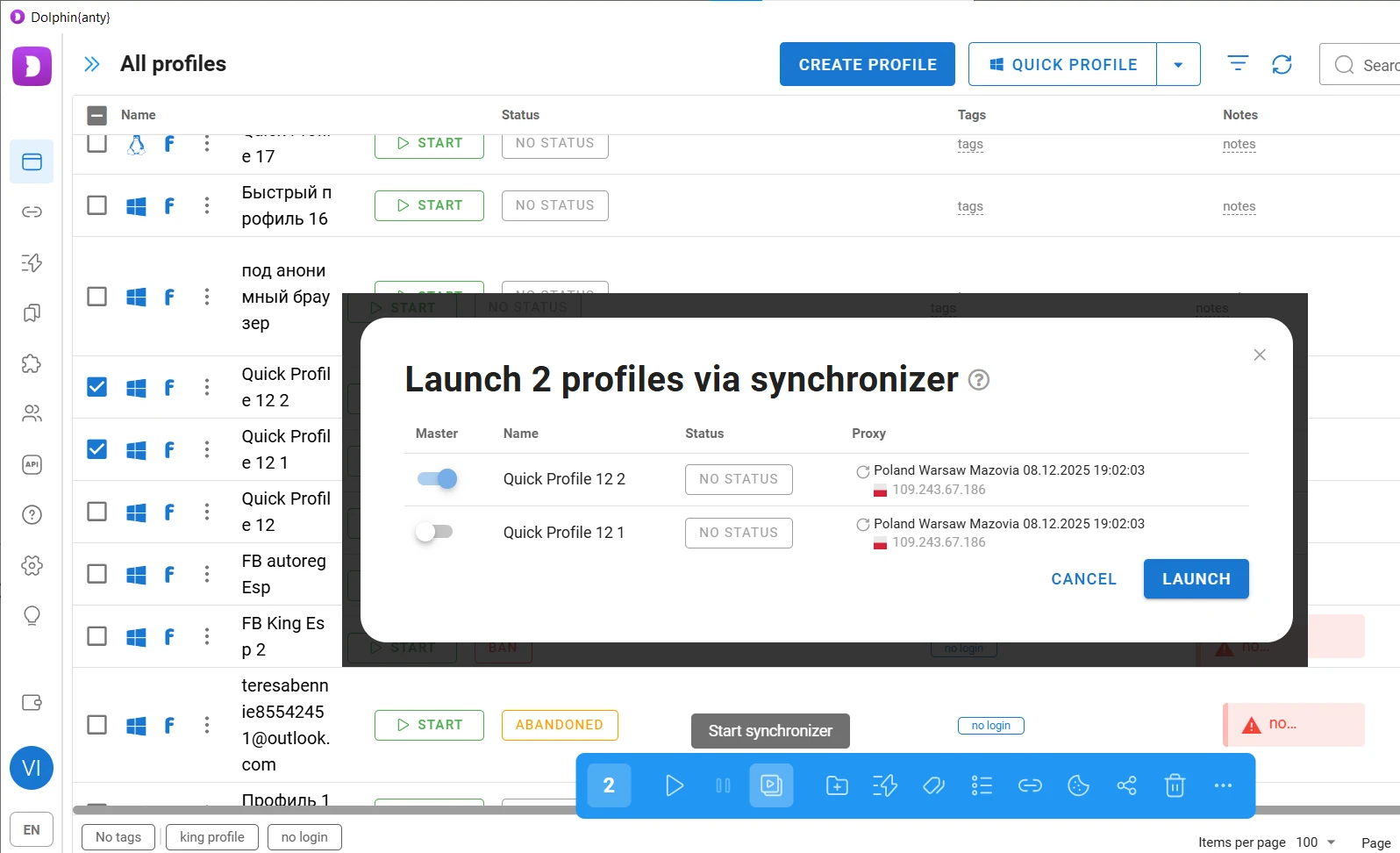
These actions will be duplicated simultaneously across the other selected profiles. For example, you can enter a search query in the master profile, and the same query will be entered in the other browser windows.
API automation
Scenarios and Synchronizer may not be enough if you need to automate and scale a complex sequence of actions that involves repeatedly opening and closing browser profiles. This is where API automation comes in.
In this case, the code you write can automatically execute a predefined sequence of actions in the antidetect browser, including launching and closing profiles.
To manage Dolphin Anty via API, log in to the official Dolphin Anty website and go to the corresponding section. Use the same login and password that you use to sign in to the antidetect browser.
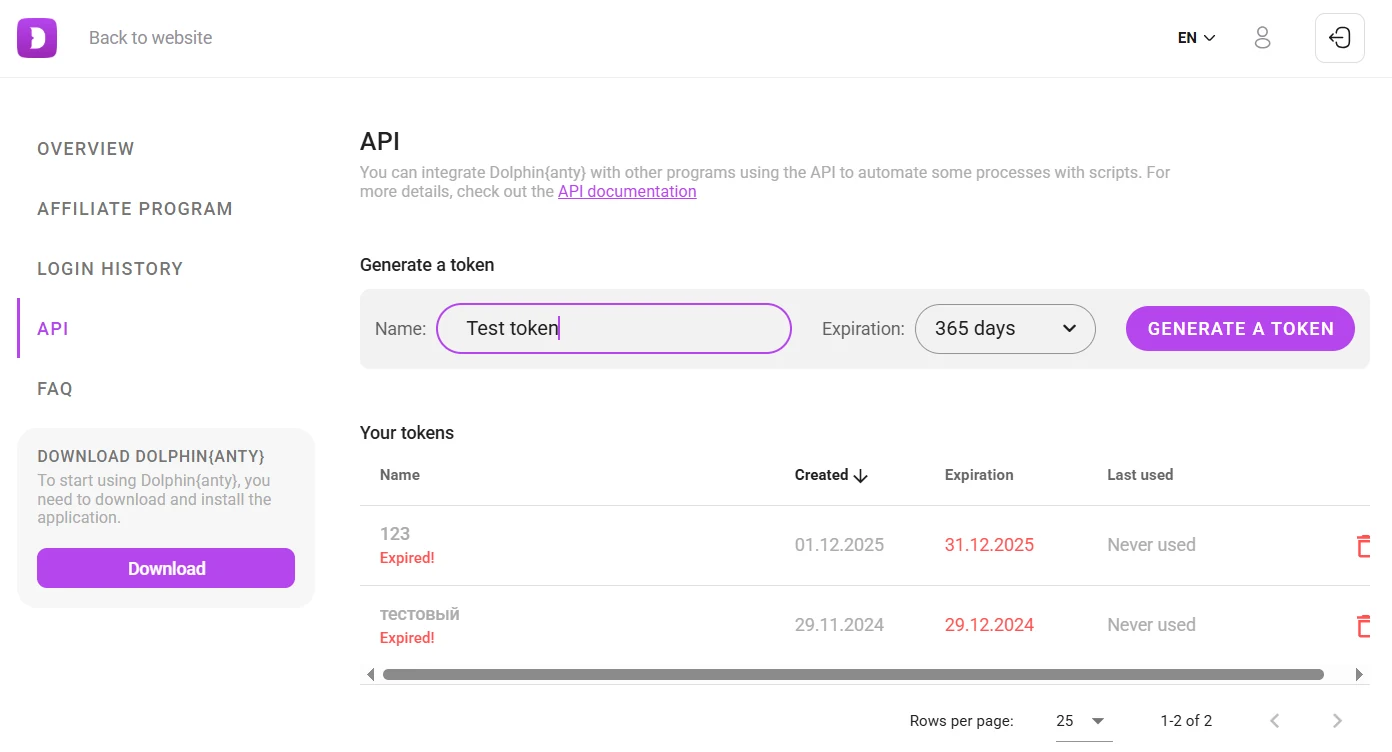
Next, download the documentation from the Dolphin Anty API Reference page or use the individual commands provided there to manage the antidetect browser remotely.
Bookmarks and extensions
Multi-accounting, web scraping, and similar tasks often require various bookmarks and browser extensions. In Dolphin Anty, you do not have to add them manually to every new profile. Instead, you can configure which bookmarks and extensions will be automatically added to specific profile types.
To add a bookmark, go to the corresponding section and click Add Bookmark. Then specify which profile types should use it. For example, if you select Facebook, the bookmark will be automatically added only to profiles of this type. If you want it to appear in all newly created profiles, select All Websites.
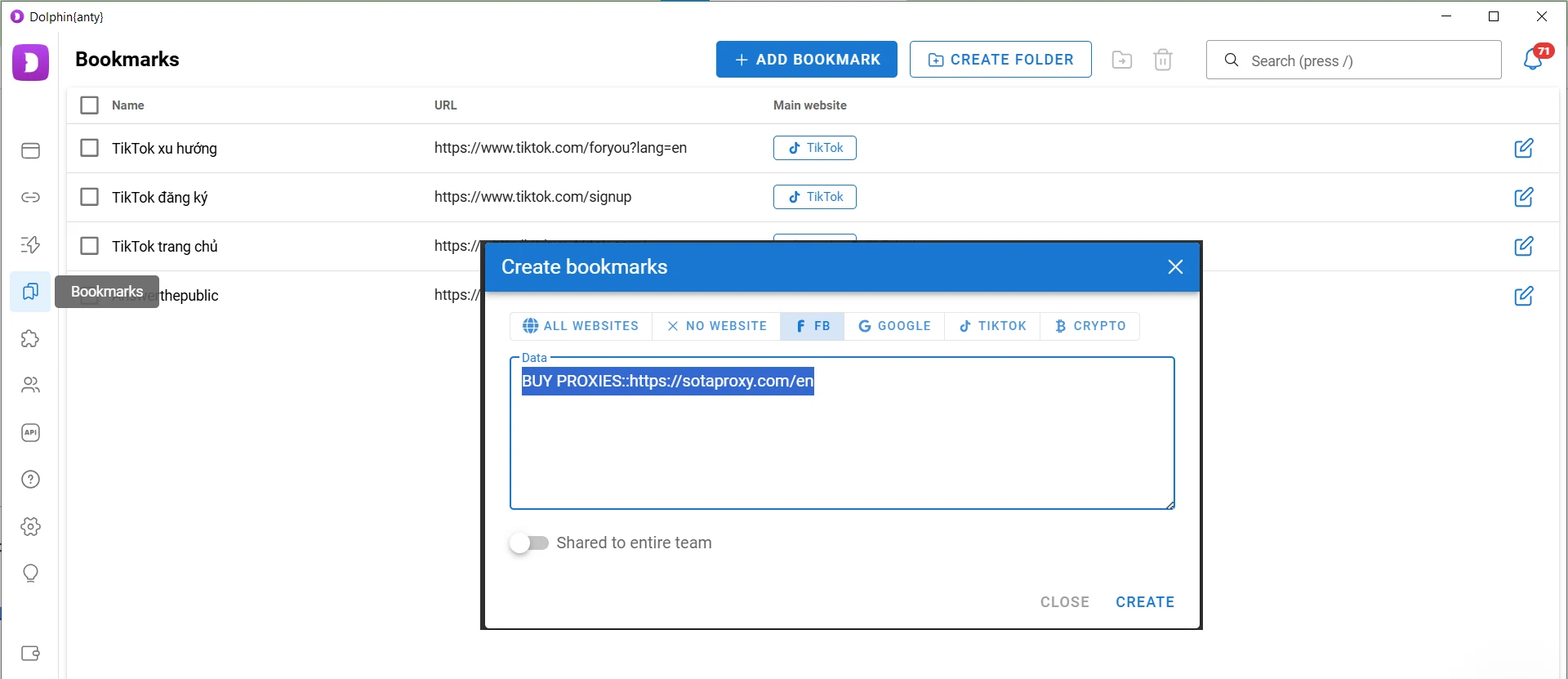
Extensions are added in a similar way through the corresponding section.
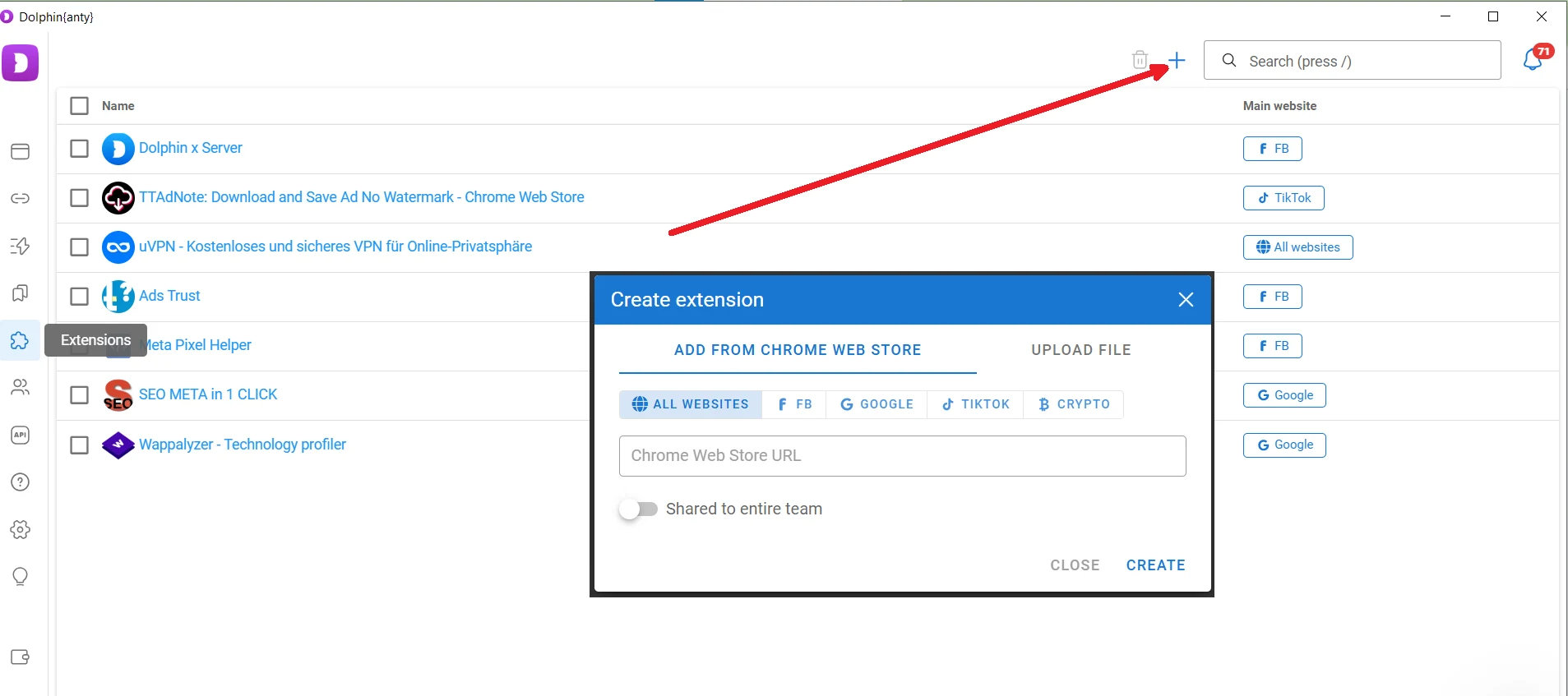
To do this, you can provide a link to the extension in the Google Chrome Web Store. If the extension is not available there, you can download it first and upload it to Dolphin Anty as an archive. After adding the extension, specify which profile types should use it: selected types only or all profiles.
To check the added extensions, let’s create a TikTok profile with the bookmarks and extensions shown in the screenshots above.
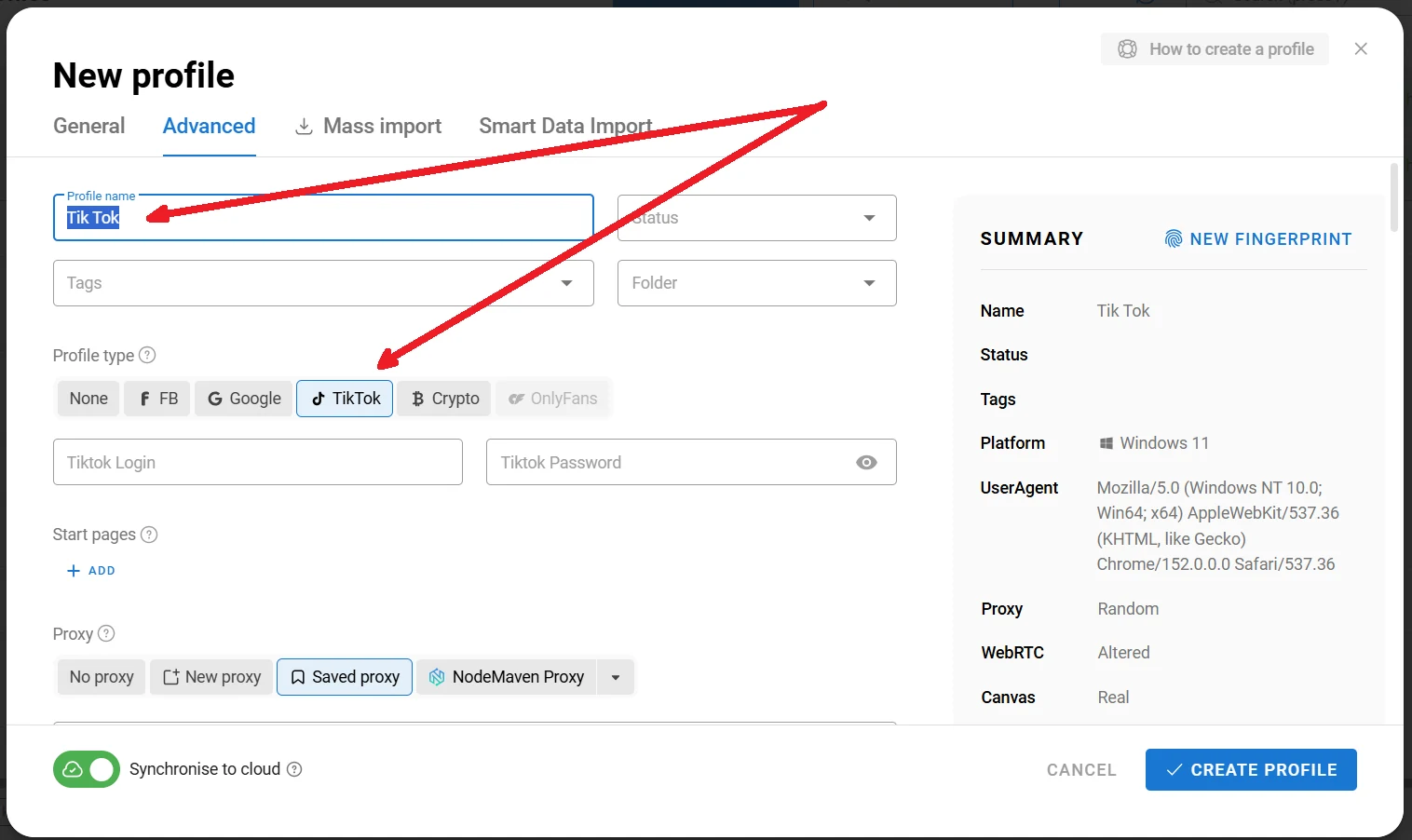
Now, let’s launch this profile.
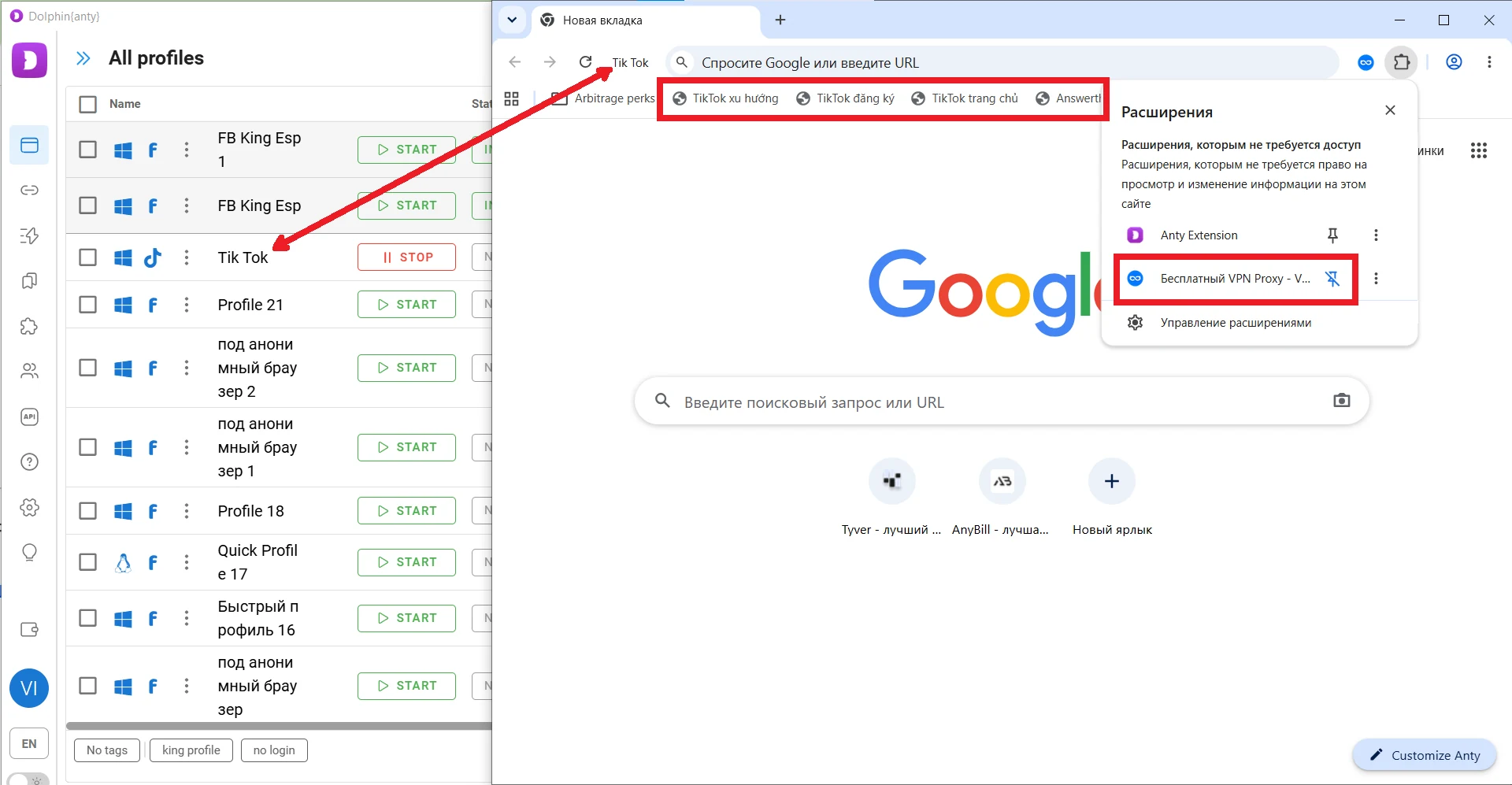
As you can see, all bookmarks and extensions assigned specifically to the TikTok profile type have been added.
How to maximize trust with anti-fraud systems: 4 rules for using Dolphin Anty
No matter how good an antidetect browser is, it is important to use it correctly. When working with Dolphin Anty, follow these four rules.
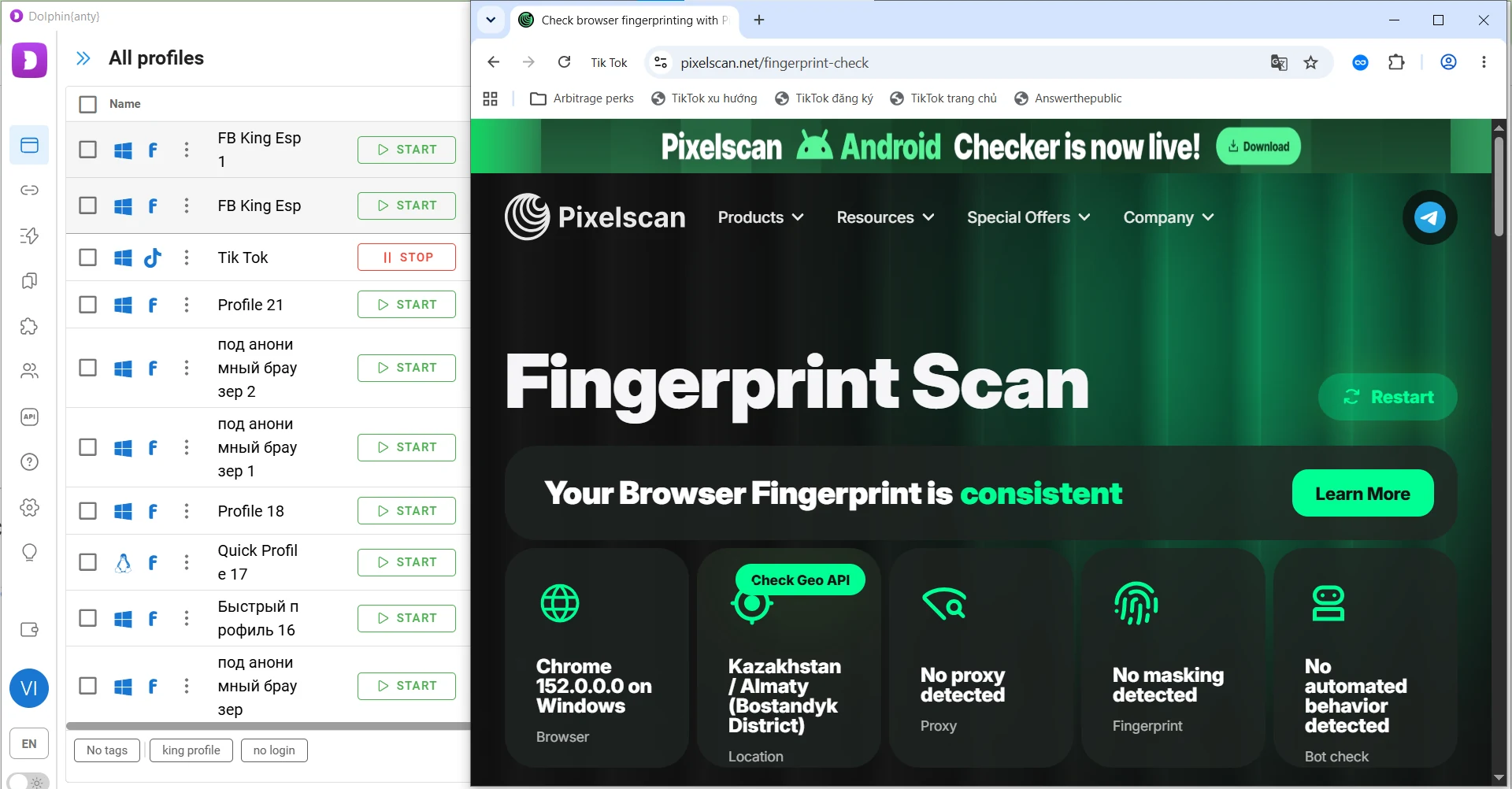
Rule #1: Check newly created profiles with Pixelscan. Launch the browser profile, open Pixelscan, and run the check. If the profile and proxy are configured correctly, the result should look similar to the screenshot below.
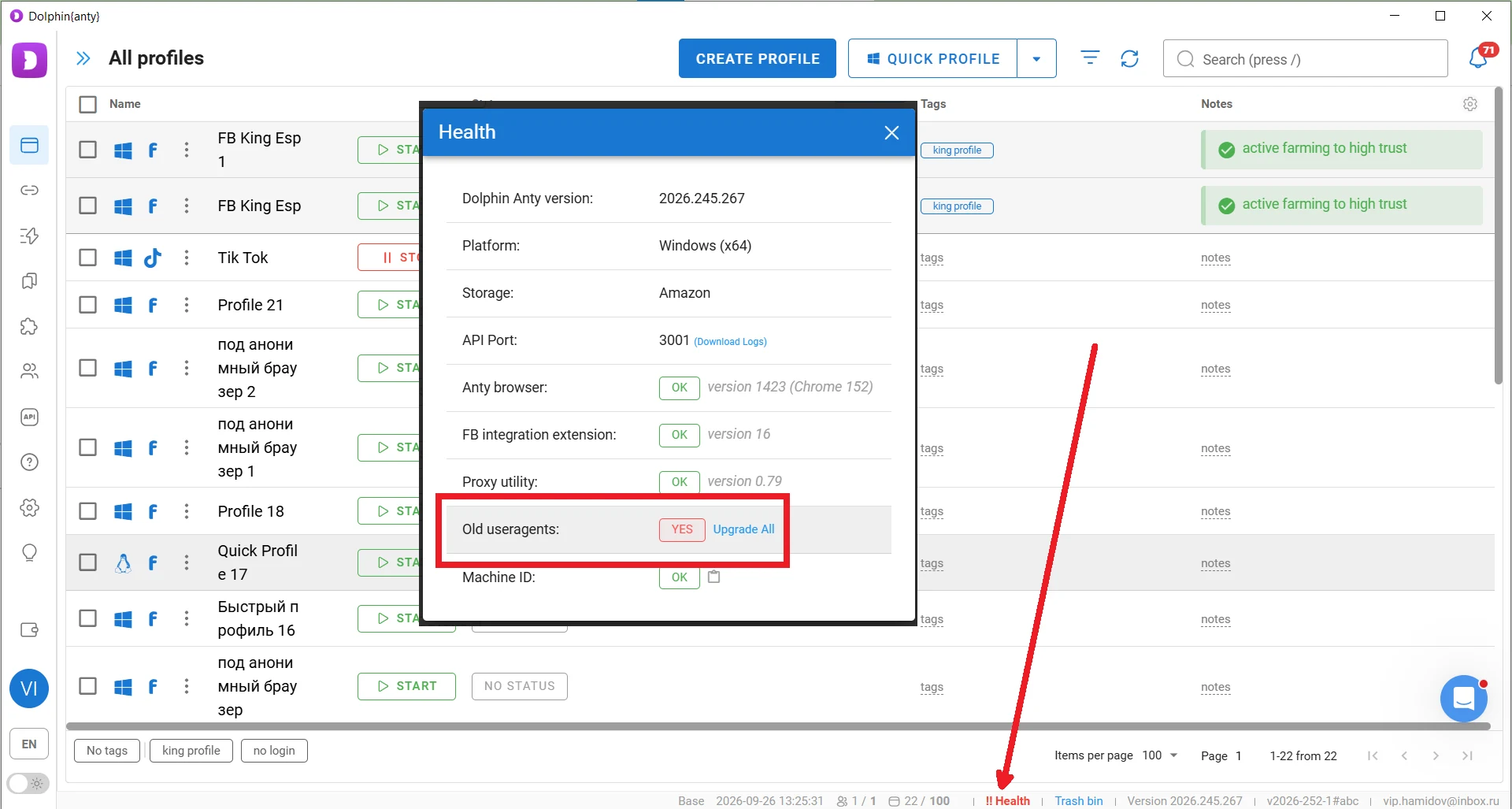
Rule #2: Regularly update the User-Agent. Check the Health section on the bottom panel in Dolphin Anty. If you see an Old User Agents warning, click Upgrade All to update outdated User-Agents in your profiles.
Rule #3: Use the one-by-one profile launch option. You can enable this feature in the Dolphin Anty settings.
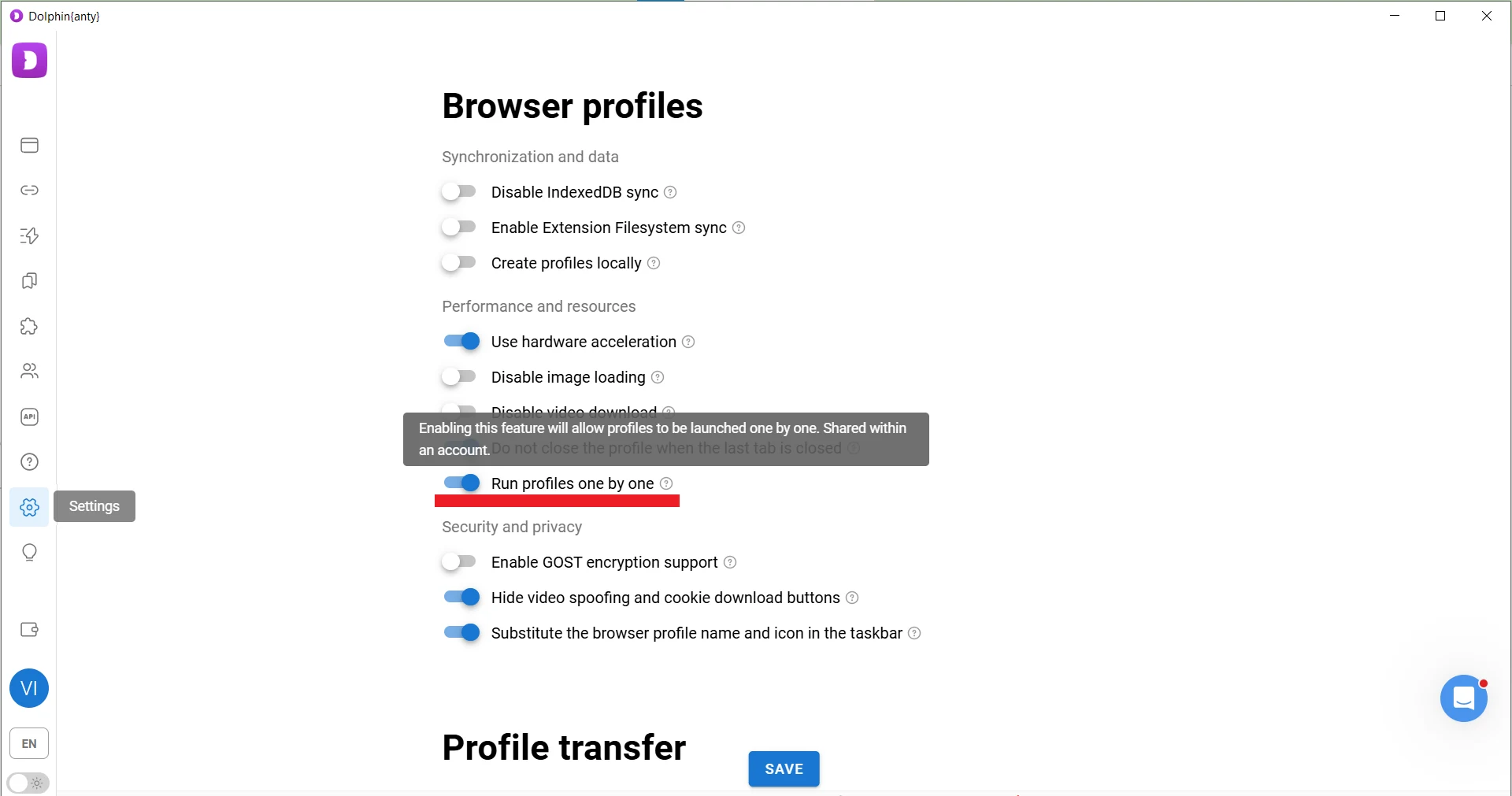
When launching multiple profiles, they will open one by one instead of simultaneously, for example when running scenarios. Sequential launching can reduce the risk of triggering anti-fraud systems, since logging into multiple accounts at the same time may look suspicious.
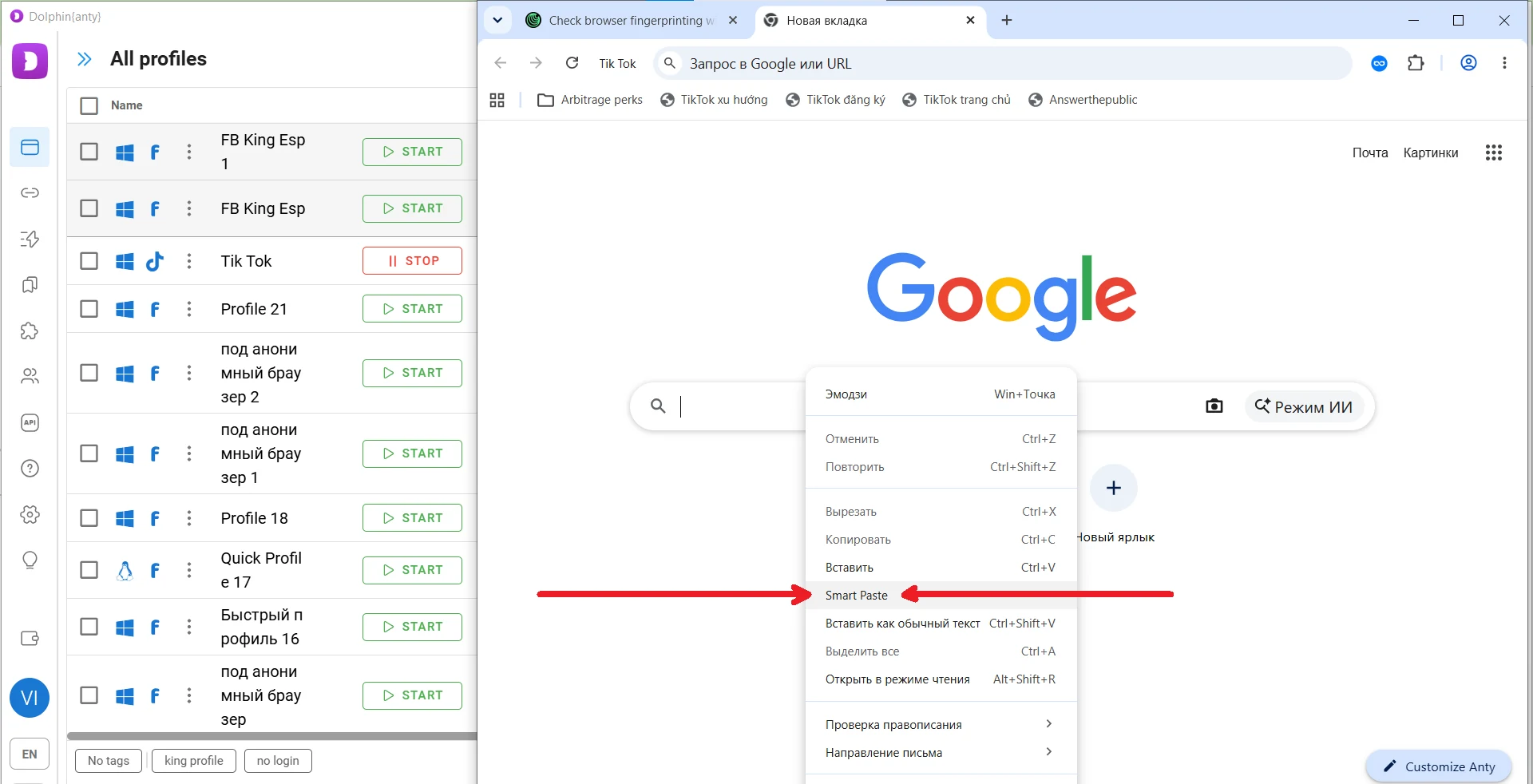
Rule #4: Use Smart Paste when entering login credentials and certain other data. Unlike regular paste, Smart Paste simulates manual character-by-character typing with varying intervals between keystrokes. This makes data entry look more like the behavior of a real user.
Conclusion
The combination of Dolphin Anty and SotaProxy is suitable for tasks that require working with a large number of independent browser profiles and IP addresses. It can be used for multi-accounting in affiliate marketing and e-commerce, SMM, managing advertising accounts, web scraping, reputation management, and other tasks. SotaProxy handles IP address replacement and access to the required GEOs, while Dolphin Anty isolates browser profiles, modifies fingerprints, and provides tools for bulk management and automation.
Related articles
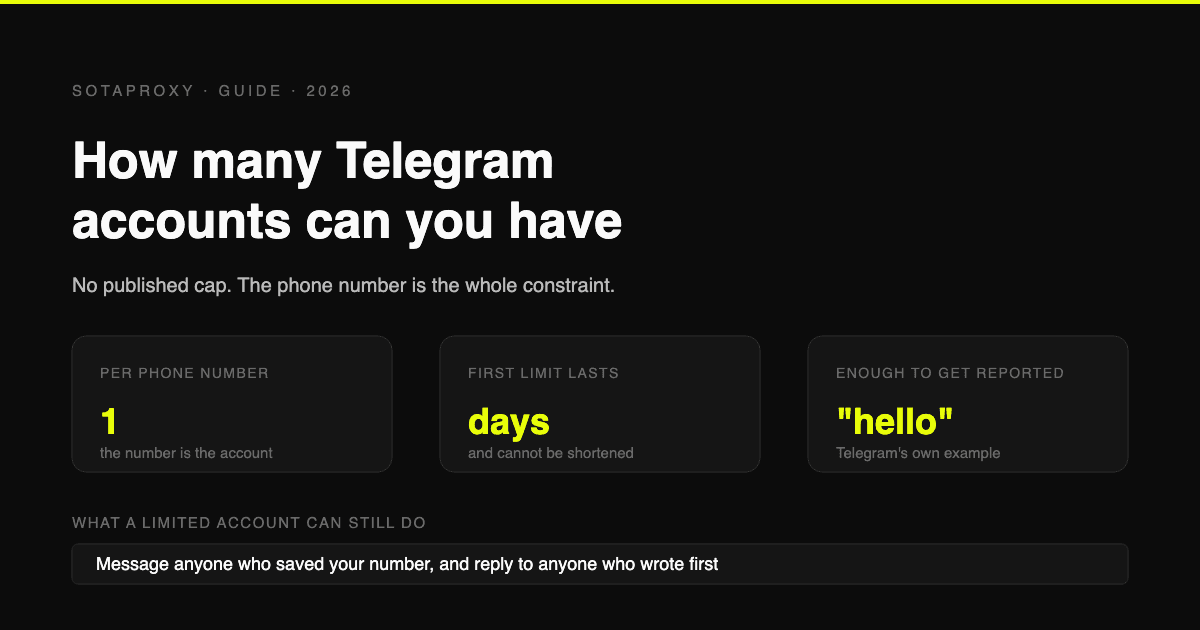
How Many Telegram Accounts Can You Have in 2026 (And What "Limited" Really Means)
Telegram publishes no account cap, one number per account, and its own Spam FAQ says a limited account can still message anyone who saved your number. What triggers a limit, why VOIP numbers get flagged before you send a word, and why there is no early release.
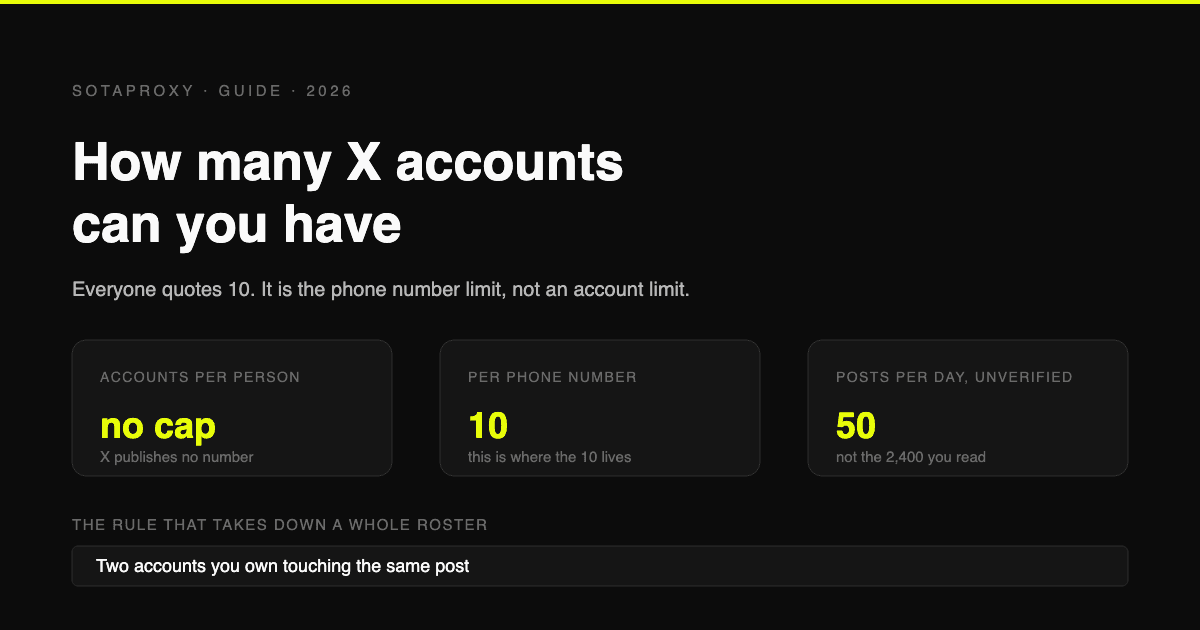
How Many X (Twitter) Accounts Can You Have in 2026 (The 10 Is a Phone Limit, Not an Account Limit)
X publishes no cap on accounts per person. The 10 everyone quotes is the number of accounts one phone number can cover. The real constraints are 50 posts a day on a free account, duplicative use cases, and accounts that interact with each other.
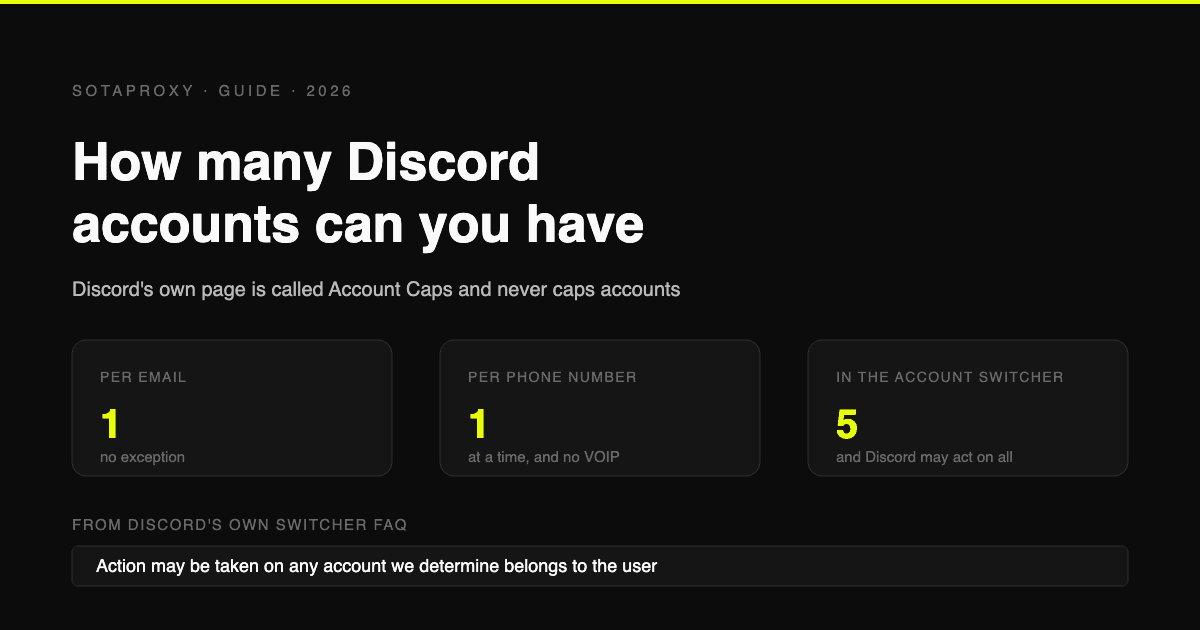
How Many Discord Accounts Can You Have in 2026 (Per Email, Per Phone, Per Device)
Discord publishes no cap on accounts. The real limits are one per email, one phone number at a time with no VOIP, and five in the Account Switcher, which Discord says it may enforce across.
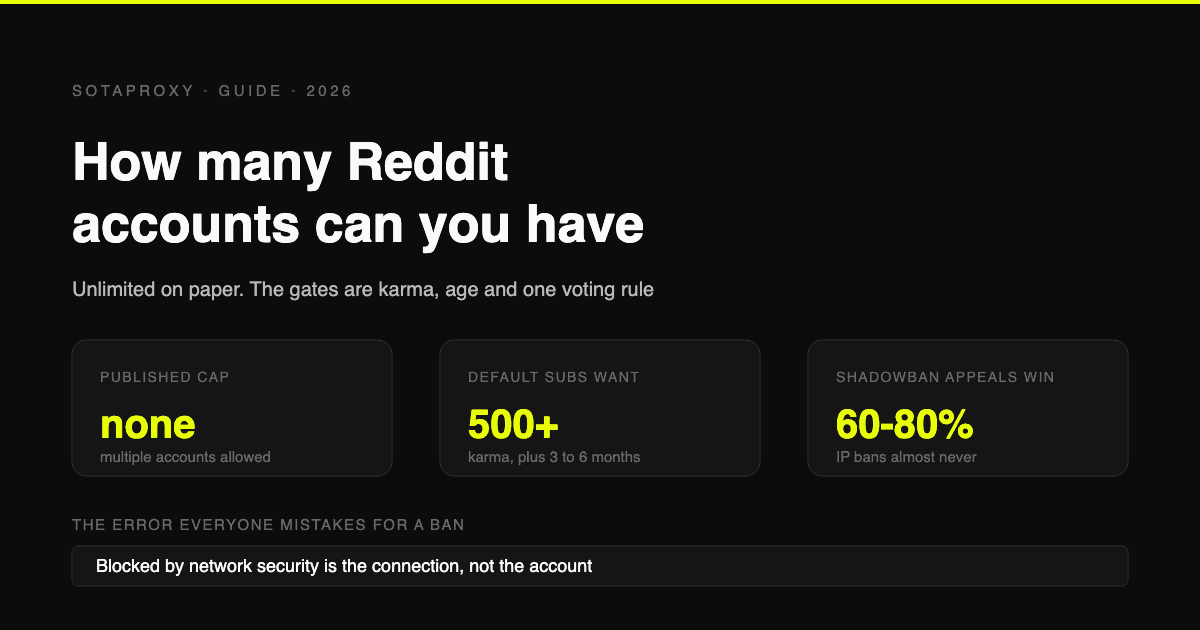
How Many Reddit Accounts Can You Have in 2026 (Karma Gates, Bans, Network Security Blocks)
Reddit allows multiple accounts outright. What stops you is karma gates, contributor quality, rate limits and one hard rule about voting, plus the three bans, how each is appealed, and why "blocked by network security" is none of them.
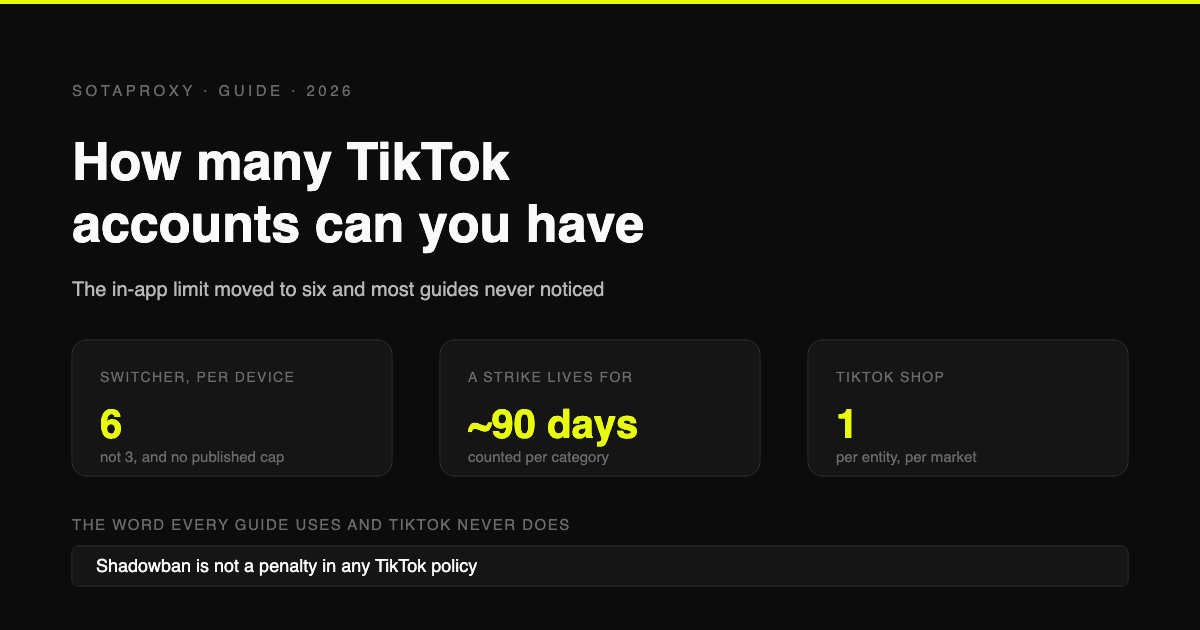
How Many TikTok Accounts Can You Have in 2026 (Limits, Strikes and Shop Rules)
Six accounts per device, not three, and no published cap. The rules that actually decide survival: action limits by account age, how strikes expire, what a shadowban really is, and one Shop per business entity per market.
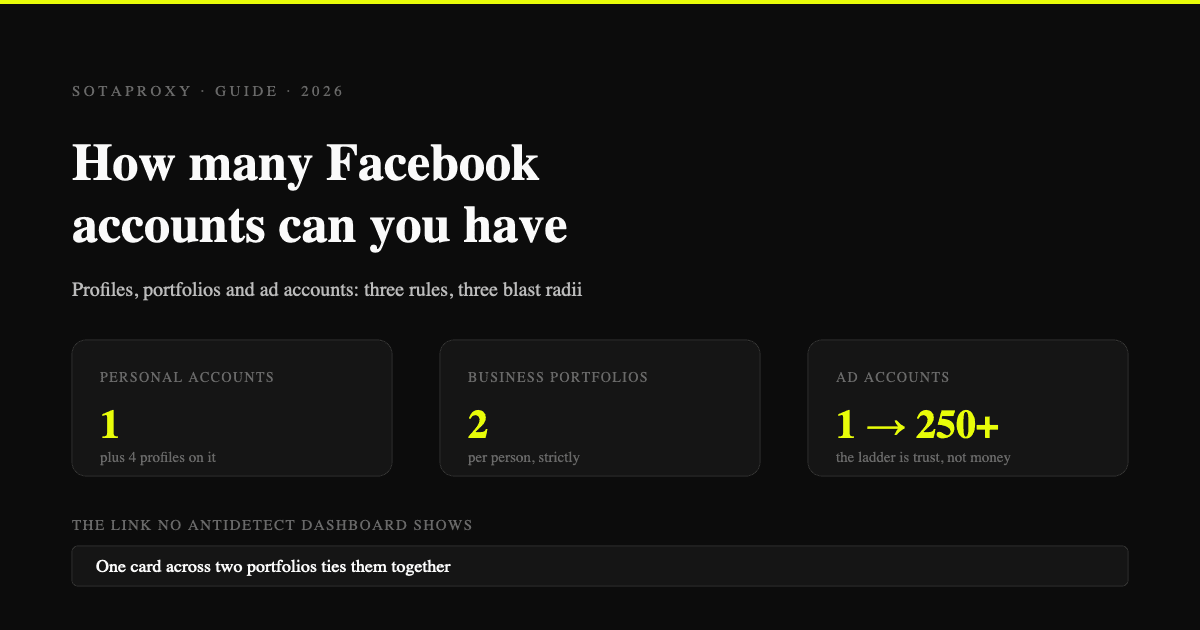
How Many Facebook Accounts Can You Have in 2026 (Profiles, Portfolios, Ad Accounts)
One personal account, four additional profiles that share its enforcement, two business portfolios per person, and an ad account limit that grows with trust. What actually gets restricted and in what order.