Why a Working Proxy Isn't Enough: A ToDetect Pre-Launch Checklist
A working proxy doesn't guarantee a consistent browser environment. Learn how ToDetect checks IP, DNS, WebRTC, and browser fingerprint signals before launch.

When preparing a browser profile for a multi-account workflow, I don't consider the setup finished just because the proxy connects and the target website loads. A working connection doesn't show everything the browser and network are exposing.
I've run into this more than once. The proxy may show the expected country, while a deeper check reveals unexpected DNS, WebRTC information, or a timezone mismatch.
That's why I test the complete environment before starting the workflow. I check four layers: IP and network information, DNS and WebRTC, browser characteristics, and overall consistency. I use ToDetect to review the environment before moving on to the target website.
Table of Contents
The Real Problem With a Working Proxy
Network Identity and Browser Identity Are Different Layers
Layer 1: Check the Exit IP
Layer 2: Check DNS and WebRTC
Layer 3: Inspect the Browser Environment
Layer 4: Check for Cross-Layer Inconsistencies
Choosing a Proxy Before Testing
How I Check a New Browser Profile
Common Problems I Find
When I Replace the Proxy
FAQ
Final Practical Rule
The Real Problem With a Working Proxy
The easiest mistake is to treat the proxy as the entire browser environment.
A proxy changes the network route and public IP, but the browser still exposes many other characteristics. A profile might have a US IP address and US ISP while using a European timezone, a different browser language, or unexpected WebRTC information.
That doesn't automatically mean the proxy is bad. The more useful question is whether the different layers make sense together.
This is easier to miss when multiple browser profiles are managed separately.
I therefore separate two questions:
Does the proxy work?
Does the complete browser environment behave as expected?
The first is a connectivity check. The second requires looking at the network and browser together.
Practical Rule: A successful proxy connection is a connectivity test, not an environment validation.
Network Identity and Browser Identity Are Different Layers
When I troubleshoot a browser profile, I normally divide the environment into four layers.
Layer | What I Check | Why I Check It | Tool |
IP & Network | IP, country, city, ISP, ASN, network type | Verify the actual network route | ToDetect IP Detection |
DNS | DNS resolver information | Check network configuration | ToDetect DNS Leak Test |
WebRTC | WebRTC network information | Check browser networking behavior | ToDetect WebRTC Test |
Browser | UA, OS, language, timezone, screen, fingerprint signals | Review browser characteristics | ToDetect Browser Checker |
This structure also makes troubleshooting easier.
If the IP is wrong, I investigate the proxy. If the IP is correct but DNS looks unexpected, I check the network configuration. If the network looks fine but the browser profile is inconsistent, I focus on the browser layer.
Instead of changing the entire setup, I can usually narrow the problem down to one layer first.
Layer 1: Check the Exit IP
The public IP is the usual starting point because it provides a baseline for the rest of the checks.
After connecting the proxy, the first check is ToDetect's IP Detection page:
Public IP address
Country
City or approximate location
ISP
ASN
Network type
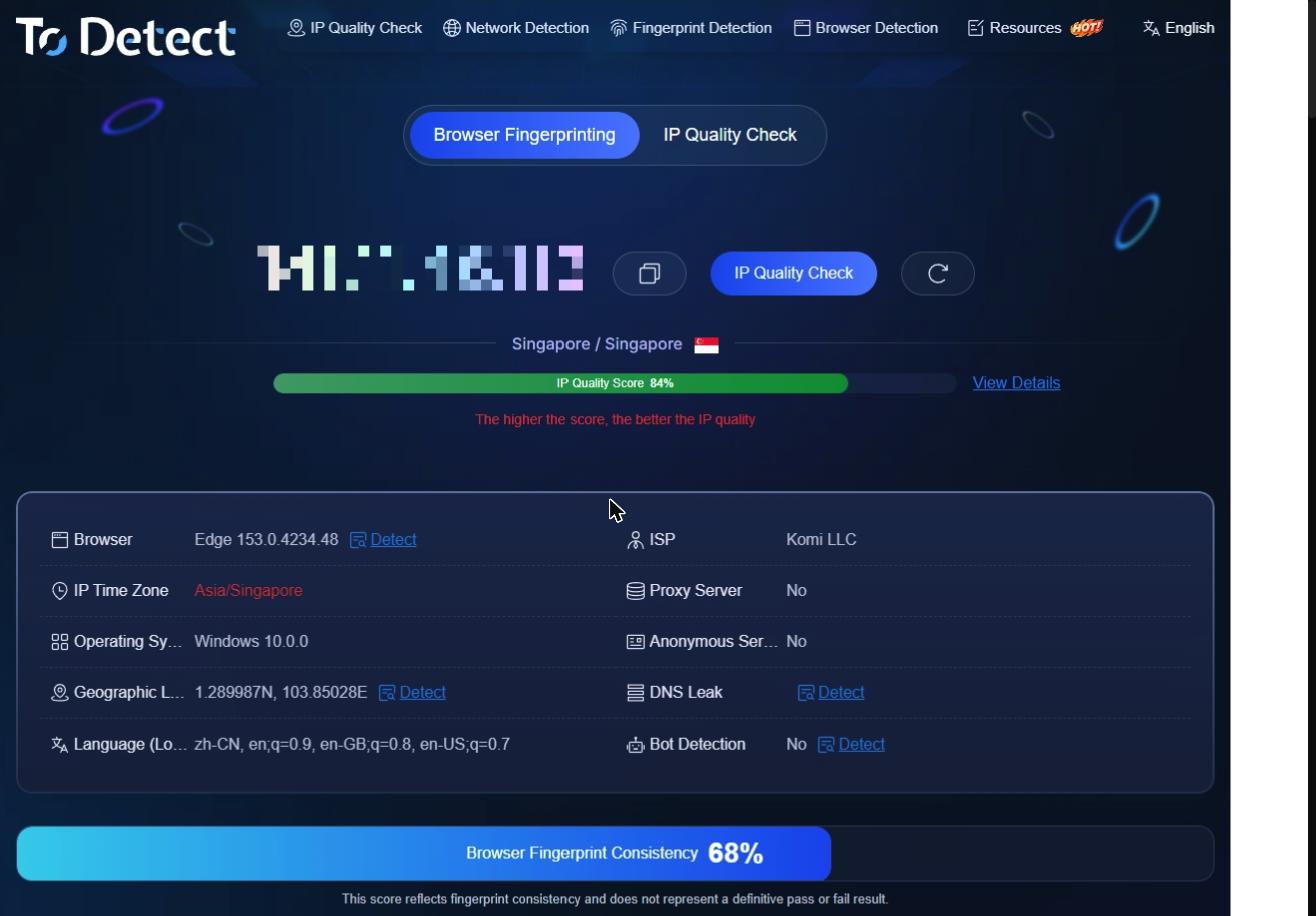
The country is only one part of the check.
For a geo-targeted workflow, ISP and ASN provide additional context about the connection. The network type can also tell me whether the connection is residential, mobile, or another type of network.
For stable profiles, I record the IP as part of the baseline. If the same profile later shows a different IP, I can determine whether the proxy configuration has changed rather than guessing.
I also avoid treating location data as an exact physical address. IP geolocation is approximate, and different databases can return different city-level results. What matters for my testing is whether the result fits the intended network setup.
What to Record
For a profile that is supposed to remain stable, a simple baseline is usually enough:
IP address
Country and city
ISP
ASN
Network type
Date and time of the check
I don't need a complicated monitoring system for a small number of profiles. A basic baseline is enough to compare changes later.
Layer 2: Check DNS and WebRTC
Once the IP looks right, I move to the browser networking layer.
This is where many quick proxy checks stop too early.
DNS
ToDetect's DNS Leak Test can then be used to inspect the DNS environment.
The goal isn't to force every DNS result to match the public IP. Different network configurations can produce different resolver arrangements.
Instead, the focus is on identifying results that don't make sense for the intended setup.
If I expect a browser profile to operate through a particular network environment but the DNS information points somewhere unexpected, I investigate the DNS configuration, VPN settings, browser configuration, or routing.
This is useful because it prevents me from immediately blaming the proxy for something happening elsewhere in the network stack.
WebRTC
Next, I run the ToDetect WebRTC Test.
WebRTC has its own browser networking behavior, so I don't assume that a working proxy automatically means every browser networking path is configured as expected.
I check what information is exposed and compare it with the IP and browser environment.
If something looks unexpected, I investigate the browser configuration before changing the proxy.
The purpose here is diagnostic: to understand what the browser is exposing and where a mismatch may be coming from.
Layer 3: Inspect the Browser Environment
The next step is the browser itself.
This is where a proxy-only test becomes insufficient.
ToDetect's Browser Checker lets me inspect browser and device-related information, including:
User-Agent
Browser
Operating system
Language
Timezone
Screen information
Canvas
WebGL
Audio
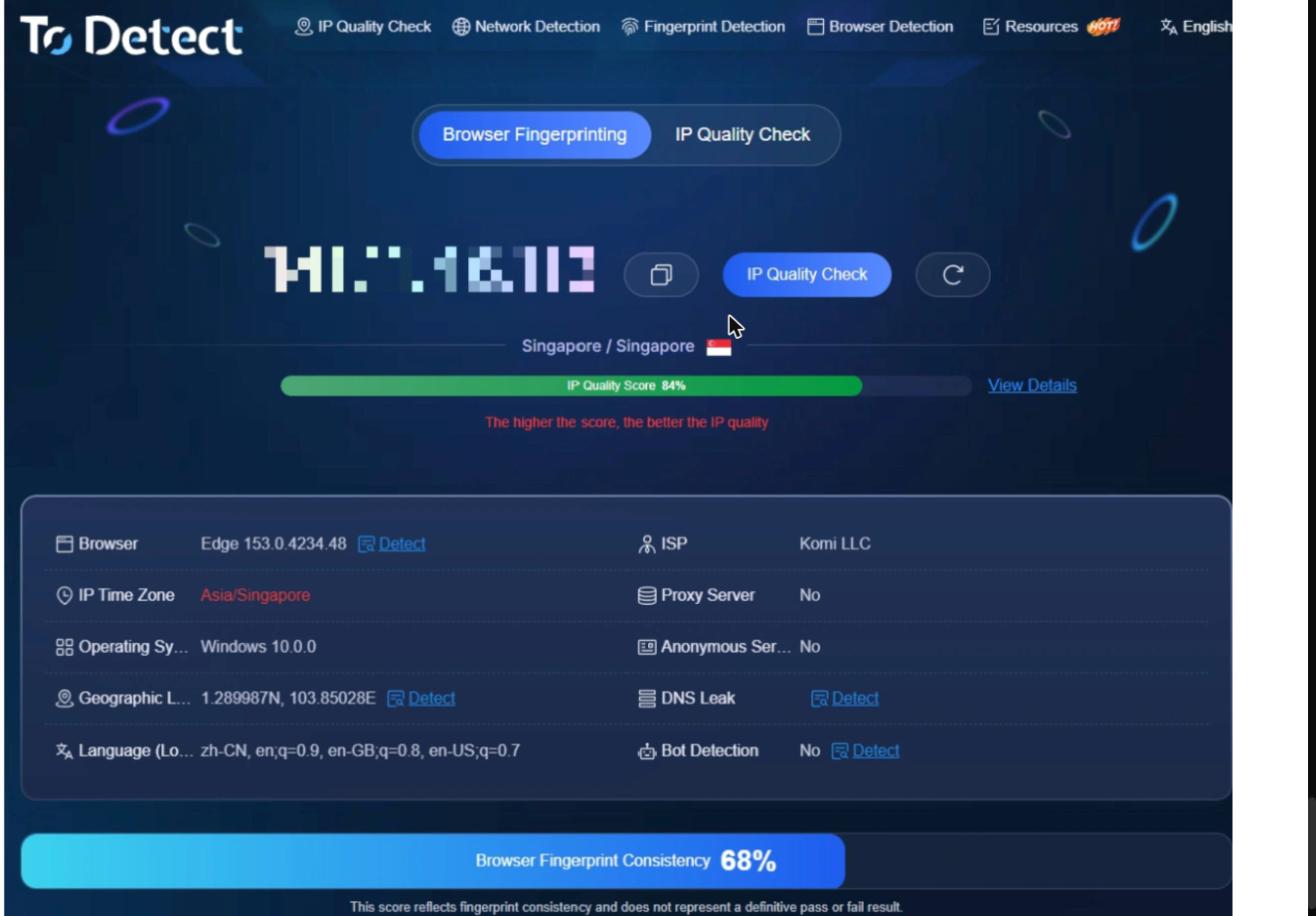
It's usually better to start with the obvious values before looking at deeper fingerprint signals.
User-Agent and Operating System
The User-Agent, browser, and operating system should make sense together.
If the browser profile is configured for one environment but the detected information shows something unexpected, I investigate the profile configuration first.
The same applies to browser versions. A version mismatch doesn't automatically indicate a problem, but it's worth understanding when I'm trying to establish a stable baseline.
Language and Timezone
Language and timezone are easy to overlook because they don't affect whether a website loads.
They are still worth checking because they are part of the browser environment.
A US-oriented profile with a European timezone isn't automatically wrong. There can be legitimate reasons for that configuration. The important part is knowing what the browser exposes and making sure the setting is intentional.
Screen and Device Information
I also compare screen and device information with the browser profile.
If the configured profile says one thing while the browser exposes something different, I fix the configuration before starting the workflow.
This is especially useful when several profiles are being managed at the same time. Small configuration differences can otherwise become difficult to trace later.
Canvas, WebGL, Audio
For a deeper browser-level review, Canvas, WebGL, and Audio provide additional fingerprint signals.
An individual fingerprint signal shouldn't be treated as a simple pass/fail result. Browser environments contain many related signals, and one unusual value doesn't explain the whole environment.
These results are more useful for understanding what the browser exposes and whether the profile behaves as expected.
Practical Rule: Don't judge a browser profile from one fingerprint signal. Look at the related signals together.
Layer 4: Check for Cross-Layer Inconsistencies
After checking each layer separately, I compare the results to see whether they tell a consistent story.
For example, if the IP, ISP, and ASN all point to the expected location but the DNS result looks different, I focus on the DNS or routing configuration first. There's no reason to replace the proxy before checking the network layer.
The same applies to the browser environment. If the network information looks right but the timezone, language, or browser details don't match the profile configuration, I investigate the browser settings instead.
The values don't need to be identical. What matters is understanding what each layer is exposing and identifying anything that looks unexpected.
This is why I check the layers separately before comparing them. It gives me a clearer troubleshooting path and helps me avoid changing multiple parts of the setup at once.
Choosing a Proxy Before Testing
The proxy type also affects what I expect to see during testing.
I normally choose the proxy based on the workflow rather than assuming one type works for everything.
Proxy Type | Typical Use | What I Check First |
Residential | Geo-targeted browser workflows | Location, ISP, stability |
ISP / Static Residential | Long-lived sessions | IP consistency, location |
Mobile | Mobile-oriented workflows | Carrier, location, stability |
Datacenter | High-volume automation and testing | Speed, stability, network type |
When evaluating a proxy provider such as SotaProxy, I still verify the actual connection independently after the proxy is configured.
The provider supplies the proxy connection, but my testing process tells me what the browser and network are actually exposing.
That distinction matters when troubleshooting. If the IP is correct but the browser configuration is wrong, changing providers won't necessarily solve the problem.
How I Check a New Browser Profile
When I set up a new profile, I keep the testing process straightforward.
1. Connect the Proxy
Configure the proxy in the browser or browser-profile tool and make sure the connection is active.
2. Run the ToDetect Checks
I check the IP, location, ISP, ASN, network type, DNS, WebRTC, and browser environment.
I don't need to run these tests repeatedly. One complete check gives me a useful starting point.
3. Compare the Results
I put the network and browser results together and look for anything unexpected.
If I find a mismatch, I investigate that specific layer instead of changing the entire setup.
4. Save the Baseline
Once the environment looks as expected, I save the results for important profiles.
I can then compare the current environment with the original setup if something changes later.
After that, I move on to the target website and the actual workflow.
Common Problems I Find
The IP Is Correct, but the Timezone Is Different
The browser profile is the first place to look.
If the timezone was simply configured incorrectly, fixing the profile and rerunning the browser check is usually enough.
The IP Is Correct, but DNS Looks Unexpected
I check DNS settings, VPN software, browser configuration, and routing.
If the problem comes from the local network configuration, changing the proxy only adds another variable.
WebRTC Shows Unexpected Information
I review the browser's WebRTC behavior and profile configuration, then run the test again.
I treat the result as a diagnostic signal rather than automatically classifying the entire proxy setup as a failure.
Everything Looks Fine, but the Workflow Behaves Differently
This is where having a baseline helps.
I compare the current profile with the original results:
Did the IP change?
Did the proxy configuration change?
Did the browser or User-Agent change?
Did the timezone or language change?
Did the browser profile change?
I try to change one variable at a time. Otherwise, it becomes difficult to tell which change actually affected the workflow.
When I Replace the Proxy
I don't replace a proxy every time I find an unusual browser result.
I consider the proxy itself when I repeatedly see problems such as:
Incorrect IP location
Unexpected ISP or ASN
Unstable connectivity
An IP that doesn't meet the workflow requirements
Unexpected IP changes in a setup that should remain stable
For browser-side issues, I troubleshoot the profile first.
Problem | First Thing I Investigate |
Wrong IP location | Proxy |
Unexpected ISP or ASN | Proxy / IP |
Unstable connection | Proxy / network |
Unexpected DNS | DNS / routing |
Unexpected WebRTC data | Browser / network |
Wrong timezone | Browser profile |
Wrong language | Browser profile |
Unexpected browser information | Browser profile |
The basic principle is simple: change the layer that is causing the problem.
FAQ
1. Does a working proxy guarantee a consistent browser environment?
No. A proxy mainly affects the network connection and public IP. The browser can still expose DNS, WebRTC, language, timezone, screen, and other browser information.
2. How often should I run these tests?
I usually run a complete check when creating a new profile or changing an important part of the setup. For stable profiles, I repeat the check when the configuration changes or the workflow starts behaving differently.
3. Should every browser signal match the proxy location?
Not necessarily. Language, timezone, and device settings can differ for legitimate reasons. The useful part is understanding what the browser exposes and whether the configuration is intentional.
4. Should I replace the proxy if one test looks unusual?
Not automatically. First identify which layer produced the result. The issue may be in the browser or local network configuration rather than the proxy.
5. What can I check with ToDetect?
ToDetect can check IP and network information, DNS, WebRTC, and browser fingerprint-related signals. I use these tests together to establish a baseline for the complete environment.
Final Practical Rule
I don't treat proxy testing as a simple "connected or not" check.
My usual sequence is:
Proxy → IP → DNS → WebRTC → Browser → Cross-check → Target workflow
This gives me a clearer picture of the environment before I start working with a profile. More importantly, when something changes later, I have a baseline and a defined layer to investigate.
That makes browser-profile troubleshooting much more straightforward than changing the proxy, browser, and network settings all at once.
Related articles
How to Test a Proxy Before You Buy It: A 10-Minute Checklist
Ten checks that tell you whether a proxy trial is worth paying for: exit ASN, hosting flags, rotation behaviour, subnet spread, DNS and WebRTC leaks, and success rate on your own target.
Boost Proxy Performance: Reliability Testing Guide
Ensure peak proxy performance with effective reliability testing. Learn key metrics, test types, & practical test cases for ad arbitrage & account farming.
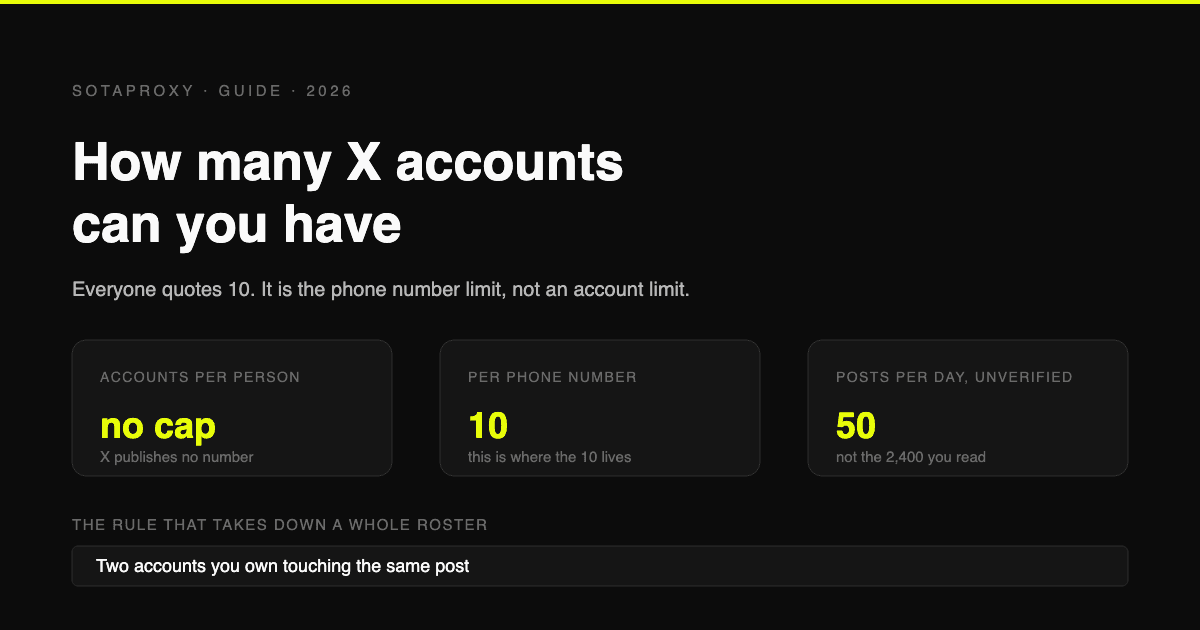
How Many X (Twitter) Accounts Can You Have in 2026 (The 10 Is a Phone Limit, Not an Account Limit)
X publishes no cap on accounts per person. The 10 everyone quotes is the number of accounts one phone number can cover. The real constraints are 50 posts a day on a free account, duplicative use cases, and accounts that interact with each other.
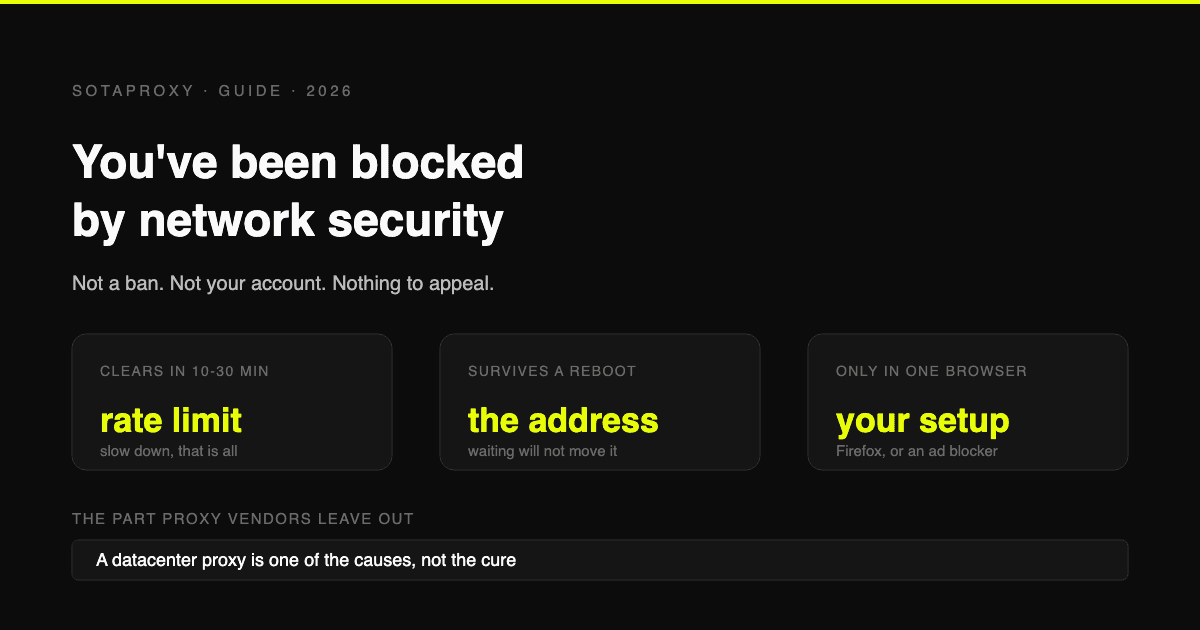
Reddit "You've Been Blocked by Network Security": Every Cause, and the Fix for Each
It is not a ban and there is nothing to appeal. It comes from Reddit's edge, applies to your connection, and has six causes. Here is how to tell which one you have, and how long each lasts.
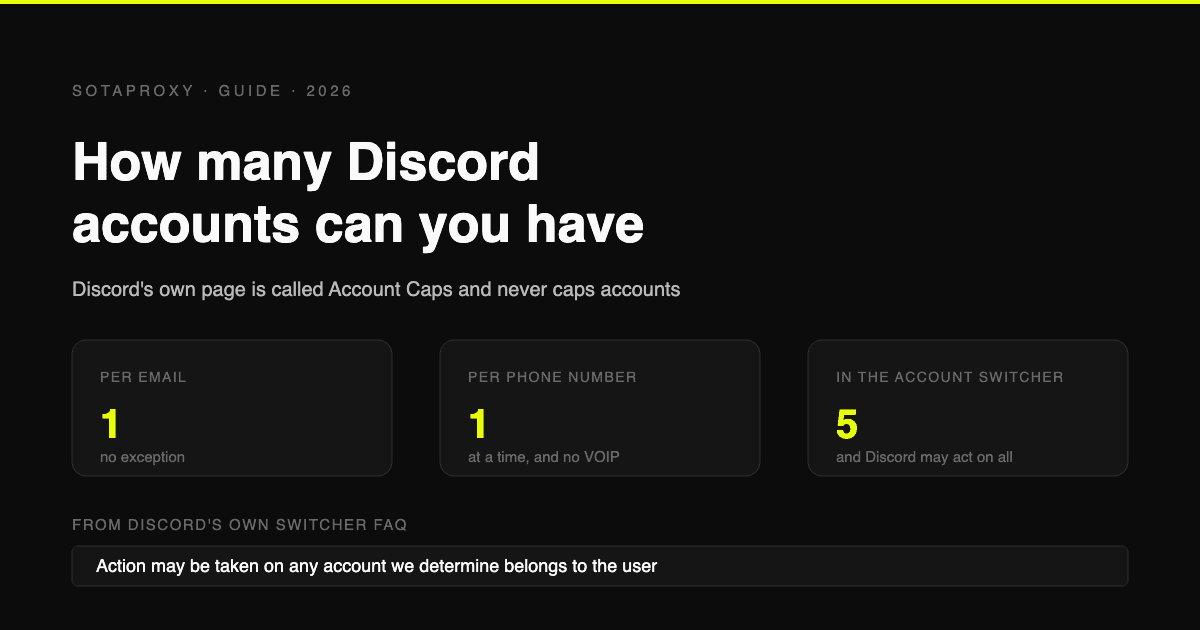
How Many Discord Accounts Can You Have in 2026 (Per Email, Per Phone, Per Device)
Discord publishes no cap on accounts. The real limits are one per email, one phone number at a time with no VOIP, and five in the Account Switcher, which Discord says it may enforce across.