FoxyProxy Setup in 2026: Chrome, Firefox, Patterns, and the SOCKS5 Login Chrome Ignores
FoxyProxy is the same extension on Chrome and Firefox and does different things on each. The setup step by step for version 9, the pattern syntax that actually matches, and the one limit most guides leave out: in Chrome a SOCKS5 proxy with a login cannot work, which we confirmed by capturing what Chrome sends.
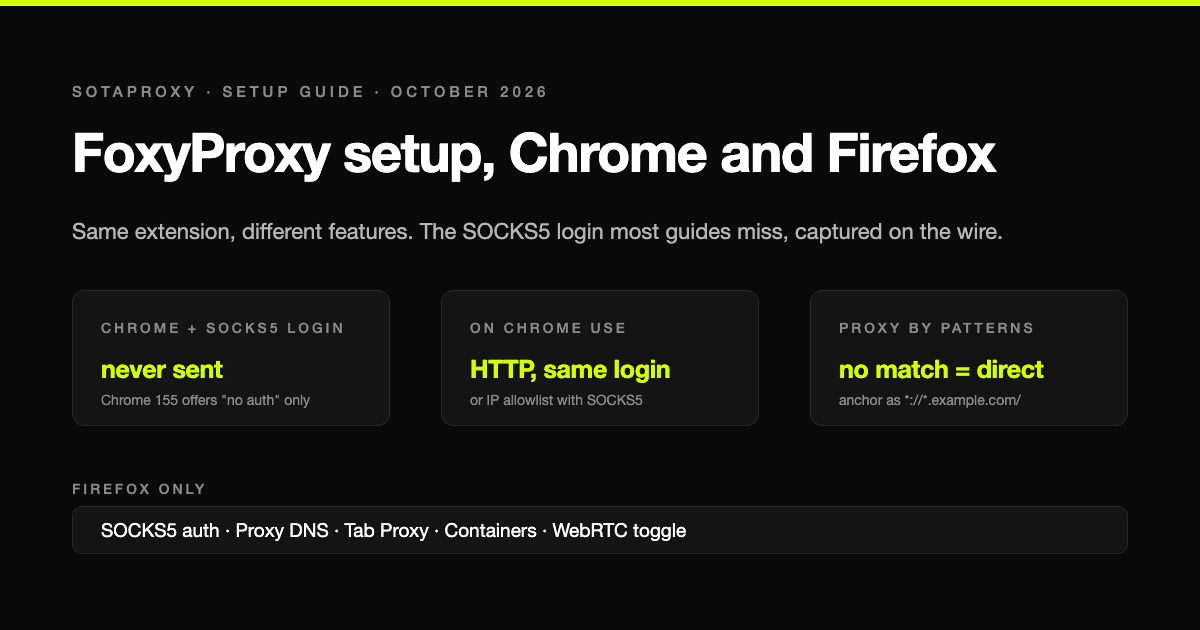
FoxyProxy is the oldest proxy switcher still in active development, first released in 2006 and rewritten from version 8 onward as one code base for Firefox, Chrome and Edge. Most setup guides treat that as "works the same everywhere". It does not. The same extension, with the same settings screen, supports a different set of features on each browser, and the difference that costs people the most time is a single line in FoxyProxy's own help: SOCKS5 authentication is Firefox only.
This guide covers FoxyProxy 9 as it ships today: installing it, adding a proxy, the three modes, the pattern syntax, importing a list, and the browser-by-browser limits, with the SOCKS5 one confirmed by capturing what Chrome actually sends.
Which FoxyProxy to install
There are two editions, built from the same source:
- FoxyProxy Standard is the full extension: proxy by patterns, per-tab proxies, import and export, logging.
- FoxyProxy Basic is the same build with pattern matching switched off. It sets one proxy for everything or none at all.
Install Standard unless you are certain you will never need site rules. The current release is version 9 and needs Firefox 128 or later, Chrome 126 or later, Edge 126 or later, or Firefox for Android 113 or later.
One permission matters before anything else:
- Chrome: open the extension's details and turn on "Allow in Incognito" if you want proxying in incognito windows.
- Firefox: turn on "Run in Private Windows". FoxyProxy's help notes that Firefox requires this for proxy settings.
Adding a proxy, step by step
- Click the FoxyProxy icon, then Options, then Proxies, then Add.
- Title and colour are for you; the colour shows on the toolbar icon so you can see which proxy is active at a glance.
- Type: choose HTTP, HTTPS, SOCKS4 or SOCKS5. If your provider gives you one port for both HTTP and SOCKS5, pick by browser: HTTP on Chrome, SOCKS5 or HTTP on Firefox. The next section explains why.
- Hostname and port exactly as your provider gives them, with no scheme in front.
- Username and password if the proxy uses login authentication. If it uses an IP allowlist instead, leave them empty; the difference between the two methods is in proxy authentication methods.
- On Firefox with SOCKS5, tick Proxy DNS so that domain names are resolved by the proxy and not by your own connection. Firefox now does this by default for SOCKS v5.
- Save, then pick the proxy from the toolbar menu.
With a login-based provider the entry looks like this. The country or session goes into the username, so one host and one port can serve many exits:
Type:      HTTP              (Chrome)   or SOCKS5 with Proxy DNS (Firefox)
Hostname:  proxy.sotaproxy.com
Port:      10000
Username:  login_c_US        (country suffix, set in your dashboard)
Password:  your password
The SOCKS5 login that never reaches the proxy in Chrome
FoxyProxy's help says it plainly: "SOCKS5 username and password is only supported by Firefox (not available on Chrome)", and "Chrome does not support SOCKS authentication". The fields are still there on Chrome, which is why people fill them in and then spend an evening on a connection that cannot succeed.
The reason is in how extensions are allowed to answer a proxy's request for credentials. FoxyProxy's own source notes that the browser hook it uses for this "is only called for HTTP and HTTPS/TLS proxy servers", and on Chrome that is the whole list. Firefox additionally lets an extension hand SOCKS credentials to the browser directly; Chrome has no such path.
We checked what this looks like on the wire. A SOCKS5 connection starts with the client listing the authentication methods it can do, and the server picking one. We ran a small SOCKS5 server that requires a login and logged that first message, on 23 October 2026:
| Client | Methods offered in the greeting | Result |
|---|---|---|
| curl, with a login | no auth, GSSAPI, username and password | Sends the login, connects |
| curl, without a login | no auth, GSSAPI | Rejected, no acceptable method |
| Chrome 155, no login | no auth only | Rejected, every retry |
| Chrome 155, login written into the proxy address | none, never connects | net::ERR_NO_SUPPORTED_PROXIES |
Chrome does not offer username and password authentication at all, so no extension and no setting can make it log in to a SOCKS5 proxy. The script we used is a few dozen lines of Python and you can run the same test yourself.
What to do instead on Chrome:
- use the provider's HTTP endpoint with the same login; most providers, ours included, serve HTTP and SOCKS5 on one port;
- or switch the proxy to IP allowlist authentication and use SOCKS5 with no login;
- or use Firefox for the SOCKS5 work.
If a Chrome HTTP proxy then answers with a login prompt or a 407, the credentials are wrong rather than unsupported, and the causes are listed in the 407 Proxy Authentication Required guide.
The three modes
The toolbar menu has three positions, and the difference between the first two is the one that matters:
- Proxy by Patterns. Each request is checked against your patterns. If a proxy's include pattern matches, that proxy is used. FoxyProxy's help adds the rule people miss: if no pattern matches, the connection goes direct, without any proxy.
- A single proxy. Every connection goes through the selected proxy and patterns are ignored.
- Disable. The browser's own proxy settings take over.
The menu only offers Proxy by Patterns when at least one include pattern exists, so add a pattern before looking for the mode.
Writing patterns that match
FoxyProxy 9 accepts three pattern types, and they behave differently enough that mixing them up is the usual reason a rule "does nothing".
Wildcard. * matches any run of characters and ? exactly one. A wildcard can match any part of the URL, which is convenient and also the trap: example.com matches https://example.com/ but also https://google.com/ref=help.example.com. To match a domain and its subdomains and nothing else, anchor it on the scheme separator:
*://*.example.com/      matches https://help.example.com/
                        does not match https://example.com/
example.com             matches https://example.com/ AND a URL that merely contains it
FoxyProxy's own note is that a leading or trailing * is unnecessary and slows matching down.
Match pattern. Stricter, the format browsers use for extension permissions. It must cover the whole URL with scheme, host and path, * in the host is only allowed at the start, and no port number.
*://*.example.com/* example.com and every subdomain, any scheme, any pathRegular expression. Built with JavaScript's RegExp, so forward slashes do not need escaping, and it matches anywhere in the URL unless you anchor it.
^https://([a-z0-9-]+\.)?example\.com/Every proxy can have include and exclude patterns, and excludes win. A global exclude list sends hosts direct no matter what, which is where local addresses and your own admin panels belong. Before relying on a rule, paste a real URL into FoxyProxy's pattern tester; it shows which proxy will take it.
Importing a list of proxies
For more than a couple of entries, use Import. FoxyProxy accepts a plain list, one proxy per line:
proxy.sotaproxy.com:10000:login_c_US:yourpassword
proxy.sotaproxy.com:10000:login_c_DE:yourpassword
or the extended form, where the type and the title go in the line as well:
http://login_c_US:yourpassword@proxy.sotaproxy.com:10000?title=US&color=1e90ff
socks5://proxy.sotaproxy.com:10000?title=DE&username=login_c_DE&password=yourpassword
Imported entries are added to the existing ones, not swapped in. On Chrome, import socks5 entries only for proxies without a login, for the reason above.
What only works in one browser
FoxyProxy's help marks each of these explicitly:
| Feature | Firefox | Chrome |
|---|---|---|
| SOCKS5 with username and password | Yes | No |
| Proxy DNS for SOCKS | Yes | No setting |
| Tab Proxy and Tab Proxy by patterns | Yes | No |
| Container Proxy | Yes | No, incognito only |
| Toggle WebRTC on or off | Yes | No, limit only |
| Store a PAC file locally | No | Yes |
| QUIC (HTTP/3) proxy type | No | Yes |
Tab Proxy deserves a note of its own. On Firefox you can set a proxy for one tab and leave the others direct, which is what most people want when they reach for FoxyProxy in the first place. Tab proxies are cleared when the browser or the extension restarts, and requests from service workers bypass them.
Checking that it works
- With the proxy selected, open any page that shows your IP address and confirm the country.
- Run a WebRTC leak check. FoxyProxy can limit WebRTC on both browsers through an optional permission; without it, a page can still learn your real address through WebRTC even with the proxy on.
- If the proxy is for a specific job, test the real target, not just an IP page. The checks worth running, in order, are in how to test a proxy before you buy.
For browser-level proxy settings without an extension, the guides for Chrome and Firefox cover what each browser can do on its own.
Frequently asked questions
Does FoxyProxy support SOCKS5 with a username and password in Chrome?
No. FoxyProxy's own help says SOCKS5 authentication is Firefox only, because Chrome does not support SOCKS authentication at all. In our capture, Chrome 155 offered only the "no authentication" method in the SOCKS5 handshake. Use the HTTP endpoint with the same login, or IP allowlisting, on Chrome.
What is the difference between FoxyProxy Standard and Basic?
They are the same extension, except that Basic has pattern matching turned off. Basic sets one proxy for all traffic or none; Standard adds proxy by patterns and the per-tab features on Firefox.
Why is my FoxyProxy pattern not working?
Usually because a wildcard matched more or less than intended, or because no pattern matched and the request went direct, which is the default in Proxy by Patterns mode. Anchor domain wildcards as *://*.example.com/, check excludes, and paste the URL into the pattern tester.
How do I import a proxy list into FoxyProxy?
Options, then Import, then paste one proxy per line as host:port:user:pass, or as a URL such as http://user:pass@host:port. Imported proxies are added to the ones you already have.
Can FoxyProxy set a proxy for one tab only?
On Firefox, yes, with Tab Proxy. On Chrome, no; the closest option is a separate proxy for incognito windows.
Related articles
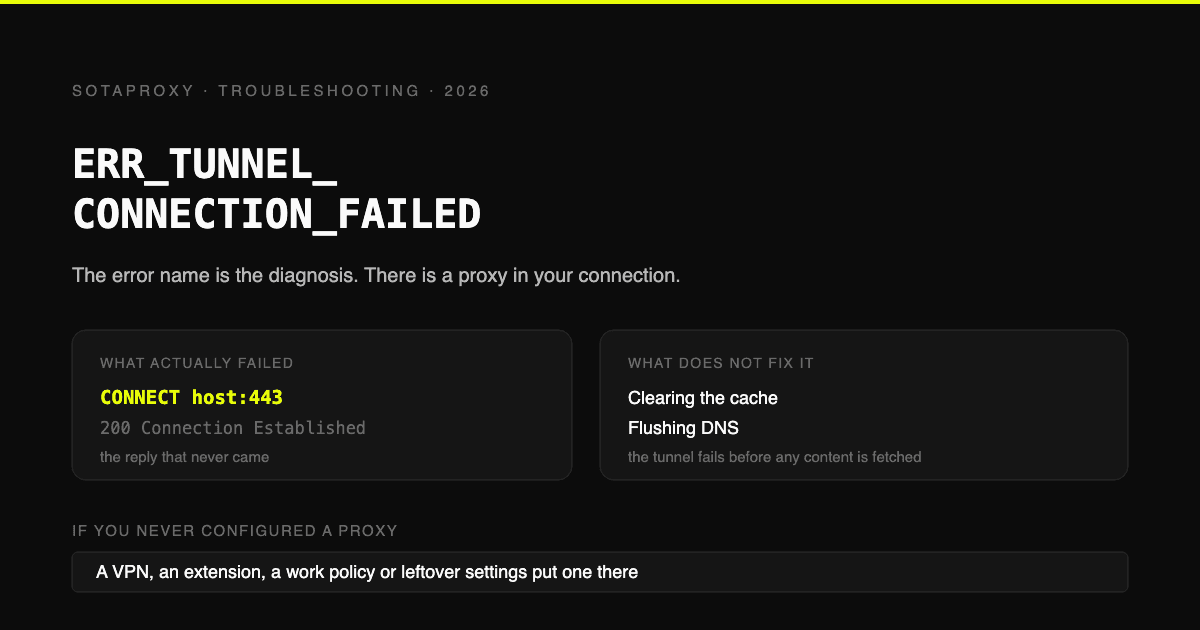
ERR_TUNNEL_CONNECTION_FAILED: The Error Name Is the Diagnosis
Chrome asked a proxy to open a CONNECT tunnel and it failed. That is the whole error. Where the proxy comes from when you never configured one, the six ways a proxy you did configure produces it, and why clearing your cache fixes nothing.

How Many Google and Steam Accounts Can You Have in 2026
The two platforms in this series where the count is genuinely unlimited and the limit is somewhere else: Google rations phone numbers and never says how many accounts one buys, Steam lets you make as many accounts as you like and then locks every one of them until it has spent $5. The rules from Google's and Valve's own pages, and what actually ties two accounts together.
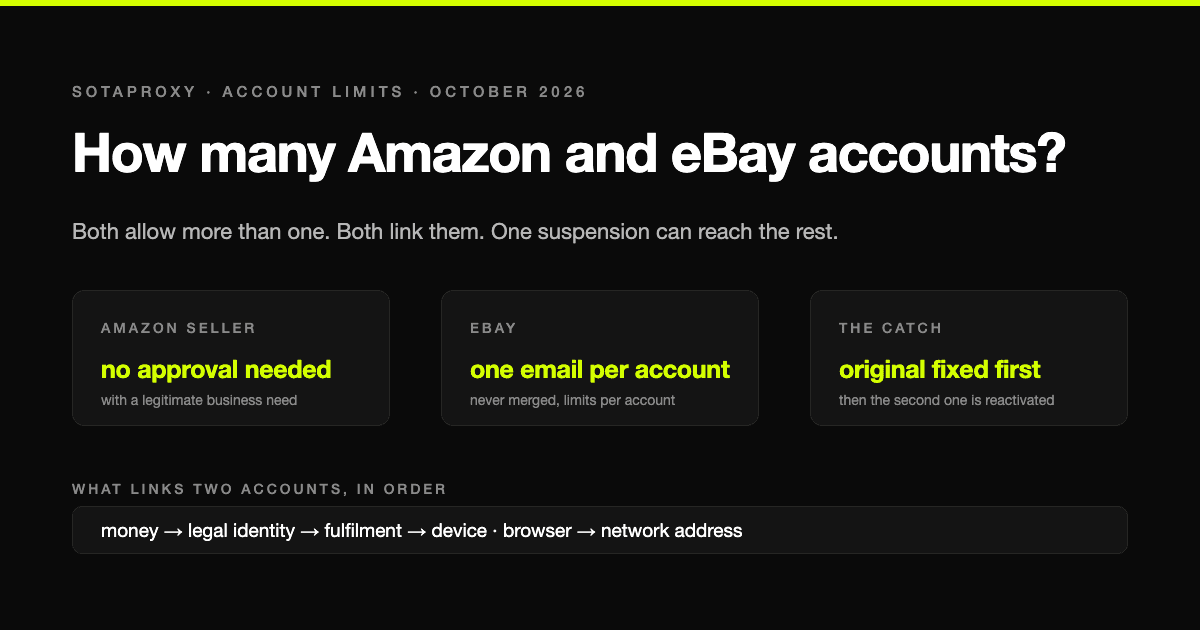
How Many Amazon and eBay Accounts Can You Have in 2026
Amazon and eBay are the generous end of the account-limit scale on paper and the harshest in practice: more than one account is allowed, every account is linked, and one suspension can take the lot. The rules in the platforms' own words, and what actually connects two accounts.
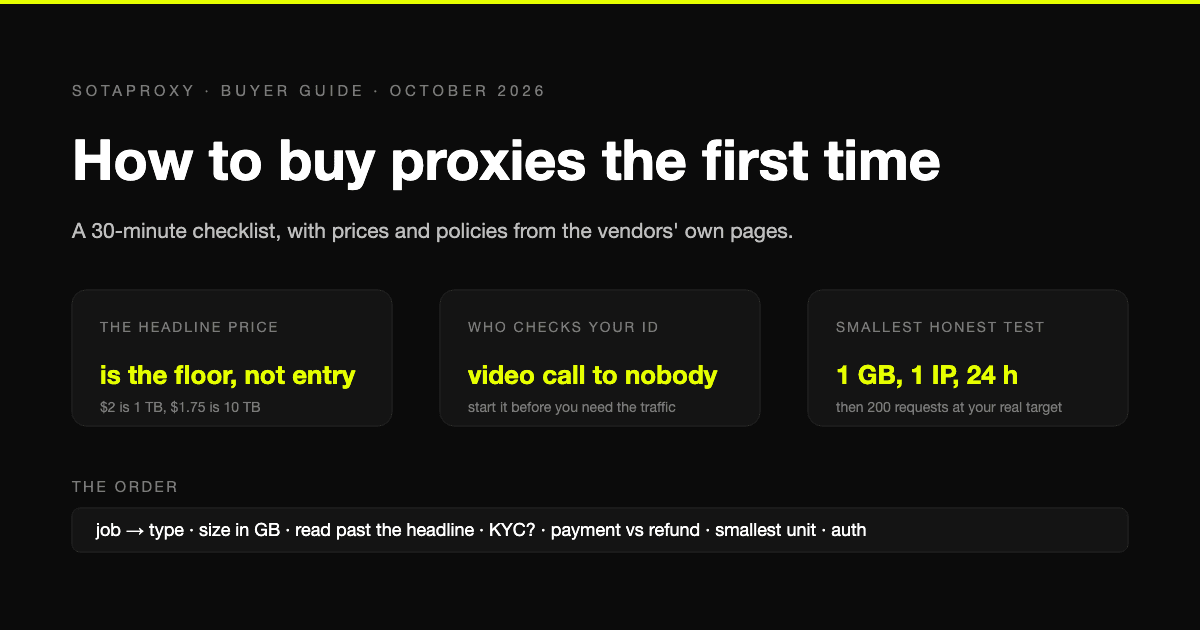
How to Buy Proxies for the First Time: A 30-Minute Checklist
A first purchase goes wrong in predictable places: the wrong proxy type, a headline price nobody pays, an identity check nobody mentioned, a refund that does not apply to how you paid. The checklist, with prices and policies from the vendors' own pages.
Proxy Authentication Explained: Username and Password vs IP Whitelist
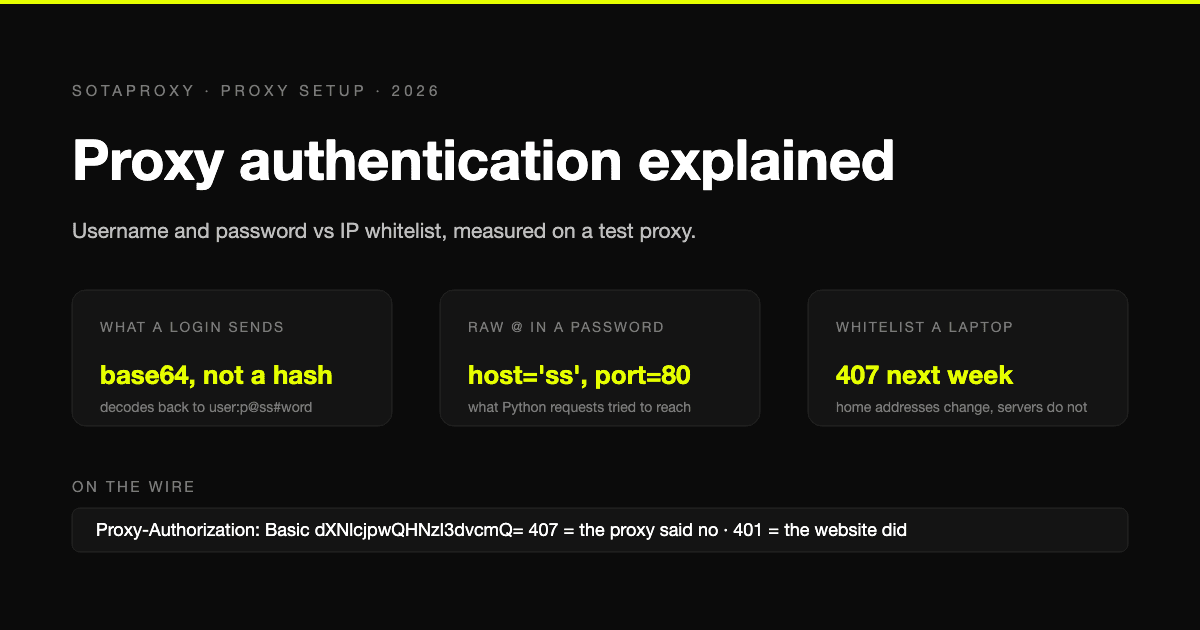
Two ways a proxy knows it is you: credentials sent on every connection, or a list of addresses allowed in without them. What each one puts on the wire, measured on a test proxy, which tools cannot do which, and why a whitelisted laptop breaks a week later.
Banned With a Clean Proxy? The Setup Mistakes That Actually Do It
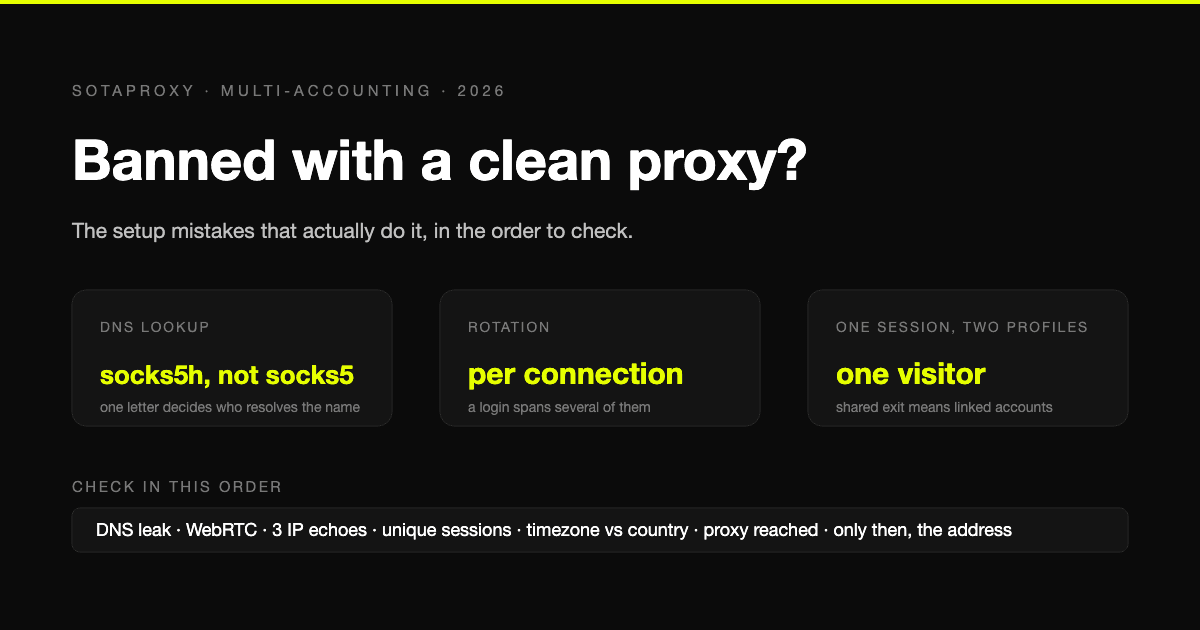
The proxy was clean, the address was residential, and the account still died. In most cases we see, the address was never the problem. Seven setup faults, each one checkable in a minute, in the order they usually turn out to be the cause.