WiFi Proxy Settings for Ad Accounts & Antidetect Browsers
Configure your WiFi proxy settings on Windows, macOS, iOS, and Android for antidetect browsers. A direct guide for media buyers managing multiple ad accounts.
You already know the feeling. A Facebook ad account warms up cleanly inside AdsPower or Dolphin Anty, the profile looks consistent, the cookies are aged, and then something outside the browser leaks enough network truth to trigger friction. The browser profile wasn't the problem. The machine around it was.
That's why wifi proxy settings still matter for media buyers, account farmers, cloaking setups, and teams running geo-targeted campaigns on Facebook, TikTok, Google, and ecommerce platforms. Browser-level proxies isolate identities. System-level proxies control what the rest of the device does. If you ignore that layer, you leave room for app traffic, update checks, helper processes, and network behavior that doesn't match the profile you're trying to present.
For high-stakes workflows, I treat wifi proxy settings as part of account hygiene. Not an afterthought. Not a support task. A core part of the stack, right next to profile isolation, cookies, timezone alignment, and session discipline.
Table of Contents
- Why System-Level Proxies Are Your Last Line of Defense
- Choosing the Right Proxy Type for Your Operation
- System-Wide WiFi Proxy Configuration Guide
- Advanced Setup PAC Files and Router-Level Proxies
- Integrating Proxies with Antidetect Browsers and Managers
- Verification Troubleshooting and Performance Checks
Why System-Level Proxies Are Your Last Line of Defense
A common mistake in multi-account work is assuming the antidetect browser handles everything. It doesn't. AdsPower, GoLogin, Multilogin, Dolphin Anty, and Hidemyacc can isolate browser fingerprints and route profile traffic through assigned proxies, but the operating system still runs its own traffic outside that profile.
That gap matters more than people admit. A wifi owner with router access can view visited sites through router logs or traffic inspection, even in incognito mode, and a proxy changes what the destination website sees by exposing the proxy server's IP instead of the user's own IP, as described by Panda Security's explanation of Wi-Fi visibility and proxy behavior. For media buyers, that's not a theory problem. It hits when a local app, sync process, or background browser instance talks from the wrong network path while you're managing region-sensitive accounts.
Where leaks happen in real workflows
The browser profile can be perfect while the rest of the machine is noisy.
- Updater traffic: Chrome components, desktop apps, cloud sync tools, and helper services may connect outside your profile proxy.
- Account support tools: Spreadsheet apps, ad spy tools, messenger clients, and upload utilities often use the system route, not the browser route.
- Cloaking review environments: If your landing page checks one path and your device leaks another, the setup gets messy fast.
- Team machines: Shared laptops and rented operators' devices usually have extra processes you didn't harden.
Practical rule: If the account is valuable, assume browser-only proxying is incomplete until you test the whole device.
What system-level proxying actually fixes
System-level wifi proxy settings don't replace profile proxies. They close the obvious holes around them. I use them as a baseline layer on machines that touch Facebook Business Manager, TikTok Ads, agency assets, warmed farm accounts, and geo-targeted campaign environments.
That matters most when the machine's default route could reveal a location or network context that doesn't match the account story. If you're also dealing with hostname resolution issues, proxy DNS behavior is part of the same operational picture.
What doesn't work is blind trust. Setting a system proxy once and forgetting it usually leads to drift. New wifi network. New app. New conflict. Same old leak.
Choosing the Right Proxy Type for Your Operation
Before you touch wifi proxy settings, choose the proxy type that matches the job. A weak choice here creates avoidable problems later. Cheap IPs can be fine for scraping support tasks. They're often the wrong call for Facebook ad accounts, TikTok business assets, cloaking flows, or account farming inside antidetect browsers.
Proxy infrastructure changed a long time ago. Proxies moved from simple web caching in the late 1990s into a broader layer for privacy, access control, and traffic management, which is why modern setups matter across devices and regions, as outlined in this short history of proxy services.
What matters for buyers and farmers
You're usually balancing four things:
- Trust profile: How normal the IP looks to platforms that score risk.
- Stability: Whether the session can stay consistent long enough for account work.
- Speed: How painful the dashboard, uploads, and account switching feel.
- Cost pressure: Whether the setup scales across operators, profiles, and support devices.
For a practical breakdown of categories, this guide to proxy types is a useful reference point.
Proxy Type Comparison for Media Buying and Account Farming
| Proxy Type | Primary Use Case | Platform Trust | Speed | Cost |
|---|---|---|---|---|
| Residential | Facebook and TikTok account work, geo-targeted browsing, cloaking checks | Usually stronger than datacenter for sensitive platform actions | Moderate | Higher |
| Mobile | High-friction social workflows, mobile-looking traffic, difficult moderation environments | Often strong for trust-sensitive activity | Variable | Higher |
| Datacenter | Automation, support tools, bulk tasks, low-risk scraping, non-sensitive logins | Weaker for many ad account workflows | Fast | Lower |
| ISP | Sticky sessions for long-lived browser profiles and stable business operations | Often a middle ground between residential feel and datacenter stability | Fast | Mid to high |
| IPv6 | Scale-heavy tasks where target support is confirmed | Depends heavily on target platform and implementation | Can be good | Often efficient |
Practical differences that actually affect outcomes
Residential proxies are the safe default for serious account work. They fit better when you need location realism for Facebook ad accounts, TikTok ad accounts, local SERP checks, ad verification, or cloaking review paths. They're also easier to justify when a single profile matters more than raw speed.
Mobile proxies make sense when the platform heavily weights mobile-origin patterns, or when you want a setup that looks closer to real carrier traffic. They're useful, but not magical. They can be slower, more expensive, and harder to standardize across a whole team.
Datacenter proxies are where people get reckless. They're fast and cheap. They're also the first thing I cut from any workflow that involves valuable business managers, payment profiles, or long-term farmed assets. They still have a place for bulk research, QA, scraping support, and throwaway tasks.
If the account needs to survive, optimize for trust first. Speed only matters after that.
ISP proxies are a strong operational option when you need sticky sessions and less randomness. For media buying teams that keep operator machines stable over time, they often feel easier to live with than rotating residential pools.
IPv6 proxies can work well in specific environments, but only if the target platforms, tools, and destinations handle IPv6 cleanly. Some buyers force IPv6 into setups where half the stack still behaves like IPv4 is the default. That usually creates support tickets, not efficiency.
Protocol choice matters too
For wifi proxy settings and antidetect browser profiles, the common real-world split is:
- HTTP/HTTPS proxies: Fine for browser-centric work and easy to configure.
- SOCKS5 proxies: More flexible when you need broader app compatibility or mixed traffic types.
If your workflow includes browser automation, upload tools, messengers, farm management utilities, and external verification apps, SOCKS5 usually causes fewer surprises.
System-Wide WiFi Proxy Configuration Guide
When I set up an operator machine, I start with the OS before I touch profile imports. That gives me a clean base layer for support traffic, helper apps, and mistakes that happen outside the antidetect browser.
Use this as the fast path.
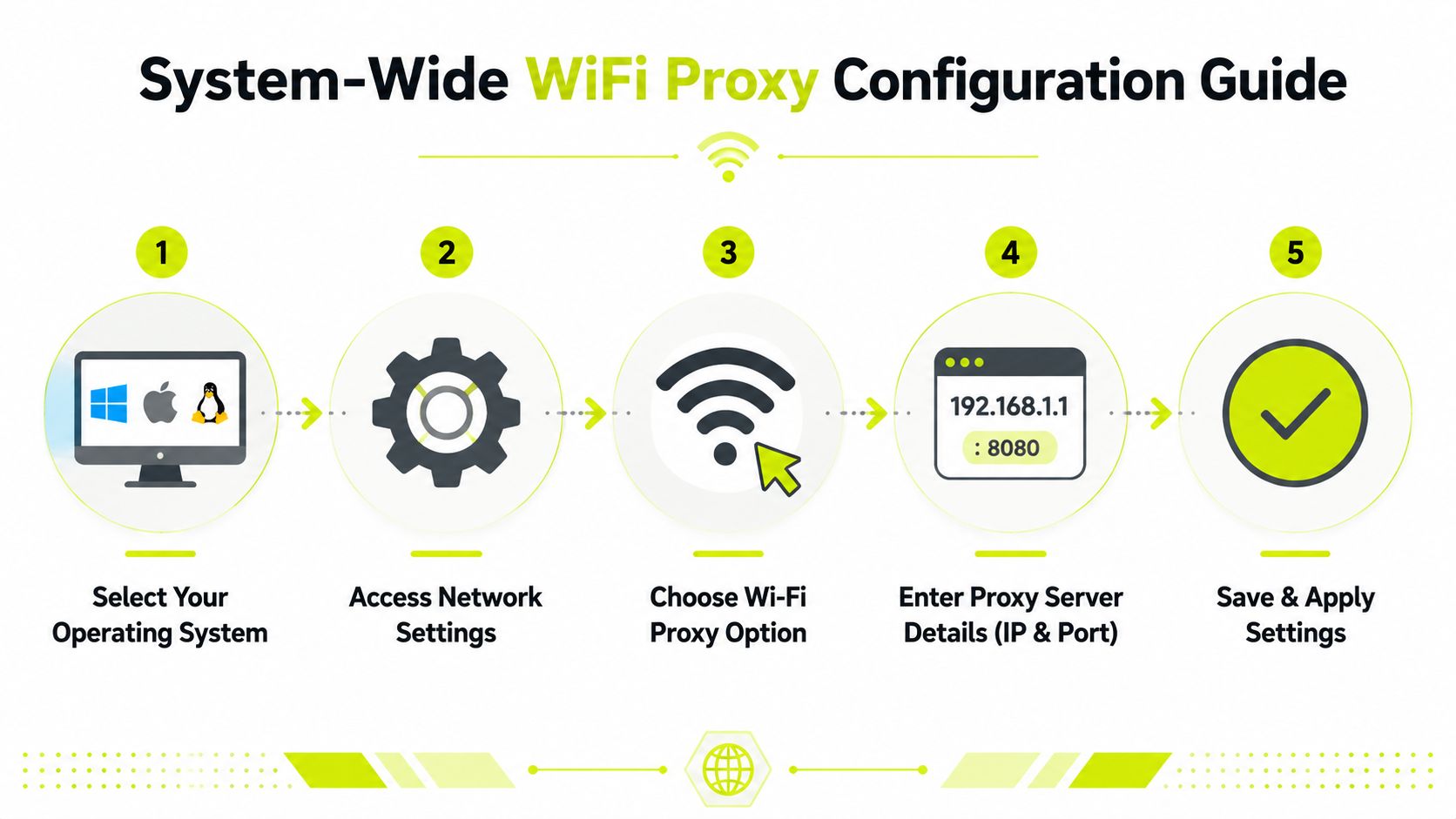
On Windows, Microsoft splits proxy setup into automatic proxy setup and manual proxy setup, with separate controls for server, port, bypass rules, and even distinct proxy behavior for VPN connections in Microsoft's Windows proxy documentation. That split is useful when your account machine uses one route on home wifi and another inside a VPN tunnel.
Windows
For most ad account and antidetect workflows, use manual proxy setup unless your team already maintains a PAC file.
- Open Settings
- Go to Network & Internet
- Open Proxy
- Under Manual proxy setup, enable the proxy option
- Enter your server and port
- Save
Example format
proxy provider host
proxy port
username and password if your provider requires authentication
Use the bypass option carefully. Windows lets you exclude local traffic so intranet resources don't get pushed through the proxy. That's useful on agency networks, but it can also create confusion if you don't remember what's excluded.
Use bypass rules when:
- You access local tools: NAS devices, printer panels, or internal dashboards don't need the proxy.
- You're inside a managed office: Internal domains often break if you force them through the external proxy.
- You're troubleshooting app behavior: Excluding local addresses helps isolate whether the failure is the proxy or the resource.
If you need iPhone-specific proxy basics later, keep this iPhone proxy walkthrough bookmarked for cross-device team onboarding.
A quick visual helps when you're deploying this on a fresh machine for the first time:
macOS
On macOS, go to:
- System Settings
- Wi-Fi
- Select the active network
- Open Details
- Find the Proxies section
- Choose the proxy protocol you need
- Enter host, port, and credentials if prompted
- Apply the changes
macOS is clean to work with, but operators forget one thing. Proxy settings are tied to the network service. If the machine moves between office wifi, hotspot, and travel router, check the active service each time.
Don't assume yesterday's wifi proxy settings are active on today's SSID.
iOS
For iPhone or iPad:
- Open Settings
- Tap Wi-Fi
- Tap the active network
- Scroll to Configure Proxy
- Choose Manual or Automatic
- Enter server and port, or the PAC URL if your team uses one
- Add authentication details if required
iOS is useful for ad verification, mobile landing page checks, and region checks for TikTok or Facebook placements. It's less forgiving when credentials are wrong. If auth fails, the phone often just behaves like the network is broken.
Android
Android varies by vendor, but the flow is usually close to this:
- Open Settings
- Go to Network & Internet or Connections
- Tap Wi-Fi
- Long-press or edit the active network
- Open Advanced options
- Set Proxy to Manual
- Enter the hostname and port
- Save
Android works well for mobile app checks and local feed review, but don't assume every app will respect the same proxy path. Some apps behave differently from browsers. That's normal. Test the exact app stack you plan to use.
Advanced Setup PAC Files and Router-Level Proxies
Single-device setup is fine until you're managing a small operator team, a home lab, a travel router, or a farm where each machine needs similar routing logic. That's where PAC files and router-level decisions start paying off.

Most generic guides stop at the phone or laptop. They don't answer the harder question of how to apply proxy logic to a shared environment. That gap is real. Practical documentation for router-level wifi proxying is scarce even though users keep asking for network-wide approaches, as described in this discussion of router-level Wi-Fi proxy gaps.
When PAC files make sense
A PAC file is just a rule set that tells the device when to use the proxy and when to go direct. It's useful when all traffic shouldn't follow the same route.
For example, a media buying team may want:
- Browser access to ad platforms through a proxy
- Local resources to stay direct
- Some support domains excluded to avoid breaking logins or file sync
- Travel laptops to load routing logic automatically
A basic PAC structure usually does three things:
- Sends specific domains through a proxy
- Leaves local or private destinations direct
- Falls back to direct access for everything else
That makes PAC files good for mixed environments where hard-forcing all traffic creates unnecessary breakage.
Operator note: PAC files are about precision, not stealth. Use them when you know which traffic needs control.
Router-level proxying for shared environments
Router-level proxying is the underserved topic because it sounds simple and often isn't. The idea is attractive. Configure one gateway and every connected device inherits the policy. That's appealing for browser farms, ad review stations, temporary project teams, and travel setups.
The trade-offs are real.
What works well
- Central control: You don't have to touch every laptop and phone.
- Cleaner onboarding: New devices join the network and pick up the shared path.
- Better consistency: Operators stop forgetting local machine settings.
What usually causes pain
- Router support varies: Many consumer routers don't expose the level of proxy control people expect.
- Troubleshooting gets harder: When traffic breaks, every device breaks at once.
- App behavior stays inconsistent: A router-level approach doesn't guarantee every app handles proxied traffic the same way.
For small teams, I usually prefer one of two models:
- Per-device explicit proxies when every operator runs a distinct identity set
- Router plus per-profile browser proxies when the network needs a controlled default path but each account cluster still needs its own IP
That second model is strong for account farming. The router or gateway handles the baseline environment. The antidetect profile handles the account-specific route.
Integrating Proxies with Antidetect Browsers and Managers
A media buyer logs into three Facebook profiles, two TikTok accounts, and a backup Gmail from the same laptop before lunch. If the browser profiles are isolated but the machine still sends support traffic through the office WiFi, that setup leaks fast. Antidetect browsers reduce one class of mistakes. WiFi proxy settings cover the traffic that happens outside the profile container.
AdsPower, GoLogin, Multilogin, Dolphin Anty, and Hidemyacc already give you per-profile proxy assignment. That should be the primary IP layer for account work. The WiFi or OS proxy should handle the surrounding traffic. That includes link opens outside the profile, file downloads, support tools, password managers, chat apps, and the random browser tab an operator forgets to close.
I train teams to separate control this way because it keeps identity logic clean.
- Assign the account IP inside the antidetect profile: Use this for ad accounts, seller accounts, warmed identities, and any login that needs a stable fingerprint plus a matching route.
- Set a system-level WiFi proxy for the machine itself: This catches background traffic and lowers the chance that non-profile activity goes out through the raw local connection.
- Add a shared network policy only if the operation needs it: Labs, shared farms, and review stations may need a default route at the gateway, but the profile should still own the account-specific IP.
That hierarchy matters in daily operations. If a profile gets disabled, you can swap only that proxy without touching the rest of the machine. If Slack, a cloud drive, or a creative upload tool starts failing, you can test the system proxy separately from the browser profile instead of tearing apart the whole stack.
A standard setup might look like this:
- One operator laptop
- Ten AdsPower profiles
- One sticky residential or mobile proxy per profile
- One stable system proxy for everything outside AdsPower
- No direct traffic from the local ISP during work sessions
That model is easier to audit, and it maps cleanly to handoffs between buyers, VAs, and account warmers. Teams running search and social under the same roof usually apply the same logic to proxy workflows for Google Ads, especially when account clusters need region consistency.
Where proxy managers fit
Proxy managers help once the account count is high enough that manual tracking starts causing mistakes. Their job is operational, not magical. They keep IP inventory organized, tie proxies to profile IDs, and speed up replacement when an endpoint goes bad.
The trade-offs are significant. A manager adds one more layer to maintain, and bad labeling inside the manager creates the same mess you were trying to fix. I only recommend one when the team is already losing time to spreadsheet tracking, duplicate assignments, or sloppy swaps.
What to look for:
- Clear naming rules: Profile ID, platform, geo, and owner should be visible at a glance.
- Quick replacement workflows: Dead proxies need a clean swap path without breaking session records.
- Sticky session handling: Some accounts need continuity for days or weeks, not constant rotation.
- Import support for antidetect tools: CSV or direct copy formats should match AdsPower, GoLogin, Dolphin Anty, or Multilogin fields.
- Notes and status tags: Good, warming, risky, retired, and banned are practical labels. Use terms the team will follow.
The operating rule is simple. Let the antidetect browser control account identity. Let WiFi proxy settings protect everything around it. That division prevents a lot of avoidable leaks in multi-account work.
Verification Troubleshooting and Performance Checks
A proxy that looks configured isn't the same as a proxy that's working. Bad setups don't always fail loudly. They fail sideways. An ad dashboard loads but uploads stall. The browser connects but a support app won't. The profile passes one check and misses another.
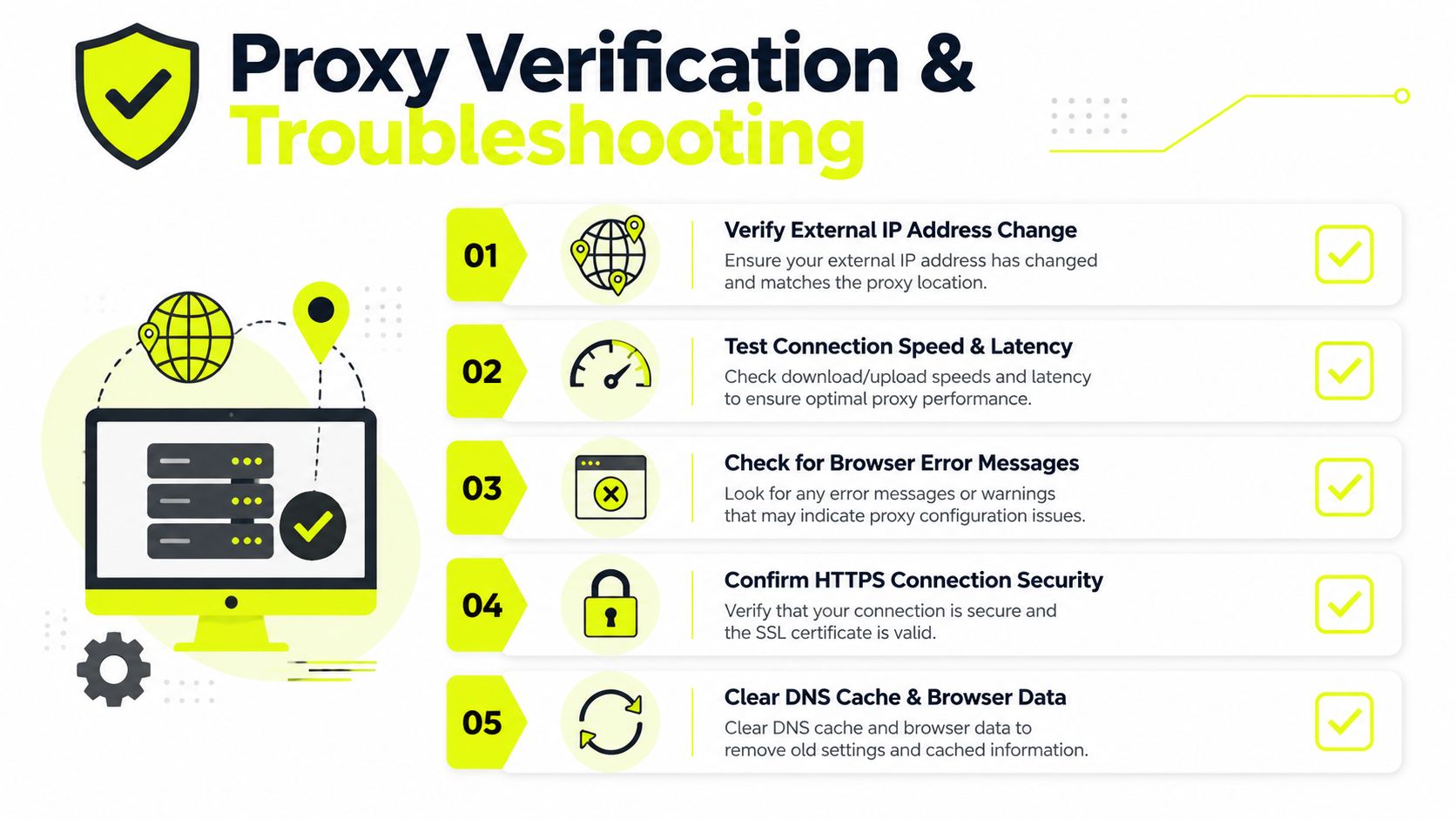
A live test after setup matters because proxy misconfigurations often show up as blocked service access or silent failures instead of obvious errors, which is why Visual Expert recommends a Test Connection step.
What to verify right after setup
Run a short checklist every time you change wifi proxy settings.
- Confirm the external IP changed: Check from the exact app or browser context you plan to use.
- Open the target platform: Don't stop at a generic IP checker. Load Facebook Ads Manager, TikTok Ads, your cloaker, or your landing page QA flow.
- Test login-dependent actions: Open account lists, upload a file, switch a profile, or preview a campaign.
- Check the active network: Many failures happen because the proxy was set on the wrong wifi profile or SSID.
A setup isn't finished when the field is filled. It's finished when the real task works.
What usually breaks
The common failure points are boring, which is good news because they're fixable.
| Problem | Likely Cause | Fast Check |
|---|---|---|
| No internet after save | Wrong host, port, or auth | Re-enter credentials carefully |
| Some apps work, others don't | App ignores system proxy | Test the exact app, not just the browser |
| Local tools stop opening | Missing bypass rule | Exclude local addresses if needed |
| Browser profile and system IP conflict | Layer mix-up | Decide which layer owns the route |
| Auth popups or access denial | Proxy authorization problem | Review 407 proxy authorization troubleshooting |
Performance checks matter too. Datacenter proxies often feel faster. Residential and mobile options often feel safer for platform trust. Your job is to decide which bottleneck is acceptable for the workflow in front of you.
A final reminder. A proxy and a VPN are not the same control layer. If you stack them, do it on purpose. Don't pile tools on the machine and hope they cooperate.
If you need proxy infrastructure for account management, geo-targeted campaigns, scraping, or automation, Sota Proxy is built for teams that need residential, mobile, ISP, datacenter, and IPv6 options in one place, with city-level targeting, flexible rotation, and support that can help when a deployment goes sideways.
Related articles
Multiple Account Management a Secure Scalable Framework
Build a secure, scalable multiple account management system. This guide covers threat modeling, proxies, antidetect browsers, and automation for media buyers.
Residential Backconnect Proxy: 2026 Guide & Best Practices
Master the residential backconnect proxy. A 2026 guide on how it works, its benefits over other proxies, and best practices for ad verification & account

Rotating Proxy Server: Mastering Techniques for 2026
Master rotating proxy servers for farming, ad verification & scraping. Learn architecture, rotation, & anti-detection tactics.
Dolphin Anty for Multi-Accounting: Features, Automation, and Proxy Integration
How to use Dolphin Anty for multi-accounting: browser profiles, Cookie Robot, scenarios, Synchronizer, API automation, and three ways to connect SotaProxy proxies. Promo code SOTA20 gives 20% off.

Fingerprint Spoofing: Methods, Detection, and Antidetect Use
Learn how fingerprint spoofing works, the methods used to bypass detection, and how antidetect browsers with proxies manage multi-account operations safely.
How to Avoid CAPTCHA on Automated Workflows
Learn how to avoid CAPTCHA on automated workflows with proxy tactics, antidetect browsers, request pacing, and solver fallbacks built for real operators.